

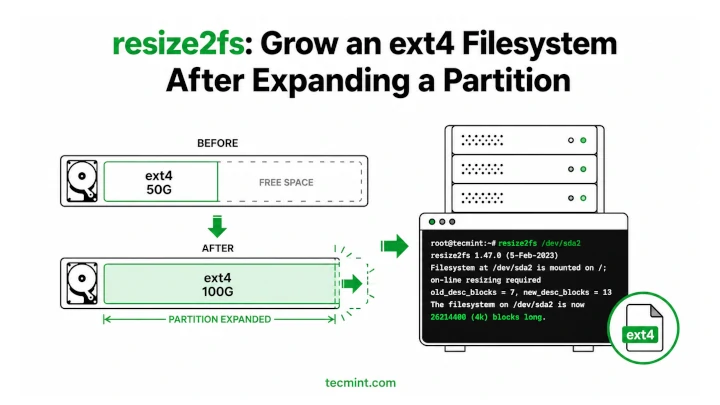
resize2fs is the tool that lets an ext4 filesystem use the extra space you’ve added to a partition. Without it, the partition may be larger, but the filesystem still sees the old size, so your available disk space won’t increase.
A common situation is extending a partition with fdisk or parted, then running df -h and noticing that the size hasn’t changed. That’s because only the partition was expanded, but the filesystem itself still needs to be resized. resize2fs takes care of that by expanding the ext4 filesystem to fill the newly available space.
In this guide, we’ll explain what resize2fs does, how to expand an ext4 filesystem after resizing a partition, and how to verify the change in Linux.
Why resize2fs Exists
When you resize a partition using fdisk, parted, growpart, or a cloud provider’s disk expansion tool, only the partition itself gets larger. The filesystem inside that partition is a separate layer and still thinks it’s the old size.
This happens because ext4 stores its size information in filesystem metadata, including the superblock. It doesn’t automatically detect that the underlying partition has grown.
That’s where resize2fs comes in. It updates the filesystem metadata so ext4 can use the newly available space. Once you run it, the filesystem expands to match the larger partition.
If you skip this step, the extra space remains unused. Even though the partition is bigger, commands like df -h will continue to show the old filesystem size because ext4 hasn’t been resized yet.
Think of it this way: expanding the partition gives you a larger room, but resize2fs is what removes the wall so the filesystem can actually use that extra space. Without it, the additional storage is there, but your system can’t access it.
Check Available Space Before Resizing
Before resizing anything, it’s a good idea to verify the current sizes of both the filesystem and the partition, which helps you confirm that the partition has already been expanded and that only the filesystem still needs to be resized.
First, check the filesystem size:
df -h /
Example output:
Filesystem      Size  Used Avail Use% Mounted on
/dev/sda1        20G   18G  1.5G  93% /
Next, check the actual partition size:
lsblk /dev/sda
Example output:
NAME   MAJ:MIN RM  SIZE RO TYPE MOUNTPOINT
sda      8:0    0   50G  0 disk
└─sda1   8:1    0   50G  0 part /
In this example, the partition (/dev/sda1) is already 50 GB, but the filesystem is still only 20 GB. The extra 30 GB exists on the partition but isn’t being used by the filesystem yet.
This is the situation where resize2fs is needed. It expands the ext4 filesystem so it can use all the space available in the larger partition.
You can also verify the filesystem type before proceeding:
df -Th /
Example output:
Filesystem     Type  Size  Used Avail Use% Mounted on
/dev/sda1      ext4   20G   18G  1.5G  93% /
If the filesystem type is ext4, you’re ready to resize it using resize2fs.
If the disk was recently extended on a cloud VPS (like DigitalOcean, Linode, or AWS), the OS might not have scanned the new disk size yet, so run:
echo 1 > /sys/class/block/sda/device/rescan
Resize the Filesystem to Use the New Space
Once you’ve confirmed that the partition has already been expanded, the next step is to resize the ext4 filesystem so it can use the extra space.
Run resize2fs against the partition:
sudo resize2fs /dev/sda1
Example output:
resize2fs 1.47.0 (5-Feb-2023)
Filesystem at /dev/sda1 is mounted at /; on-line resizing required
old_desc_blocks = 3, new_desc_blocks = 7
The filesystem on /dev/sda1 is now 13107200 (4k) blocks long.
The important part is the final line, which confirms that the filesystem has been expanded successfully. Since ext4 supports online resizing, the filesystem can often be grown while it’s mounted and actively in use.
After the resize completes, verify the new size:
df -h /dev/sda1
Example output:
Filesystem      Size  Used Avail Use% Mounted on
/dev/sda1        50G   18G   30G  38% /
The filesystem now matches the full size of the partition. In this example, the partition was expanded to 50 GB, and the filesystem can now use all of that space.
If you want a quick before-and-after check, compare the output of df -h before running resize2fs and after it finishes. The filesystem size should increase to match the partition size shown by lsblk. If it does, the resize was successful and the newly available space is ready to use.
Growing an Unmounted Filesystem (Offline Resize)
When resizing a mounted root filesystem, resize2fs can usually perform the operation online without any downtime. However, for unmounted partitions, it’s a good practice to run a filesystem check first.
Start by unmounting the partition:
sudo umount /dev/sdb1
Next, run a filesystem check with e2fsck:
sudo e2fsck -f /dev/sdb1
Example output:
e2fsck 1.47.0 (5-Feb-2023)
Pass 1: Checking inodes, blocks, and sizes
Pass 2: Checking directory structure
Pass 3: Checking directory connectivity
Pass 4: Checking reference counts
Pass 5: Checking group summary information
/dev/sdb1: 11/655360 files (0.0% non-contiguous), 66783/2621440 blocks
e2fsck checks the filesystem for inconsistencies and ensures everything is in a healthy state before resizing. If all five passes complete without errors, the filesystem is ready to be resized.
Now run resize2fs:
sudo resize2fs /dev/sdb1
Example output:
resize2fs 1.47.0 (5-Feb-2023)
Filesystem at /dev/sdb1 is now 5242880 (4k) blocks long.
Once the resize is complete, mount the partition again and verify the new size:
sudo mount /dev/sdb1 /mnt/data
df -h /dev/sdb1
The updated df -h output should show the larger filesystem size.
A common error you’ll see is:
Please run e2fsck -f /dev/sdXN first
This simply means resize2fs wants the filesystem to be checked before making changes, so run e2fsck -f on the unmounted partition, then execute resize2fs again.
As a general rule:
- Mounted ext4 filesystem:
resize2fscan usually grow it online. - Unmounted ext4 filesystem: Run
e2fsck -ffirst, then resize2fs. - Always verify the result with
df -hafter the resize completes.
Taking a minute to run e2fsck before an offline resize can help catch filesystem issues early and ensures the resize process goes smoothly.
If this saved you from a disk-full emergency at the wrong hour, who’s managing Linux servers. They’ll hit this exact situation eventually.
Growing a Filesystem on an LVM Logical Volume
If your filesystem is stored on an LVM logical volume rather than a standard partition, you’ll need to expand the logical volume first and then resize the filesystem.
To add 10 GB to the logical volume, run:
sudo lvextend -L +10G /dev/mapper/ubuntu--vg-ubuntu--lv
sudo resize2fs /dev/mapper/ubuntu--vg-ubuntu--lv
Here’s what the lvextend options mean:
-L +10Gadds 10 GB to the logical volume’s current size./dev/mapper/ubuntu--vg-ubuntu--lvis the path to the logical volume you want to expand.
Example output:
Size of logical volume ubuntu-vg/ubuntu-lv changed from 20.00 GiB to 30.00 GiB.
Logical volume ubuntu-vg/ubuntu-lv successfully resized.

resize2fs 1.47.0 (5-Feb-2023)
Filesystem at /dev/mapper/ubuntu--vg-ubuntu--lv is now 7864320 (4k) blocks long.
In this example, the logical volume grows from 20 GB to 30 GB, and resize2fs immediately expands the ext4 filesystem to use the newly available space.
You can verify the result with:
df -h
Or
lsblk
Both commands should show the larger filesystem size.
If you don’t want to specify an exact size and would rather use all free space available in the volume group, use:
sudo lvextend -l +100%FREE /dev/mapper/ubuntu--vg-ubuntu--lv
sudo resize2fs /dev/mapper/ubuntu--vg-ubuntu--lv
Here, -l +100%FREE tells LVM to allocate all remaining free extents in the volume group to the logical volume.
On many modern Linux distributions, you can even combine both steps into a single command:
sudo lvextend -r -L +10G /dev/mapper/ubuntu--vg-ubuntu--lv
The -r option automatically runs the appropriate filesystem resize tool after extending the logical volume, making the process faster and less error-prone. This is often the easiest approach when working with ext4 filesystems on LVM.
If this cleared up the partition-vs-filesystem confusion for you, who’s been wondering why df -h still shows the old size after a disk resize.
Conclusion
You now know why resize2fs is a separate step from resizing the partition itself. The filesystem and the partition are different layers, and each one needs to be told about changes to the other. For a mounted root partition, resize2fs handles it online. For unmounted partitions, run e2fsck -f first.
Try it on a test disk or a cloud VPS snapshot before doing it on a production system. Extend the disk by 5G in your provider’s console, then run through the full sequence: lsblk, resize2fs, df -h.
Ever hit a situation where the disk showed the right size but df still showed the old one? Drop a comment below and let me know what tool or step triggered it.
If this article helped, with someone on your team.
