

IPython’s %pip magic installs through the active kernel, which can use a different Python from your terminal. The terminal and kernel split leaves me wanting to check which Python ran the import.
Read the exception in the context of the Python running your code. Compare Python 3.14.7, which loaded openpyxl, with Python 3.11.16, where the import failed.
What the openpyxl ModuleNotFoundError means
openpyxl reads and writes Excel workbooks saved in Office Open XML formats, which store workbook data in XML-based files. Python raises ModuleNotFoundError when the active interpreter cannot locate an imported module, according to its import-system reference.
A package is installed into the Python environment that ran pip. A shell and an IDE can launch different interpreters, and a notebook kernel can launch another.
I ran the import in both environments and saw Python 3.14.7 load openpyxl 3.1.5 from the project environment. Python 3.11.16 raised ModuleNotFoundError because that environment lacked openpyxl.
| Where the code runs | Python environment to check |
|---|---|
| Terminal script | The executable that starts the script |
| IDE run button | The project interpreter selected in the IDE |
| Notebook cell | The notebook’s active kernel |
What you need before tracing the import
These commands use a Bash virtual environment named .venv from the project directory. If your project uses another environment, activate it first and run the same checks through its Python executable.
source .venv/bin/activate
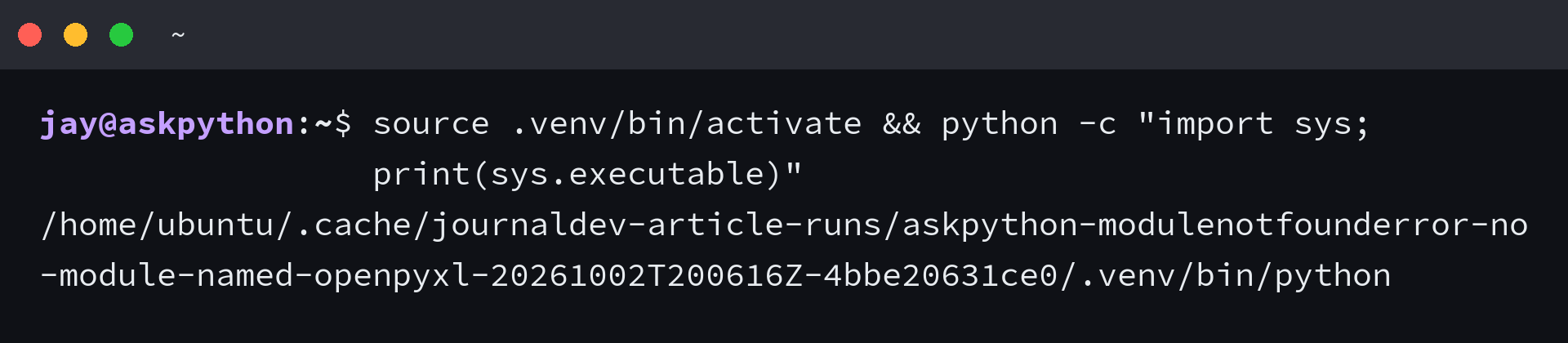
python -c "import sys; print(sys.executable)"
The printed path comes from sys.executable, which identifies the running interpreter. Keep that environment active for the install and import checks below.
Fix 1: Install openpyxl with the script’s Python
Run pip through the interpreter that will execute your script. The openpyxl installation instructions use pip in a virtual environment, and Python’s -m option runs pip through the selected Python.
Running pip as a Python module binds the install to that executable. A separate pip or pip3 command can target another Python, so use the terminal or environment selected for the actual run.
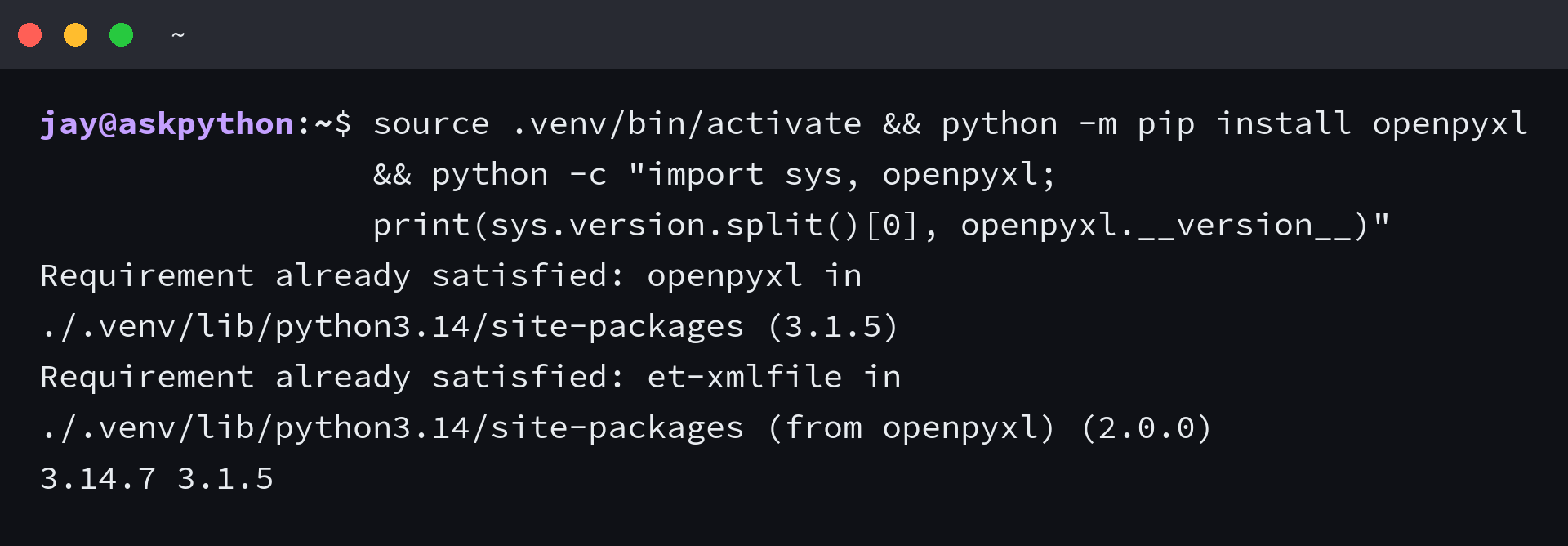
source .venv/bin/activate && python -m pip install openpyxl && python -c "import sys, openpyxl; print(sys.version.split()[0], openpyxl.__version__)"
The final command prints the Python interpreter version beside the imported openpyxl version, which ties package evidence to the executable. Its output was Python 3.14.7 and openpyxl 3.1.5 from .venv.
If you need to use a different Python executable, run that executable with -m pip install openpyxl. The interpreter path and the package location should point to the environment your script uses.
Fix 2: Install openpyxl in the notebook kernel
The %pip magic belongs in a notebook cell running an IPython kernel.
IPython’s %pip magic installs through the active kernel. Jupyter describes each kernel as a separate process, so the terminal Python can differ from the one running notebook cells.
I imported openpyxl 3.1.5 in IPython, and sys.executable printed the same .venv/bin/python path.
Fix 3: Select the Python that runs your project
An IDE starts the interpreter selected in its project settings. Print that executable in the IDE’s Python console.
import sys; print(sys.executable)
- Run the same executable check in the terminal where you launch the script.
- Compare the two printed paths.
- Select the intended project interpreter in the IDE, then install openpyxl from that environment.
The package panel can list openpyxl for a different interpreter from the one the run button launches.
Fix 4: Check the exact module name
pip and a Python import use the same lowercase name, openpyxl. Keep that spelling in the install command and import statement.
| Task | Name |
|---|---|
| Install with pip | openpyxl |
| Import in Python | openpyxl |
A traceback can name another module after the openpyxl import succeeds. Use that exact name to find the next missing dependency, then follow its documented install instructions.
A workbook tutorial such as using openpyxl in Python can help after the import works.
Verify the import with a workbook round trip
The round-trip command creates a workbook, writes a value into A1, then opens the saved file and reads that cell. It removes the temporary file after the value is printed.
source .venv/bin/activate && python -c "from pathlib import Path; from openpyxl import Workbook, load_workbook; p = Path('check.xlsx'); w = Workbook(); w.active['A1'] = 'loaded'; w.save(p); r = load_workbook(p, read_only=True, data_only=True); print(r.active['A1'].value); r.close(); p.unlink()"
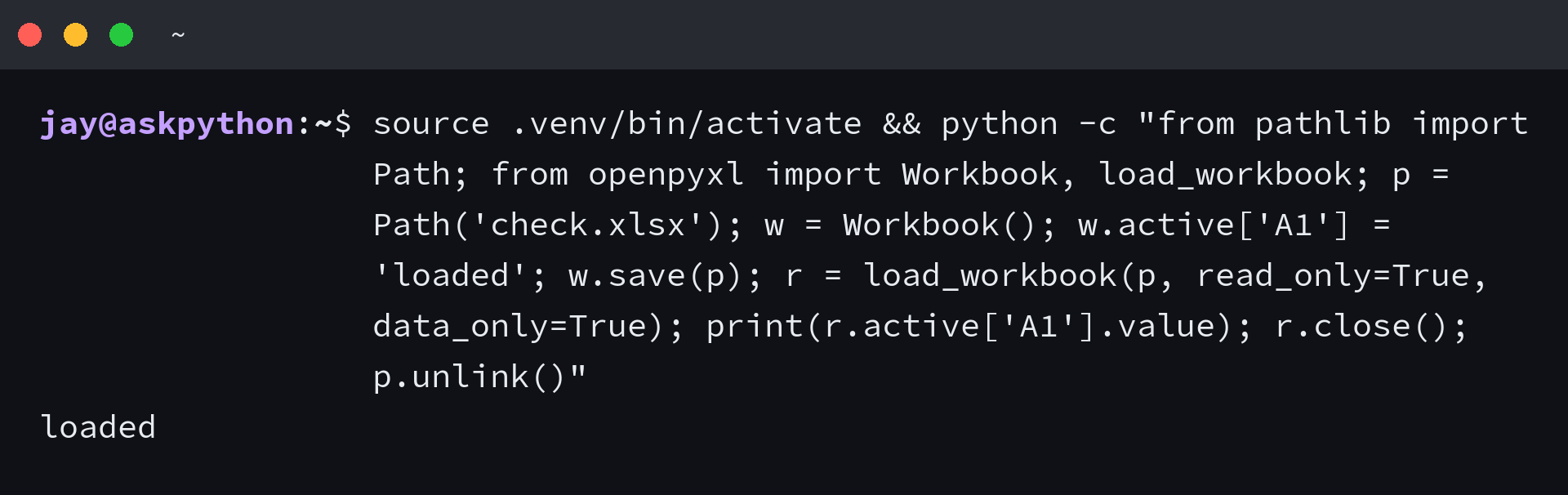
The output loaded confirms that the saved cell came back from disk. The sample uses Workbook to create the file and load_workbook to read it.
Keep installation and execution on one Python
A successful package install belongs to the Python that received it. Check pip’s location through the same activated environment before you launch the script:
source .venv/bin/activate && python -m pip --version
When Python, pip, and the code share one environment, the import has a clear place to find openpyxl.
openpyxl ModuleNotFoundError questions
Why does Python say openpyxl is missing after pip installed it?
The running script can use a different Python interpreter from the one that ran pip. Check sys.executable in the script environment, then install openpyxl through that Python with python -m pip install openpyxl.
How do I install openpyxl for a Jupyter notebook?
Run %pip install openpyxl in a cell using the notebook’s active IPython kernel. The kernel runs as its own process and can use a different Python environment from your terminal.
What name should I use to import openpyxl?
Use the lowercase name openpyxl in the import statement. The pip distribution and Python module use the same spelling.
