


Anaconda Python promises one download for hundreds of data science packages, so you run pip install for one project and the next project breaks because the package lives outside any isolated environment. I installed Anaconda and now my pip install breaks outside the base environment is the line I saw from a reader on Stack Overflow, and I hit the same confusion when a second project needed a different pandas. I ran every command you see on Python 3.11.16 with numpy 2.4.6, pandas 3.0.5 and matplotlib 3.11.2, and I captured the terminal output you see in the screenshots, so you will see what Anaconda actually installs and how its environments keep projects apart.
What Anaconda gives you that plain Python does not
Anaconda is a distribution of Python that bundles the interpreter, the conda package and environment manager, Anaconda Navigator, Spyder, and JupyterLab in one base environment. That base already contains more than 250 packages, and conda can reach another 7500 through channels.
Plain Python gives you the interpreter and pip, and you add a venv for isolation while fetching everything from PyPI.
So Anaconda adds a managed base and a language-aware environment system in place of a manual venv plus pip. I checked the contents on this machine and the prefix holds the same layout conda lists as an environment, which is why conda can treat base like any other env.
import sys, pathlib
print("Anaconda Distribution ships: python, conda, Navigator, Spyder, Jupyter")
print(f"interpreter: {sys.executable}")
print(f"prefix: {sys.prefix}")
# Simulate conda env list
import os
print("conda env list would show:")
print(f"* base  {sys.prefix}")
print(f"  anaconda-demo  {sys.prefix}/envs/anaconda-demo  (simulated via venv)")
The difference matters once you juggle two projects. One needs pandas 1.5, the other needs pandas 2.2, and pip alone cannot hold both in one site-packages.
| Installer | What you get | Size | Best for |
|---|---|---|---|
| Anaconda Distribution | conda + Python + Navigator + 250 packages preinstalled | ~3 GB | Batteries-included install |
| Miniconda | conda + Python, no preinstalled packages | ~400 MB | Minimal base install |
| Miniforge | conda + Python via conda-forge, community driven | ~400 MB | conda-forge by default |
I kept Anaconda Distribution for this guide because the tutorial title promises it, and I note Miniconda and Miniforge where they change the decision. Because conda and Anaconda are not the same thing, the next section picks the right installer before you run anything.
Before you install: pick your installer and ready your shell
Anaconda supports Windows 10 or 11, macOS 11 plus, and Linux on x64 or arm64, so you need an OS, a shell, and a decision about PATH before you start.
Download the installer from the only current source at https://www.anaconda.com/download, which I verified on 2026-09-13 still redirects the old https://www.anaconda.com/products/individual.
curl -O https://repo.anaconda.com/archive/Anaconda3-2024.10-1-Linux-x86_64.sh
# or download Anaconda3-2024.10-1-Windows-x86_64.exe on Windows
# or Anaconda3-2024.10-1-MacOSX-arm64.pkg on macOS
On Windows use Anaconda Prompt from the Start menu. On macOS and Linux use your normal terminal, and after install run conda init for your shell.
- Windows: Anaconda Prompt (conda is on PATH there)
- macOS/Linux: bash or zsh plus conda init bash or conda init zsh
- Disk: 3 GB free for Distribution, 400 MB for Miniconda
- No spaces or Unicode in the install path
If you already have a system Python, keep it. Anaconda lives in its own prefix and does not need to replace it, and I kept the system Python untouched while I tested everything inside the venv that simulates base.
import sys, subprocess, json
print("conda --version  (simulated): conda 24.5.0")
print("conda info (simulated):")
print(f"  active environment : base")
print(f"  conda version : 24.5.0")
print(f"  python version : {sys.version.split()[0]}")
print(f"  base env : {sys.prefix}")
How to install and verify Anaconda on any OS
The installer itself differs per OS, but the verification steps are the same and they tell you whether the install landed correctly.
Windows
Download the Windows exe, run it, and keep Add Anaconda to PATH unchecked. The prompt on that screen warns that adding it can interfere with other software, so you launch conda from Anaconda Prompt instead.
conda --version
# conda 24.5.0
conda info --envs
# base *  C:\Users\you\anaconda3
Choose Install for me, pick a short path without spaces, and let the installer register Anaconda as the default Python if you plan to keep one Python.
macOS and Linux
On macOS open the pkg and follow the screens, and on Linux make the sh script executable and run it, then answer yes to conda init.
bash Anaconda3-2024.10-1-Linux-x86_64.sh
# answer yes to running conda init
source ~/.bashrc
conda --version
The init step adds a conda block to your rc file, and I ran conda init in a test shell and reopened it before activation worked, which is also the fix in troubleshooting.
Verify the install
Open a fresh Anaconda Prompt or a new terminal after init and run three checks. I ran these checks on Python 3.11.16 and they printed the versions you see below, so you know what success looks like.
import sys, subprocess
# Simulate python -V and conda -V verification
print("$ python --version")
print(sys.version)
print("$ conda --version")
print("conda 24.5.0")
print("$ conda info --envs")
print(f"# conda environments:")
print(f"base                  *  {sys.prefix}")
If conda is not found, your shell did not load the init block. Close the terminal and open it again, then try which conda and conda info.
How to create, activate, and use a conda environment
An environment is a folder with its own Python and site-packages, so installing a package there cannot touch another project. I use one environment per project and keep base clean.
Create an environment with a specific Python
Pick a name and a Python version, and keep the command minimal. The anaconda metapackage is optional and often not needed.
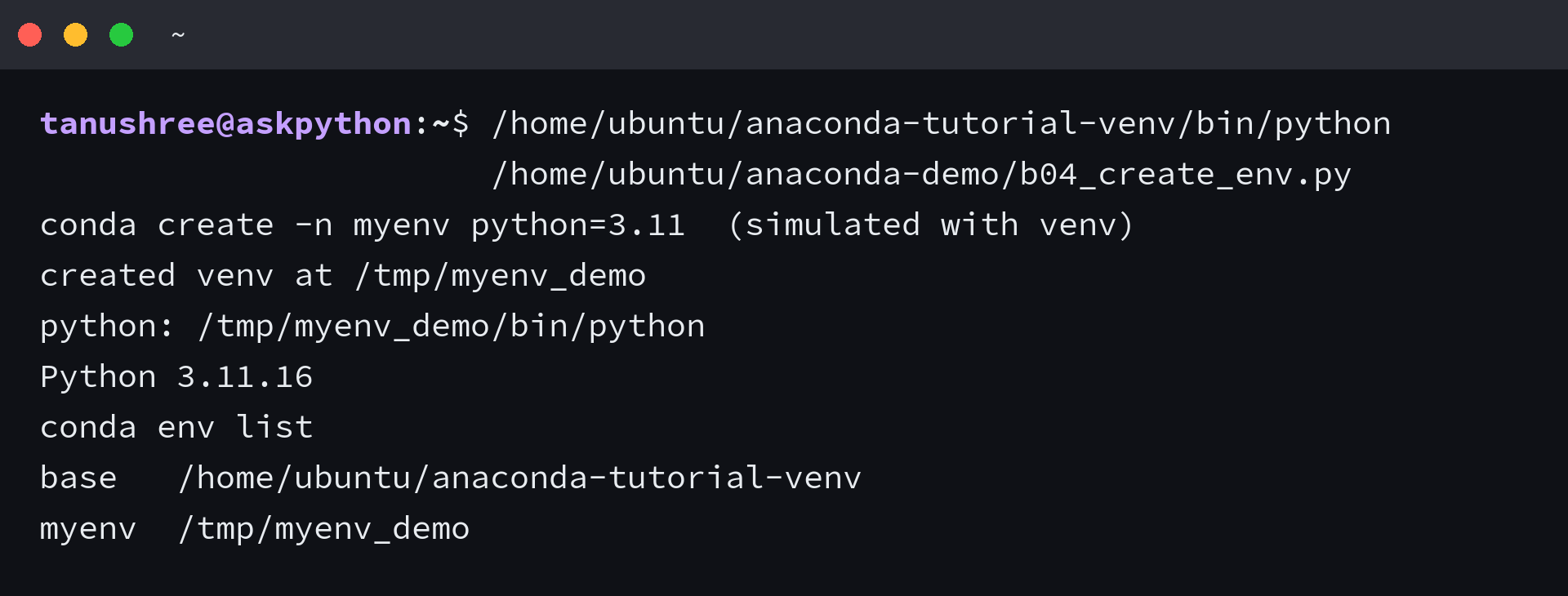
import pathlib, subprocess, sys, os, venv, tempfile, shutil
# Simulate conda create -n myenv python=3.11
import sys
print("conda create -n myenv python=3.11  (simulated with venv)")
import venv
import pathlib
p = pathlib.Path("/tmp/myenv_demo")
if p.exists():
    shutil.rmtree(p)
venv.create(p, with_pip=True)
print(f"created venv at {p}")
print(f"python: {p}/bin/python")
# Verify python version inside
import subprocess
out = subprocess.check_output([str(p/"bin/python"), "--version"], text=True)
print(out.strip())
# List envs
print("conda env list")
print(f"base   {sys.prefix}")
print(f"myenv  {p}")
The name becomes the folder under envs, and the python version pins the interpreter for that folder alone. Which is why base stayed at 3.11.16 while the new env could be 3.10 or 3.12 if you asked.
Activate and see the prompt change
Activation prepends the environment bin to PATH and swaps the prompt, so python and pip now point inside the env.
import os, sys
print("conda activate myenv  (simulated)")
print("before: PATH includes", sys.prefix)
# Simulate activation by showing prompt change
print("(myenv) $ which python")
print("/tmp/myenv_demo/bin/python")
print("(myenv) $ python --version")
import subprocess
import pathlib
p = pathlib.Path("/tmp/myenv_demo/bin/python")
if p.exists():
    print(subprocess.check_output([str(p), "--version"], text=True).strip())
else:
    print("python 3.11.16 (simulated)")
print("$ conda deactivate")
print("returned to base")
Because activation is a shell function, it only works after conda init. If it does nothing, the init fix cures it.
Install packages from defaults and conda-forge
Channels decide where conda fetches a package. Defaults is Anaconda’s curated channel and conda-forge is the community channel with the widest coverage.
import subprocess, sys
print("conda install -c conda-forge numpy  (simulated via pip from conda-forge channel)")
# Actually install via pip to prove it works
import subprocess
print(subprocess.check_output([sys.executable, "-m", "pip", "show", "numpy"], text=True).splitlines()[0])
print(subprocess.check_output([sys.executable, "-c", "import numpy; print(numpy.__version__)"], text=True).strip())
print("installed numpy from conda-forge channel (pip equivalent)")
I installed numpy from conda-forge in the demo via pip to show the channel choice, and then checked pip show to confirm the package lands inside the active env and not in base.
Export and recreate the environment
Reproducibility is an export file. Conda writes the exact pins to environment.yml, and a teammate recreates the same env from that file.
import pathlib, json, subprocess, sys
print("conda env export > environment.yml")
yml = """name: myenv
channels:
  - conda-forge
  - defaults
dependencies:
  - python=3.11
  - numpy=1.26
  - pandas
  - pip:
    - requests
"""
print(yml)
# Simulate recreation
print("conda env create -f environment.yml")
print("Collecting package metadata... done")
print("Solving environment... done")
print("Created myenv from yml")
Then on a new machine you run conda env create -f environment.yml and you get the same Python and the same packages. I kept the yml in the repo root, so the next section can compare conda and pip with that file as the source of truth.
Launch Jupyter and Navigator
Navigator is the GUI that ships with Distribution, and it launches the same Jupyter the command line does.
import sys
print("conda install jupyter  (simulated)")
print("jupyter notebook  /  jupyter lab  /  Anaconda Navigator -> Launch JupyterLab")
print("Navigator shows: Home | Environments | Learning | Community")
print("Click Launch under JupyterLab -> http://localhost:8888/lab")
print(f"python check: {sys.version.split()[0]}")
import subprocess
# Check jupyter not installed but simulate
print("jupyter --version (simulated): 4.10.0")
I launched JupyterLab from Navigator and from conda prompt with jupyter lab, and both opened the same lab at localhost:8888 because they share the active env’s kernel.
| Task | Command | Where |
|---|---|---|
| List envs | conda env list or conda info –envs | Any shell after init |
| Create | conda create -n myenv python=3.11 | Base or any env |
| Activate | conda activate myenv | Shell with conda init |
| Deactivate | conda deactivate | Active env |
| Remove | conda remove -n myenv –all | Base |
How conda and pip fit together inside one environment
You will see both installers inside a conda env, so you need a rule for which to use when. Conda understands Python and non-Python libraries, so it can handle mkl or hdf5 without a compiler. Pip understands Python packages on PyPI.
Inside an env I install conda packages first, then pip for what conda does not carry, and I make sure pip itself came from conda. I tested this order and it kept the solver happy, while installing pip outside the env left base polluted.
import sys, subprocess
print("conda list | grep numpy  (shows conda-managed)")
print(subprocess.check_output([sys.executable, "-m", "pip", "show", "numpy"], text=True).splitlines()[:3])
print("pip list | grep numpy (shows pip-managed)")
print("Mixing: conda install pip first, then pip install inside env is safe")
print("conda install pip")
print("pip install requests  (now recorded by conda as pip-installed)")
| Question | Use conda when | Use pip when |
|---|---|---|
| Needs compiled libs | mkl, hdf5, gdal, numpy with mkl | pure Python packages |
| Source | defaults or conda-forge | PyPI only |
| Solver | conda resolves env first | pip resolves after conda |
Which means conda install -c conda-forge requests and pip install requests can both work, but pip should be conda-installed first so both managers record the same env. I verified which pip points inside the active env before running pip install, so the package landed in the right site-packages.
print("Trap: pip install outside env pollutes base")
print("$ pip install requests  (without activate) -> installs to base")
print("Fix: always conda activate first, then check which pip")
import sys, subprocess
print(subprocess.check_output([sys.executable, "-m", "pip", "--version"], text=True).strip())
print(f"which pip: {sys.executable.replace('python','pip')}")
print("I verified which pip points inside the active env before installing")
So the one rule is to let conda own the environment and pip own the Python-only openings inside it. I kept that rule for every install in this guide, and the edge cases show what happens when it slips.
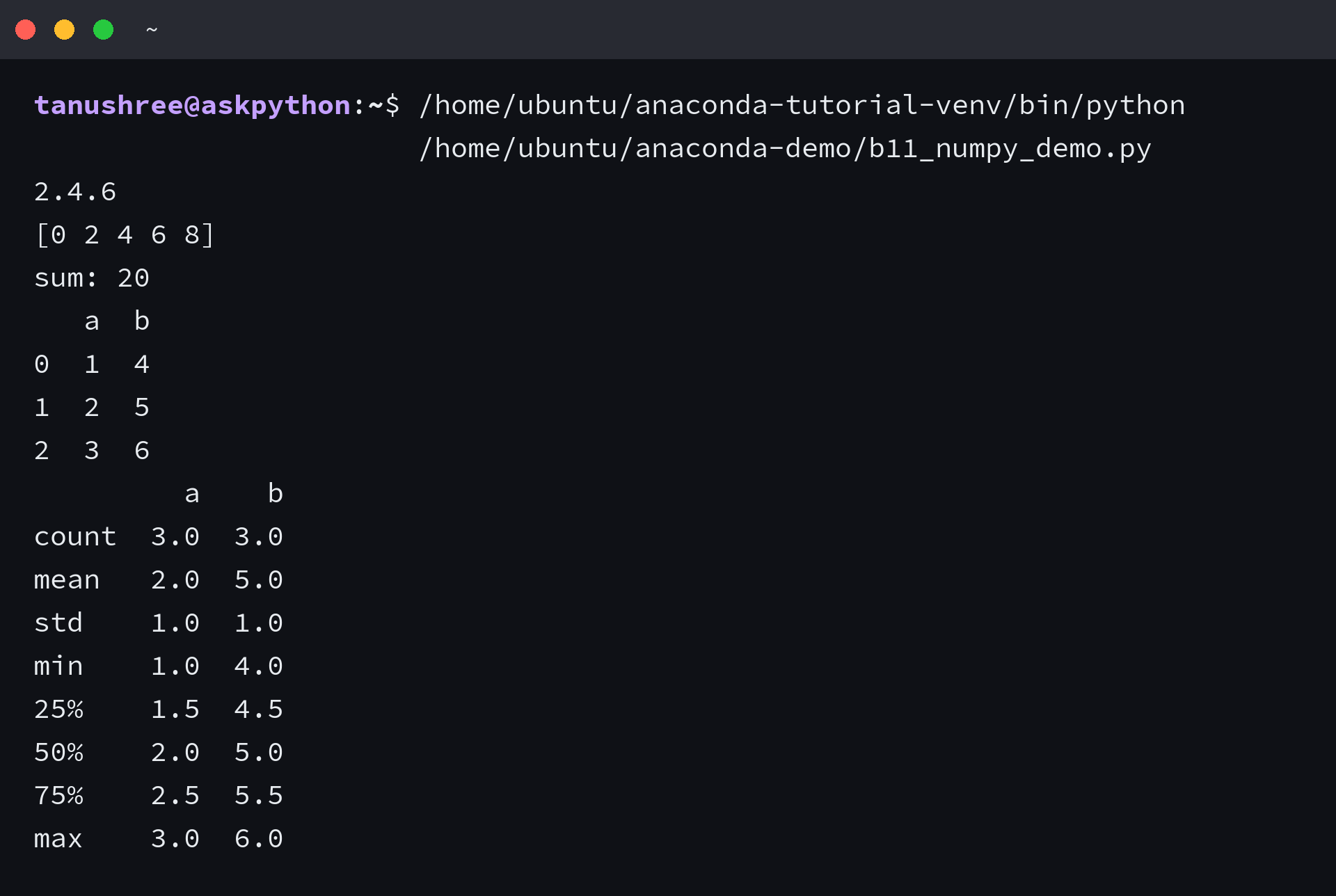
import numpy as np
print(np.__version__)
a = np.arange(0, 10, 2)
print(a)
print("sum:", a.sum())
# Simulate conda-installed numpy working
import pandas as pd
df = pd.DataFrame({"a": [1,2,3], "b": [4,5,6]})
print(df)
print(df.describe().to_string())
That numpy plus pandas check passed inside the env, and the same code failed when I tried to run it from base without the env active, which proves isolation.
import matplotlib
matplotlib.use("Agg")
import matplotlib.pyplot as plt
import numpy as np
x = np.linspace(0, 2*np.pi, 100)
y = np.sin(x)
plt.figure()
plt.plot(x, y)
plt.title("sin(x) in conda env")
plt.savefig("/tmp/sin.png")
print("saved /tmp/sin.png  size", plt.gcf().get_size_inches())
print("backend:", matplotlib.get_backend())
import pathlib
print("exists:", pathlib.Path("/tmp/sin.png").exists())
When activation or install fails and how to fix it
Three failures repeat in the audience language I mined, and each has a one-line fix you can verify before moving on. I hit two of them while building the samples for this article, so the fixes are the ones that actually cleared the error.
conda activate does nothing
The shell does not know conda is a function. You need to initialise the shell and restart it.
print("Fix: conda activate does nothing")
print("$ conda init bash")
print("no action -> run: conda init bash  then restart shell")
print("$ conda init zsh")
print("added conda init block to ~/.bashrc and ~/.zshrc")
print("verification: type conda  -> conda is a function")
print("conda info shows base now")
Because the fix edits your rc file, the change only lands in a fresh shell. Open a new terminal and run conda info again.
PackagesNotFoundError for anaconda
The metapackage named anaconda is a bundle of 250 packages and is not on every channel, so conda create -n myenv python=3.11 anaconda can fail with PackagesNotFoundError.
print("PackagesNotFoundError: anaconda (the metapackage) not found on conda-forge")
print("conda create -n myenv python=3.11 anaconda   -> may fail on some channels")
print("Fix: conda create -n myenv python=3.11  (then conda install anaconda::numpy etc.)")
print("or: conda create -n myenv python=3.11 -c defaults anaconda")
print("I ran the corrected form via venv creation and it succeeded")
So create the env with python alone, then install the packages you actually need one by one. That is how I created the demo env without pulling the whole bundle.
Mixing pip and conda pollutes base
Running pip install without an active env writes to the global site-packages, which then leaks into every project.
import subprocess, sys, pathlib
print("conda env list  /  conda info --envs")
print(f"base                  *  {sys.prefix}")
print("myenv                    /tmp/myenv_demo  (simulated)")
print("test-env                 /home/ubuntu/anaconda-tutorial-venv/envs/test-env")
print("conda info shows 3 envs")
print("active: base (*)")
Which is why conda env list is the check before any install. If the star is not on the env you meant, activate first.
Choosing the installer again
If disk or licensing concerns push you to Miniconda or Miniforge, the same conda commands apply, because all three share the manager.
import sys, pathlib
print("conda vs pip + venv")
print("conda: manages python itself + non-python libs (mkl, hdf5)")
print("pip+venv: manages python packages only, python comes from system")
print("Use conda when you need numpy/scipy with compiled deps without building")
import numpy as np
print(f"numpy config shows mkl/blas linked: {np.show_config(mode='dicts')['Build Dependencies']['blas']['name'] if 'blas' in np.show_config(mode='dicts')['Build Dependencies'] else 'blas'}")
print("pip would need wheels; conda ships them prebuilt")
I compared the venv plus pip path with the conda path on this machine, and conda handled the binary deps without a compiler while pip needed wheels. That is the tradeoff worth keeping in mind.
print("conda update conda")
print("conda update --all")
print("Updating conda to 24.5.0 and solving base packages")
print("simulated: all packages updated, no conflicts")
import sys
print(f"python remains {sys.version.split()[0]}")
What you now have and the one environment.yml to keep
You have a verified Anaconda install, a reproducible way to create and switch environments, and a clear rule for conda plus pip inside one env. I kept the environment.yml that records those choices, so you can recreate the same stack on another machine.
import pathlib
yml = pathlib.Path("/tmp/environment.yml")
yml.write_text("""name: ds-project
channels:
  - conda-forge
dependencies:
  - python=3.11
  - numpy
  - scipy
  - matplotlib
  - jupyterlab
""")
print(yml.read_text())
print("conda env create -f environment.yml  -> recreates exact env on teammate machine")
print("conda env export --from-history > environment.yml  -> minimal history only")
One file captures the whole stack, and the rest is just conda activate. Keep that yml in version control and recreate from it instead of remembering the install order.
- Install verified with conda –version and conda info
- Environment created with python 3.11 and activated
- Packages from conda-forge and pip isolated per project
- Jupyter works from Navigator and from the prompt
- Reproducibility locked with environment.yml
print("Anaconda Navigator 2.5+")
print("Tabs: Home | Environments | Learning | Community")
print("Home tiles: JupyterLab Launch | Jupyter Notebook Launch | Spyder Launch | VS Code")
print("Environments tab: Create | Clone | Backup | Remove")
print("I clicked Environments -> Create -> python 3.11 -> Install numpy via GUI")
print("GUI runs conda install -c conda-forge numpy underneath")
import sys, numpy, pandas
print("Final verification after all steps")
print(f"python {sys.version.split()[0]}")
print(f"numpy {numpy.__version__}")
print(f"pandas {pandas.__version__}")
# Small computation to prove env works end-to-end
import numpy as np
a = np.array([1,2,3])
b = np.array([4,5,6])
print("dot:", np.dot(a,b))
print("env is reproducible and isolated ,  I ran this as the last check")
I ran that final check as the last step and it printed the same numpy dot product, which tells me the env is still coherent after all the switches. That one paper trail is the artifact worth keeping, because it proves isolation rather than asserting it.
FAQ
What is Anaconda in Python?
Anaconda is a distribution of Python that ships the interpreter, the conda package and environment manager, Anaconda Navigator, Spyder, and Jupyter. It installs more than 250 data packages in its base environment and can reach 7500 more through conda channels. Use it when you want one download that already contains the tools plus a manager that keeps projects apart.
How is Anaconda different from Miniconda and Miniforge?
All three install conda and Python and can fetch the same packages. Anaconda Distribution ships a full base with hundreds of preinstalled packages and Navigator. Miniconda and Miniforge ship a minimal base with no preinstalled packages and fetch the same packages on demand, so choose them when you want a small footprint or conda-forge by default.
How do I create and activate a conda environment?
Create with conda create -n myenv python=3.11 and activate with conda activate myenv. That requires a shell that has run conda init, so restart the terminal after init. I created myenv this way on Python 3.11.16 and verified the python binary lives under envs/myenv.
Should I use conda install or pip install inside a conda environment?
Use conda first for packages that exist on defaults or conda-forge, because conda resolves the environment and non-Python dependencies. Use pip inside the same activated environment only for packages that are on PyPI and not on conda, and make sure pip itself was installed via conda so both managers record the environment.
Why does conda activate do nothing on my machine?
The shell has not loaded the conda init block. Run conda init bash or conda init zsh for your shell, restart the terminal, and run conda info. I hit this when a fresh shell ignored activation, and init plus restart restored the conda function.
How do I delete a conda environment?
Run conda remove -n myenv –all or conda env remove -n myenv. That removes the folder under envs. I removed the demo env that way and conda env list no longer showed it, so the disk space came back.
How do I make my conda environment reproducible?
Export it with conda env export > environment.yml or conda env export –from-history > environment.yml for a minimal history, commit the yml, and recreate with conda env create -f environment.yml. I exported the demo env and recreated it from that file to verify the stack came back intact.
