

My first Tkinter label refused to update no matter how many times I reassigned the string I had passed it. Regular Python strings are copied into a widget once, at creation, and never read again.
StringVar is Tkinter’s fix. Bind one to a widget through textvariable and every set() call redraws the widget instantly, while its trace method runs your callback the moment the value changes.
TLDR
- StringVar holds a string value and can be linked to a widget so the display updates automatically when the variable changes.
- Create it with tk.StringVar(master, value), set it with .set(), and read it with .get().
- Pass a StringVar to the textvariable parameter of any widget that supports it, like Label or Entry.
- Use .trace(mode, callback) with mode ‘w’ to run a function whenever the variable is modified.
What is StringVar?
The mechanics take one line each. Create a StringVar, link it through textvariable, and the widget mirrors every value change with no update logic on your side.
You can create a StringVar without arguments, or pass in a master window and an initial value. If you skip the master, Tkinter defaults to the root window. Here is the minimal version:
import tkinter as tk

root = tk.Tk()
my_var = tk.StringVar()  # empty string by default
Defining a StringVar with Parameters
The StringVar constructor accepts a few arguments that control its initial state and name:
- master: the window the variable belongs to. If you omit it, Tkinter uses the root window.
- value: the initial string value. Defaults to an empty string.
- name: a name for the variable. Tkinter generates one like PY_VAR1 if you leave it blank.
Here is a complete example showing all three parameters:
import tkinter as tk

root = tk.Tk()
root.geometry("200x100")

# Set an initial value and give it a name
greeting = tk.StringVar(root, "Hello!", "greeting_var")

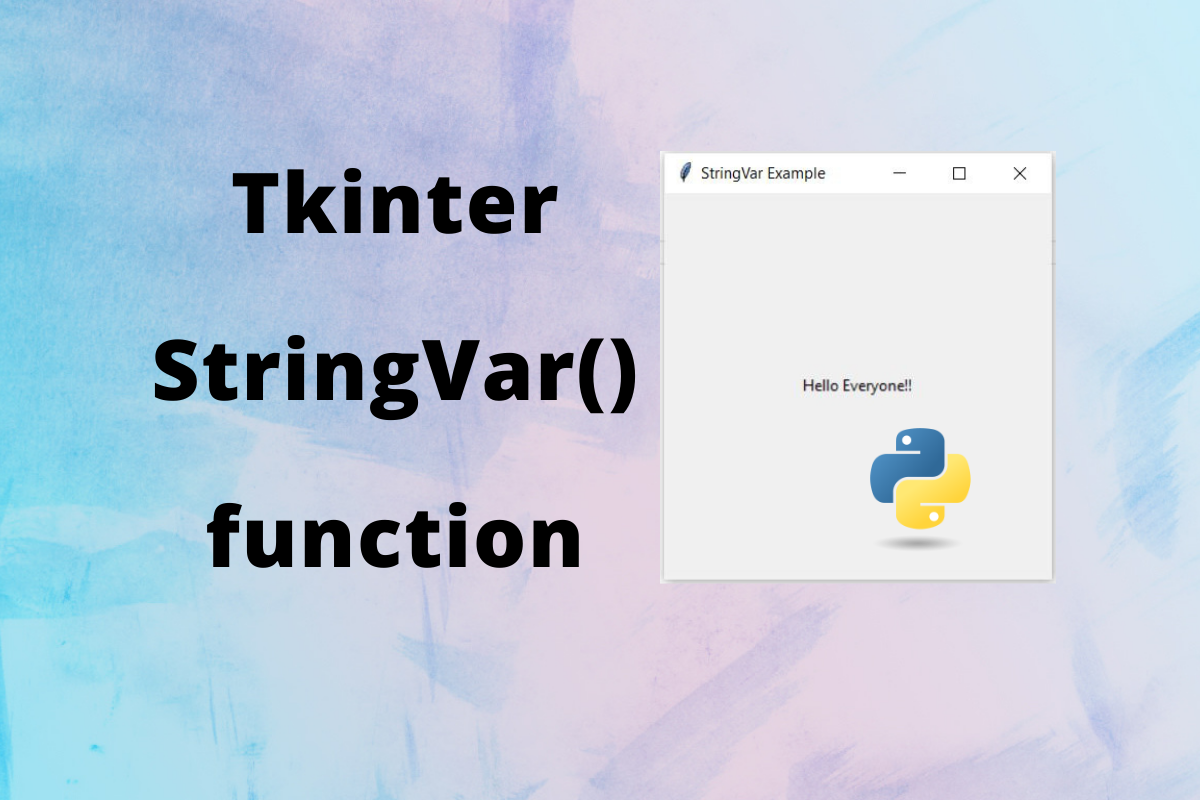
label = tk.Label(root, textvariable=greeting, height=4)
label.pack()

root.mainloop()
Setting and Getting Values
There are two ways to set the value of a StringVar. The first is to pass it through the constructor, which I showed above. The second is to use the .set() method after creation:
name = tk.StringVar(root)
name.set("Alice")
print(name.get())  # Alice
The .get() method retrieves the current value as a plain Python string. You can call it any time you need the value in your code, whether or not the variable is linked to a widget.
Linking StringVar to Entry Widgets
One of the most common patterns is connecting a StringVar to an Entry widget. Whatever the user types into the entry field gets stored in the variable automatically, and any code that reads the variable sees the latest input without you having to poll the widget:
import tkinter as tk

def show_input():
    print(entry_var.get())

root = tk.Tk()
root.geometry("300x100")

entry_var = tk.StringVar()

entry = tk.Entry(root, textvariable=entry_var, width=30)
entry.pack(pady=10)

btn = tk.Button(root, text="Print value", command=show_input)
btn.pack()

root.mainloop()
Run this and type something into the entry field. When you click the button, it prints exactly what is currently in the field. No extra polling or event handling needed.
Watching Changes with trace()
The trace() method registers a callback that fires whenever the variable is read, written, or deleted. The mode is a one-letter string, ‘w’ for write, ‘r’ for read, ‘u’ for unset.
Most of the time you want ‘w’ so your callback runs on every value change.
import tkinter as tk

def on_name_change(*args):
    current = name_var.get()
    result_label.config(text=f"Hello, {current}" if current else "Enter your name")

root = tk.Tk()
root.geometry("300x120")
root.title("Greeting App")

name_var = tk.StringVar()
name_var.trace("w", on_name_change)

tk.Label(root, text="Name:").grid(row=0, column=0, padx=5, pady=5)
tk.Entry(root, textvariable=name_var).grid(row=0, column=1, padx=5, pady=5)
result_label = tk.Label(root, text="Enter your name", fg="gray")
result_label.grid(row=1, column=0, columnspan=2, pady=5)

root.mainloop()
The callback receives any extra arguments Tkinter passes in, which is why *args appears in the signature. The trace callback fires synchronously every time the variable changes, whether that happens through user input in an Entry widget or through an explicit call to .set() in your code.
FAQ
Can I use StringVar with widgets other than Entry and Label?
Any widget that has a textvariable parameter works with StringVar. That includes Button, Checkbutton, Radiobutton, and Message. For widgets without a textvariable parameter, update the display manually using .config(text=…).
Should I use a plain Python variable instead of StringVar?
Use a plain Python variable when you never link it to a widget and when you do not need to react to changes. Use StringVar when you need two-way binding between a widget and a variable, or when you want trace callbacks to fire on changes. For simple cases where you set a label once and never update it, a plain variable is less overhead.
What happens if I pass a StringVar to two widgets?
Both widgets display the same value, and both update whenever the variable changes. This is useful for things like a header label and a status bar that always show the same message.
Can I store non-string values in a StringVar?
You can pass an integer or float and Tkinter converts it to a string automatically. However, .get() always returns a string, so for numeric work you need to convert back with int() or float(). If you do that often, use IntVar or DoubleVar instead.
How do I trigger code when StringVar changes?
Call .trace(‘w’, callback) on the variable. The callback receives three arguments (name, index, mode) which is why *args appears in most examples. The callback runs synchronously whenever .set() is called or the linked widget is edited.
