

Learn how to use systemctl with the --failed flag to instantly spot broken services on your Linux system, without scrolling through hundreds of healthy ones.
A server starts acting up, something is clearly wrong, but systemctl status dumps a wall of text that tells you nothing useful. You scroll, you squint, you give up and open the logs.
The faster move is to ask systemd one simple question, which services actually failed, and let it answer in two lines instead of two hundred.
Every command below was tested on Ubuntu and Rocky Linux, and the behavior is identical on any modern Linux distribution running systemd version 230 or later.
Before we go further, systemd is the init system that boots your machine and manages every background service on it, and systemctl is the command you use to talk to systemd from the terminal.
What systemctl list-units –failed Actually Does
The systemctl list-units command lists every active unit systemd is currently tracking, where a unit is just systemd’s word for a thing it manages, like a service, a mount point, or a timer.
By default, the list is long and noisy because it includes everything that is running fine. The --failed flag filters that list down to only units in the failed state, which means a service that tried to start or stay running and could not.
This is the first command most experienced sysadmins run when a server misbehaves, because it answers the question “what is broken right now” in one shot.
It does not tell you why something failed, and it does not fix anything on its own, but it points you at the exact service name you need to investigate next. Think of it as a triage tool, not a diagnosis tool.
The command takes no arguments in its simplest form, you just type it and read the output.
systemctl list-units --failed
Output:
UNIT                 LOAD   ACTIVE SUB    DESCRIPTION
● nginx.service        loaded failed failed A high performance web server
● mysql.service        loaded failed failed MySQL Community Server

LOAD   = Reflects whether the unit definition was properly loaded.
ACTIVE = The high-level unit activation state, i.e. generalization of SUB.
SUB    = The low-level unit activation state, values depend on unit type.

2 loaded units listed.
Two services failed, nginx and mysql, and the red dot at the start of each line is systemd’s way of flagging them visually. If the output says “0 loaded units listed” you are in the clear, nothing is broken.
If you see Permission denied, you forgot the sudo prefix, the sudo command runs whatever follows with root privileges, which systemd needs to read the full unit state.
Filter Failed Services Only with systemctl
By default --failed includes every unit type, sockets, timers, mounts, and services all mixed together. When you only care about services, which is usually the case during an outage, add the --type=service filter.
sudo systemctl list-units --failed --type=service
Output:
UNIT            LOAD   ACTIVE SUB    DESCRIPTION
● nginx.service   loaded failed failed A high performance web server

1 loaded units listed.
Now the output is limited to failed services, which is almost always what you want during a live incident. The common beginner mistake here is typing --type=services with an s at the end, which throws an “Invalid unit type” error, the correct value is singular.
Find Why Services Failed in Linux
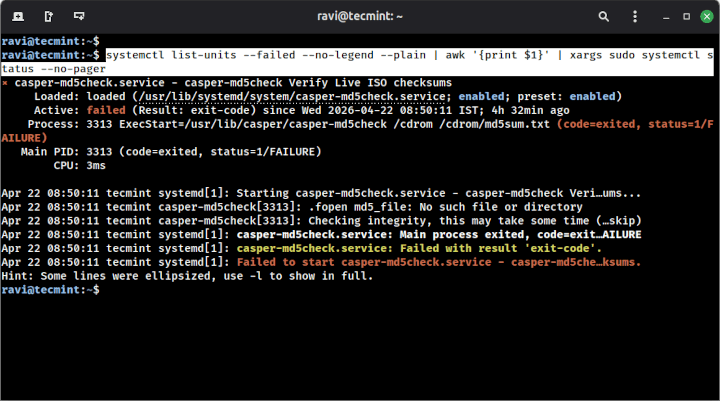
Once you have the list of failed services, the next step is asking why each one failed. You can grab a name from the list and run systemctl status on it directly, or you can let xargs do the work and fetch the status of every failed service in one shot.
The xargs command takes input from the left side of a pipe and turns it into arguments for the command on the right, which is exactly what you need when the list of failed services is dynamic.
sudo systemctl status nginx.service
Output:
× nginx.service - A high performance web server
     Loaded: loaded (/lib/systemd/system/nginx.service; enabled; preset: enabled)
     Active: failed (Result: exit-code) since Wed 2026-04-22 09:14:22 UTC; 3min ago
    Process: 4821 ExecStartPre=/usr/sbin/nginx -t -q (code=exited, status=1/FAILURE)

Apr 22 09:14:22 web01 nginx[4821]: nginx: [emerg] bind() to 0.0.0.0:80 failed (98: Address already in use)
The last log line is the real answer, port 80 is already bound by another process, and that is why nginx could not start. If the status output truncates the log line, add --no-pager -l to force the full text, where -l prevents ellipsis and --no-pager skips the less viewer that swallows the tail of the output.
When more than one service has failed and you want the status of every one in a single run, chain list-units into xargs and let it feed the names to systemctl status.
Each part of the pipeline has a specific job:
systemctl list-units --failed --no-legend --plainprints only the failed unit names and strips headers and dots.awk '{print $1}'pulls out just the first column, which is the unit name.xargs sudo systemctl status --no-pagerfeeds those names as arguments tosystemctl statusin one call.
systemctl list-units --failed --no-legend --plain | awk '{print $1}' | xargs sudo systemctl status --no-pager
Output:
× nginx.service - A high performance web server
     Loaded: loaded (/lib/systemd/system/nginx.service; enabled; preset: enabled)
     Active: failed (Result: exit-code) since Wed 2026-04-22 09:14:22 UTC; 3min ago
    Process: 4821 ExecStartPre=/usr/sbin/nginx -t -q (code=exited, status=1/FAILURE)
     Apr 22 09:14:22 web01 nginx[4821]: nginx: [emerg] bind() to 0.0.0.0:80 failed

× mysql.service - MySQL Community Server
     Loaded: loaded (/lib/systemd/system/mysql.service; enabled; preset: enabled)
     Active: failed (Result: exit-code) since Wed 2026-04-22 09:15:01 UTC; 2min ago
    Process: 4902 ExecStart=/usr/sbin/mysqld (code=exited, status=1/FAILURE)
     Apr 22 09:15:01 web01 mysqld[4902]: [ERROR] Could not open file '/var/log/mysql/error.log'
Both failed services report in sequence, port conflict on nginx and a log file permission issue on mysql, which is enough context to split the fix work between two team members without re-running anything.
The common beginner mistake is leaving off --no-pager, which makes xargs hand control to less for each service and forces you to press q between every one, turning a one-shot command into an annoying interactive loop.
Count Failed Services in Linux
For health checks and monitoring scripts, you want a number you can compare against zero, not a human-readable table. Use the --no-legend flag to strip the header and footer, then pipe to wc -l to count the remaining lines.
systemctl list-units --failedlists failed units with a full header and footer.--no-legendremoves the column header and summary line.--plaindrops the colored status dot so the output is script-safe.wc -lcounts the remaining lines, one per failed unit.
systemctl list-units --failed --no-legend --plain | wc -l
Output:
2
Two failed units, which you can then alert on from cron, a monitoring agent, or a shell script. The common beginner mistake is forgetting --plain and counting the colored dot as part of the line, which still works for wc -l but breaks if you later try to parse unit names with awk.
Show All Failed Services in Linux
By default, list-units only shows units systemd is actively tracking, which excludes services that failed so hard they were unloaded. Add --all to include them, and pair it with --state=failed for the same filter behavior.
sudo systemctl list-units --all --state=failed
Output:
UNIT                    LOAD   ACTIVE   SUB    DESCRIPTION
● nginx.service           loaded failed   failed A high performance web server
● mysql.service           loaded failed   failed MySQL Community Server
● apt-daily-upgrade.timer loaded inactive dead   Daily apt upgrade activities
The --all brings in units that are loaded but inactive, which sometimes hides a stuck timer or a socket that quietly stopped firing. The common beginner mistake is confusing --state=failed with --failed, they do the same thing in this case, but --state= accepts many other values like active, inactive, and activating, so it is the more flexible option once you get comfortable.
systemctl Useful Flags Worth Remembering
A few flags come up often enough that they are worth keeping in muscle memory for the next outage.
--no-pagersends output straight to the terminal without piping throughless.--no-legendstrips the header and footer for clean script parsing.--plainremoves the status dot for ASCII-only output.--type=servicefilters to services and ignores timers, sockets, and mounts.--state=failedexplicit version of--failed, works alongside--all.
Conclusion
You now know how to ask systemd the one question that matters during an outage, which services are actually broken, and you can narrow that answer down to services only, count failures in a script, and pull the full failure reason with status.
The --failed flag is the single fastest way to triage a sick server, and combining it with --no-legend and --plain makes it safe to drop into any monitoring script without post-processing surprises.
Try it right now on your own machine, open a terminal and run:
systemctl list-units --failed
then if nothing is failing, break a service on purpose with:
sudo systemctl stop nginx && sudo systemctl start broken-unit-name
and run the command again to see the output change in real time. Doing this once on a test box turns the command from something you read about into something your hands remember.
Have you used systemctl --failed to catch a production outage before your monitoring did? What was the trickiest failure you traced with it? Tell us in the comments below.
