

pd.read_csv turns CSV rows into a DataFrame and infers a type for each column. I checked the output against product codes 00123 and 00042, and the default read returned 123 and 42.
I ran the file with dtype={“sku”: “str”} and got 00123 back in pandas 3.0.6. A successful read can still change what a field means, so check the parsed values before using the DataFrame.
What pandas read_csv does to a CSV
pandas.read_csv() reads delimited text and returns a DataFrame, a table with labeled columns and rows. It treats the first line as column names by default and uses commas to separate fields. The parser infers column types from the values it reads, and empty fields usually become missing values.
Type inference is useful for counts and prices, but a numeric-looking SKU, postal code, or account number is a label. Pandas can return a valid table while dropping leading zeroes, so check parsed values before using the DataFrame.
| CSV default | What pandas does |
|---|---|
| Header | Uses the first row as column names |
| Separator | Splits fields at commas |
| Types and blanks | Infers column types and treats empty fields as missing values |
What you need before reading a CSV
Install pandas in the Python environment that will run your script. Keep the CSV in a known location, then pass its path to the reader. A relative path is resolved from the process’s current working directory, which may differ from the directory containing your script.
python -m pip install pandas
If Python reports FileNotFoundError, inspect the path and the process’s working directory before changing parser options. A pathlib.Path works too, and an absolute path removes ambiguity when the file lives elsewhere.
Read a CSV into a DataFrame
Save this small example as sales.csv. It includes a code with leading zeroes and a blank stock value, so the parsed table makes type inference visible.
sku,fruit,quantity,price,ordered_at,stock
00123,pear,4,1.25,2026-09-23,10
00042,plum,2,2.50,2026-09-24,
00900,peach,8,1.75,2026-09-25,3
Load the file and inspect its columns
With the default header, pandas uses the first line as column names. Read the file, then inspect a few rows and the inferred types.
from pathlib import Path
import pandas as pd

path = Path(__file__).with_name("sales.csv")
plain = pd.read_csv(path)
print("Default read:")
print(plain.to_string(index=False))
print("columns:", list(plain.columns))
print("dtypes:", plain.dtypes.astype(str).to_dict())
print("missing stock values:", int(plain["stock"].isna().sum()))

kept_ids = pd.read_csv(path, dtype={"sku": "str"})
print("IDs preserved:", kept_ids["sku"].tolist())

selected = pd.read_csv(path, usecols=["fruit", "quantity"])
print("selected columns:", list(selected.columns))

with_dates = pd.read_csv(path, parse_dates=["ordered_at"], date_format="%Y-%m-%d")
print("date dtype:", with_dates["ordered_at"].dtype)
print("first date:", with_dates.loc[0, "ordered_at"].date())

first_two_rows = pd.read_csv(path, nrows=2)
print("nrows shape:", first_two_rows.shape)

for chunk in pd.read_csv(path, chunksize=2):
    print("chunk rows:", len(chunk))
Save the program as read_csv_examples.py beside sales.csv. This run prints the default DataFrame, its columns and types, the preserved codes, and date, row-limit, and chunk results.
python3 read_csv_examples.py
The output below shows why the code column needs an explicit string dtype. The blank stock cell becomes missing data, and the date option returns a datetime column.
Read a file without a header
When the first line contains data rather than labels, pass header=None and supply one name for each field. Otherwise, pandas will treat the first record as column names and remove it from the data.
df = pd.read_csv(
    "headerless.csv",
    header=None,
    names=["sku", "fruit", "quantity"],
    dtype={"sku": "str"},
)
I passed header=None on a headerless fixture and kept 00123 in its first record. The example program writes that fixture and reads it with the string dtype set.
Set the separator and select columns
For a file that uses a pipe between fields, set sep=”|”. The default comma parser would treat each line as one field. To keep only selected fields from a comma-separated file, pass their names to usecols.
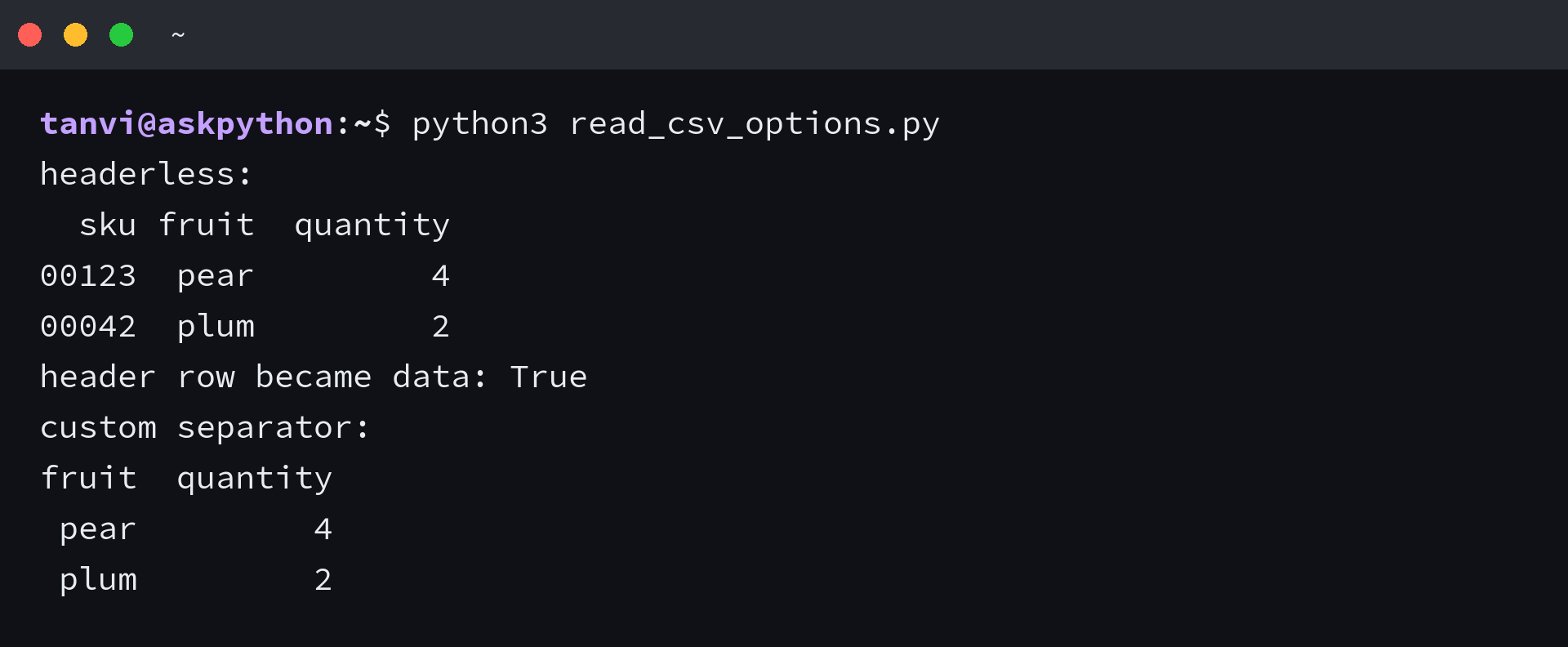
Save the following as read_csv_options.py. It creates a headerless file and a pipe-delimited file, then prints the parsed rows.
from pathlib import Path
import pandas as pd

base = Path(__file__).parent
headerless = base / "headerless.csv"
headerless.write_text("00123,pear,4\n00042,plum,2\n", encoding="utf-8")
print("headerless:")
records = pd.read_csv(headerless, header=None, names=["sku", "fruit", "quantity"], dtype={"sku": "str"})
print(records.to_string(index=False))
print("header row became data:", records.iloc[0, 0] == "00123")

pipe = base / "sales-pipe.csv"
pipe.write_text("fruit|quantity\npear|4\nplum|2\n", encoding="utf-8")
print("custom separator:")
print(pd.read_csv(pipe, sep="|").to_string(index=False))
python3 read_csv_options.py
Preserve identifiers and parse dates
Tell pandas which columns are identifiers when numeric-looking values must stay unchanged. A string dtype keeps leading zeroes and avoids treating an identifier as a quantity.
df = pd.read_csv("sales.csv", dtype={"sku": "str"})

dates = pd.read_csv(
    "sales.csv",
    parse_dates=["ordered_at"],
    date_format="%Y-%m-%d",
)
I confirmed that parse_dates produced a datetime64[us] column for the ISO dates in this file. Use na_values for a custom missing marker such as unknown.
Check keep_default_na before replacing the default markers because that setting can make blank fields ordinary strings. For inconsistent dates, read the values first, then convert them with pandas.to_datetime() and inspect conversion failures.
Choose a sample or process large files in chunks
nrows reads a limited number of records, which is useful for inspecting a file. skiprows skips physical source lines, including the header if you name that line. For a file too large to hold as one DataFrame, use chunksize to get an iterator and process each chunk before reading the next one.
sample = pd.read_csv("sales.csv", nrows=2)

for chunk in pd.read_csv("sales.csv", chunksize=100_000):
    print(chunk.head(2))
chunksize changes the return type to a TextFileReader, so handle each chunk inside the loop rather than expecting a complete DataFrame. The parser’s low_memory option does not make the final result incremental. When the full table is too large for memory, chunk processing is the boundary that changes the approach.
When pandas reads the wrong columns
Use the symptom in the parsed table to choose what to inspect:
- Unexpected columns or an extra index: inspect the separator and quoted commas. If each record ends with a delimiter, repair the source or test index_col=False to diagnose an inferred index.
- FileNotFoundError: check the process working directory and the file path.
- UnicodeDecodeError: pass the file’s actual encoding, such as encoding=”utf-8″. A separator setting will not fix decoding.
For a header or separator question, see the AskPython guides to reading CSV headers and custom delimiters. The pandas.read_csv reference documents the full parameter set and parser behavior.
Check the DataFrame before using it
Compare the parsed table with the source file before calculations or joins. Check the columns, row count, identifier values, and missing fields. A returned DataFrame confirms that the parser accepted the input, not that its inferred types match the meaning of every field.
print(df.shape)
print(df.dtypes)
print(df.isna().sum())
For this sample, keep sku as a string so 00123 stays an identifier. Check the parsed columns and missing values before joining or calculating.
Questions about reading CSV files into pandas
How do I read a CSV file into a pandas DataFrame?
Call pandas.read_csv() with the file path, for example df = pd.read_csv(“sales.csv”). By default, pandas uses the first row as column names and commas as separators.
How do I keep leading zeroes in a CSV column?
Set the column’s dtype to a string when you call read_csv(), such as dtype={“sku”: “str”}. This keeps an identifier like 00123 from being inferred as the integer 123.
How do I read a CSV that uses a different delimiter?
Set sep to the delimiter used by the file. For a pipe-delimited file, use pd.read_csv(“sales-pipe.csv”, sep=”|”).
How can I read a large CSV without loading it all at once?
Pass chunksize to read_csv(), then process each DataFrame yielded by the returned TextFileReader iterator.
