

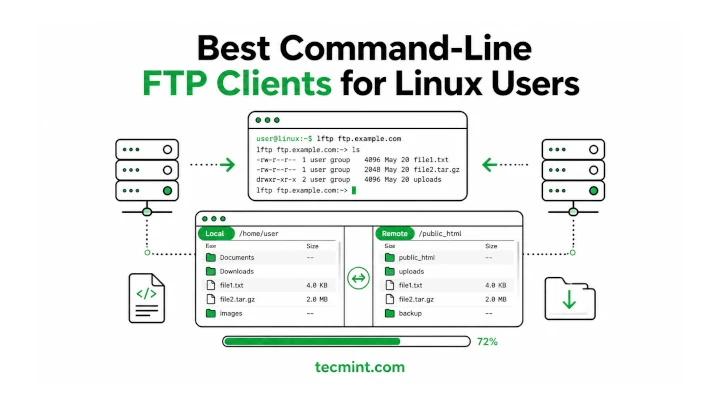
Most Linux guides still recommend the same FTP clients they listed years ago, even though some of those projects are no longer maintained. If you install one of them today, you may end up dealing with bugs, compatibility issues, or missing features instead of simply transferring files.
FTP (File Transfer Protocol) is a standard network protocol used to transfer files between a client and a server over a network.
FTP clients were originally command-line tools, long before graphical file managers became common. Even today, many developers continue to maintain command-line FTP clients because they’re fast, lightweight, and easy to use in scripts or scheduled tasks.
For many Linux system administrators, typing a command is often quicker and more practical than using a graphical file manager.
This list focuses on FTP clients that are still actively maintained and practical to use today. It leaves out outdated tools that haven’t been updated in years and includes reliable options that many Linux users and system administrators continue to use for everyday file transfers.
1. FTP
Every major Linux distribution includes a basic command-line FTP client that you can start by running the ftp command in the terminal.
It lets you connect to an FTP server either anonymously (if the server allows it) or by using a username and password. Once connected, you can browse directories, upload and download files, create directories, rename or delete files, and automate routine transfers with scripts.
Keep in mind that FTP is not a secure protocol. Usernames, passwords, and file data are sent over the network in plain text, which means they can be intercepted.
If you need to transfer sensitive files, use SFTP (SSH File Transfer Protocol) or SCP (Secure Copy) instead, as both encrypt your data during transmission.
2. LFTP
LFTP is a free, open-source command-line file transfer client that supports multiple protocols, including FTP, FTPS, SFTP, HTTP, HTTPS, FISH, and even BitTorrent. It is actively maintained and is one of the most powerful file transfer tools available for Linux.
Compared to the basic ftp client, LFTP offers many advanced features, such as bookmarks, background job control, command history, directory synchronization with the mirror command, and parallel file transfers.
These features make it a popular choice for system administrators and developers who regularly transfer large numbers of files or automate file transfers.
You can install LFTP from the default package repositories on most Linux distributions:
$ sudo apt install lftp         # Debian, Ubuntu, Linux Mint
$ sudo dnf install lftp         # RHEL, CentOS Stream, Fedora, Rocky Linux, AlmaLinux
$ sudo emerge -a sys-apps/lftp  # Gentoo
$ sudo apk add lftp             # Alpine Linux
$ sudo pacman -S lftp           # Arch Linux
$ sudo zypper install lftp      # openSUSE
One of LFTP’s most useful features is the mirror command, which can upload or download an entire directory while keeping both locations synchronized. This is especially useful for backups, website deployments, or automated build pipelines.
For example, the following command uploads a local firmware directory to an FTP server and exits automatically when the transfer is complete:
$ lftp -u builduser,'' -e "mirror -R /build/output/firmware /incoming/firmware; quit" ftp.internal.example.com
Here’s what each part does:
-u builduser,''logs in as the builduser account. The empty quotes indicate an empty password.-e "..."runs the specified commands immediately after connecting and then exits.mirror -Ruploads (reverse mirrors) the local/build/output/firmwaredirectory to the remote/incoming/firmwaredirectory.quitcloses the connection after the transfer finishes.
This ability to automate directory synchronization is one of the main reasons LFTP is widely used for scripts, scheduled tasks, and production deployments.
3. NcFTP
NcFTP is a free command-line FTP client that was first released in 1991 as an improved alternative to the standard Unix ftp program. Despite its long history, it is still actively maintained, with version 3.3.0 released in 2025.
It includes several features that make working with FTP more convenient, such as automatic reconnects, background file transfers, resumed downloads, filename auto-completion, progress indicators, and a command history.
It also comes with companion utilities like ncftpput and ncftpget, which are useful for automating uploads and downloads in shell scripts.
You can install NcFTP from the default package repositories on most Linux distributions:
$ sudo apt install ncftp         # Debian, Ubuntu, Linux Mint
$ sudo dnf install ncftp         # RHEL, CentOS Stream, Fedora, Rocky Linux, AlmaLinux
$ sudo emerge -a sys-apps/ncftp  # Gentoo
$ sudo apk add ncftp             # Alpine Linux
$ sudo pacman -S ncftp           # Arch Linux
$ sudo zypper install ncftp      # openSUSE
If you need a lightweight FTP client with a familiar command-line interface and a few extra productivity features over the standard ftp command, NcFTP is still a solid choice, especially for interactive sessions and simple automation tasks.
4. cbftp
cbftp is an advanced command-line FTP/FXP client designed to manage file transfers across multiple FTP servers. It runs in the terminal using an ncurses-based interface, giving you a text-based menu system that’s easier to navigate than a traditional command-line prompt.
It includes advanced features such as an integrated file viewer with support for multiple text encodings, skip lists to ignore specific files or directories, remote UDP commands for transfer automation, and AES-256 encryption to protect its local data file.
Unlike the other FTP clients in this list, cbftp is not usually available in the default package repositories. You can build it from the source code hosted on GitHub:
$ git clone https://github.com/cbftp/cbftp-svn.git
$ cd cbftp-svn
$ make
$ sudo mv bin/cbftp /usr/local/bin/
While cbftp is a powerful tool, it’s designed for advanced users who need to manage multiple FTP servers and automate complex transfer workflows. For everyday FTP uploads and downloads, tools like LFTP or NcFTP are generally a better fit.
5. tnftp
tnftp is an enhanced version of the traditional BSD FTP client. It is the default FTP client on NetBSD, FreeBSD, OpenBSD, and Darwin (macOS), and it continues to be actively maintained.
Compared to the standard ftp client, tnftp adds several usability improvements, including server-side tab completion, better handling of multiple source files during transfers, and a number of bug fixes and performance improvements.
If you’re familiar with the traditional ftp command, you’ll find tnftp works in much the same way while offering a smoother experience.
On Debian and Ubuntu, you can install it directly from the default repositories:
$ sudo apt install tnftp # Debian and Ubuntu
If your Linux distribution doesn’t provide a package, you can build tnftp from the source code available from the NetBSD project. If you prefer the classic ftp command but want a more capable and actively maintained implementation, tnftp is an excellent alternative.
6. curl
curl comes preinstalled on most Linux distributions and is best known as a tool for working with HTTP and HTTPS. However, it also supports FTP and FTPS, making it a convenient option for simple file transfers.
If you only need to upload or download a file from a script or the command line, curl is often easier than starting an interactive FTP session. This makes it a popular choice for automation, backups, and scheduled tasks.
For example, the following command uploads a file to an FTP server:
$ curl -u username:password -T backup.tar.gz ftp://ftp.example.com/uploads/
Here’s what each option does:
-u username:passwordsends your FTP username and password for authentication.-T backup.tar.gzuploads the local file named backup.tar.gz.ftp://ftp.example.com/uploads/specifies the destination directory on the FTP server.
Most Linux distributions already include curl. If it’s not installed, you can install it using your distribution’s package manager:
If your goal is to perform quick FTP transfers from the command line or automate them in shell scripts, curl is one of the simplest and most reliable tools available.
7. rclone
rclone is a command-line tool primarily designed for syncing files with cloud storage services, but it also supports FTP, SFTP, WebDAV, and many other storage backends.
This makes it a great choice when you need to transfer files between an FTP server and another storage service, such as Amazon S3, Google Drive, or even another FTP server.
It includes useful features such as checksum verification, bandwidth limiting, resumable transfers, and directory synchronization. Its sync command copies only new or changed files, helping reduce transfer time and bandwidth usage.
Before using an FTP server with rclone, you’ll need to create a remote by running the interactive configuration wizard:
$ rclone config
Once the remote is configured (for example, with the name mysite), you can synchronize a local directory to the FTP server:
$ rclone sync /var/www/html mysite:public_html --progress
In this example:
synccopies the contents of the local /var/www/html directory to the remote public_html directory.mysiteis the name of the FTP remote you created with rclone config.--progressdisplays the transfer progress while files are being copied.
You can install rclone from your distribution’s package repositories:
$ sudo apt install rclone      # Debian, Ubuntu, Linux Mint
$ sudo dnf install rclone      # RHEL, CentOS Stream, Fedora, Rocky Linux, AlmaLinux
$ sudo pacman -S rclone        # Arch Linux
Or install the latest version using the official installation script:
$ curl https://rclone.org/install.sh | sudo bash
If you regularly sync files between FTP servers, cloud storage services, or local directories, rclone is one of the most flexible and feature-rich tools available.
8. aria2
aria2 is a lightweight command-line download utility that supports HTTP, HTTPS, FTP, SFTP, BitTorrent, and Metalink. One of its biggest advantages is the ability to split a file into multiple segments and download them simultaneously, which can significantly improve download speeds when the server supports multiple connections.
If you’re downloading large ISO images, backups, or datasets from an FTP server, aria2 is often a better choice than a basic FTP client because it can make full use of your available bandwidth.
For example, the following command downloads an ISO image using eight parallel connections:
$ aria2c -x 8 -s 8 ftp://ftp.example.com/isos/rocky-9.4-x86_64-dvd.iso
Here’s what the options mean:
-x 8allows up to 8 simultaneous connections to the FTP server.-s 8splits the file into 8 segments so they can be downloaded in parallel.- The FTP URL specifies the file to download.
You can install aria2 from the default package repositories:
$ sudo apt install aria2      # Debian, Ubuntu, Linux Mint
$ sudo dnf install aria2      # RHEL, CentOS Stream, Fedora, Rocky Linux, AlmaLinux
$ sudo pacman -S aria2        # Arch Linux
If you frequently download large files from FTP servers, aria2 is an excellent choice thanks to its fast multi-connection downloads, resume support, and broad protocol compatibility.
9. Axel
Axel is a lightweight command-line download accelerator that supports HTTP, HTTPS, FTP, and FTPS. Like aria2, it can speed up downloads by opening multiple connections to the same server, but it has a much simpler interface and fewer configuration options.
If all you need is a faster way to download a large file from an FTP server, Axel is easy to use and requires very little setup. For example, the following command downloads a file using eight parallel connections:
$ axel -n 8 ftp://ftp.example.com/isos/rocky-9.4-x86_64-dvd.iso
Here’s what the option does:
-n 8opens 8 simultaneous connections to the FTP server, allowing different parts of the file to be downloaded in parallel.
You can install Axel from the default package repositories:
$ sudo apt install axel      # Debian, Ubuntu, Linux Mint
$ sudo dnf install axel      # RHEL, CentOS Stream, Fedora, Rocky Linux, AlmaLinux
$ sudo pacman -S axel        # Arch Linux
If you want a simple tool that speeds up FTP downloads without the extra features of more advanced download managers, Axel is a solid choice.
10. Midnight Commander
Midnight Commander (MC) is a terminal-based file manager with a two-pane interface that makes file management much easier from the command line. In addition to browsing local files, it can also connect to FTP servers, allowing you to work with remote files almost as if they were stored on your own computer.
When you open an FTP connection in Midnight Commander, the remote server appears in one panel while your local files remain in the other. You can then copy files between them using the same keyboard shortcuts you use for local file operations, without having to remember commands like get and put.
Start Midnight Commander by running:
$ mc
To connect to an FTP server:
- Press F9 to open the menu.
- Choose Left or Right, depending on which panel you want to use.
- Select FTP Link.
- Enter the server details, for example:
[email protected]
You can install Midnight Commander from the default repositories on most Linux distributions:
$ sudo apt install mc      # Debian, Ubuntu, Linux Mint
$ sudo dnf install mc      # RHEL, CentOS Stream, Fedora, Rocky Linux, AlmaLinux
$ sudo pacman -S mc        # Arch Linux
$ sudo zypper install mc   # openSUSE
If you prefer a visual, keyboard-driven interface instead of typing FTP commands, Midnight Commander is one of the most convenient tools for managing files on both local and remote systems.
11. Cyberduck CLI (duck)
duck is the command-line interface for Cyberduck, a popular file transfer application. It supports FTP, FTPS, SFTP, WebDAV, Amazon S3, and several other cloud storage services, allowing you to work with different storage backends using a consistent set of commands.
This makes it a good choice if your workflow involves both traditional FTP servers and cloud storage services, as you don’t need to learn a different tool for each one.
For example, the following command uploads a local file to an FTP server:
$ duck --username myuser --upload ftp://ftp.example.com/uploads/ ./release.tar.gz
In this command:
--username myuserspecifies the FTP username.--uploadtells duck to upload the file.ftp://ftp.example.com/uploads/is the destination directory on the FTP server../release.tar.gzis the local file to upload.
On Debian and Ubuntu, you can install duck from the official Cyberduck repository:
$ echo "deb https://s3.amazonaws.com/repo.deb.cyberduck.io stable main" | sudo tee /etc/apt/sources.list.d/cyberduck.list
$ sudo apt update
$ sudo apt install duck
If you need a single command-line tool that works with FTP servers as well as modern cloud storage services, Cyberduck CLI (duck) is a flexible option.
12. Wget
Wget is a command-line utility for downloading files from the internet. Although it’s most commonly used with HTTP and HTTPS, it also supports FTP and FTPS, making it a reliable tool for downloading files from FTP servers.
It’s especially useful for non-interactive downloads, shell scripts, and scheduled tasks. Wget can also resume interrupted downloads and recursively download directories from an FTP server, making it a great choice when you need to retrieve large collections of files.
To download a file from an FTP server, specify the username, password, and the FTP URL:
$ wget ftp://username:password@ftp_server_address/path/to/file
Alternatively, you can provide the credentials as separate options, which is often easier to read and avoids embedding them directly in the URL:
$ wget --ftp-user=username --ftp-password=password \
ftp://ftp_server_address/path/to/file
Most Linux distributions include Wget by default. If it isn’t installed, you can install it using your package manager:
$ sudo apt install wget      # Debian, Ubuntu, Linux Mint
$ sudo dnf install wget      # RHEL, CentOS Stream, Fedora, Rocky Linux, AlmaLinux
$ sudo pacman -S wget        # Arch Linux
$ sudo zypper install wget   # openSUSE
If you only need to download files or entire directories from an FTP server without opening an interactive session, Wget remains one of the simplest and most dependable tools available.
Conclusion
These are 12 command-line FTP tools that are still useful and actively maintained. If you’re looking for a traditional FTP client, LFTP, NcFTP, tnftp, and cbftp are excellent choices. For automation and scripting, tools like curl, Wget, rclone, aria2, Axel, and duck provide everything from simple file transfers to cloud synchronization and high-speed parallel downloads.
If you prefer a more visual way to manage files in the terminal, Midnight Commander offers an easy-to-use two-pane interface for working with both local and remote files.
Whether you’re transferring a single file, synchronizing directories, automating backups, or managing files on remote servers, there’s a tool here for almost every FTP workflow.
Do you use any of these command-line FTP clients regularly? Or is there another tool you think deserves a place on this list? Let us know in the comments below.
If this article helped, with someone on your team.
