

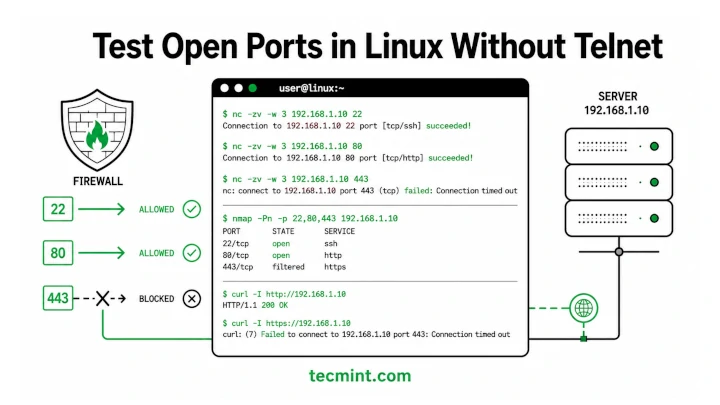
telnet isn’t installed, and installing an extra package just for a quick connectivity test feels unnecessary.The good news is that you don’t need telnet, because most Linux distributions already include tools that can test port connectivity, and some require no additional installation at all.
Whether you’re troubleshooting a MySQL connection, checking if Nginx is listening on port 443, or verifying that a firewall change worked as expected, these tools can quickly tell you what’s happening.
Why Telnet Is Obsolete for Testing Ports on Linux
For many years, telnet was the standard way to check whether a port was open and accepting connections. If you wanted to see whether a web server, database, or mail service was reachable, telnet was usually the first command people tried.
Things have changed, though and most modern Linux distributions no longer install telnet by default, especially on minimal server deployments. If you run the command today, you’ll often see a simple command not found message.
Even if it is available, telnet isn’t always the most useful troubleshooting tool. It can tell you whether a connection succeeds, but it provides very little information beyond that.
Fortunately, Linux offers several better alternatives. Some are already installed on most systems, while others can be added with a single package install. These tools not only test connectivity but can also provide clearer error messages, connection details, and faster troubleshooting when something isn’t working as expected.
In the following sections, we’ll look at the most practical ways to test ports on a Linux system without relying on telnet.
1. Test Open Ports Using Bash /dev/tcp
If you’re working on a minimal Linux server and just need a quick answer to “Is this port reachable?“, Bash has a built-in feature that can help. It provides a special pseudo-device called /dev/tcp that allows you to open a TCP connection directly from the shell without installing any additional tools.
Run the following command:
(echo >/dev/tcp/192.168.1.10/80) &>/dev/null && echo "Port open" || echo "Port closed"
If the connection succeeds, you’ll see:
Port open
If the port is blocked, closed, or unreachable, you’ll see:
Port closed
In this example, the command attempts to connect to port 80 on 192.168.1.10, which is especially useful when you’re logged into a remote server that doesn’t have tools like telnet, nc, or nmap installed.
For example, to test whether an HTTPS service is reachable on a remote website, run:
(echo >/dev/tcp/example.com/443) &>/dev/null && echo "Port open" || echo "Port closed"
The /dev/tcp feature is available only in Bash. If your script is running under sh, dash, or another shell, the command will fail even though the /dev/tcp path appears to exist.
If you’re unsure which shell is being used, explicitly run the test through Bash:
bash -c '(echo >/dev/tcp/example.com/443) &>/dev/null && echo "Port open" || echo "Port closed"'
While /dev/tcp doesn’t provide detailed troubleshooting information, it’s one of the quickest ways to verify whether a TCP port is accepting connections, making it perfect for quick checks on lightweight or freshly deployed servers.
If this saved you from installing an unnecessary package on a production server, who still reaches for telnet first.
2. Check Open Ports with Netcat (nc)
If /dev/tcp feels a little too basic, nc (Netcat) is usually the next tool administrators reach for, which is lightweight, easy to use, and provides more useful feedback when you’re troubleshooting network connections.
Netcat is often called the “Swiss Army knife” of networking because it can do everything from testing ports to transferring data between systems.
To check whether a port is open, use the -z (zero-I/O) option:
nc -zv 192.168.1.10 22
Example output:
Connection to 192.168.1.10 22 port [tcp/ssh] succeeded!
The command uses two important flags:
-z: Performs a connection test without sending any data.-v: Displays verbose output so you can see the result.
Unlike telnet, which simply connects and leaves you staring at a blank screen, Netcat immediately tells you whether the connection succeeded or failed.
Let’s test a port where no service is running:
nc -zv 192.168.1.10 3306
Example output:
nc: connect to 192.168.1.10 port 3306 (tcp) failed: Connection refused
A Connection refused message is actually useful information.
- The target server is reachable.
- The network path is working.
- Nothing is currently listening on that port.
Many Linux distributions already include Netcat, but some minimal server installations do not.
sudo apt install netcat-openbsd -y     [On Debian, Ubuntu and Mint]
sudo dnf install nmap-ncat -y          [On RHEL/CentOS/Fedora and Rocky/AlmaLinux]
Once installed, nc becomes one of the most useful troubleshooting tools you’ll have on any Linux server.
3. Scan Open Ports with Nmap
When you need more than a simple “open” or “closed” answer, nmap is the tool to use, as it is one of the most popular network scanning tools and is widely used by system administrators, network engineers, and security professionals.
Unlike nc or the Bash /dev/tcp method, nmap can identify services, detect filtered ports, and provide a much clearer picture of what’s happening on a remote system.
If nmap isn’t already installed, you can add it using your package manager.
sudo apt install nmap -y     [On Debian, Ubuntu and Mint]
sudo dnf install nmap -y          [On RHEL/CentOS/Fedora and Rocky/AlmaLinux]
To check whether port 80 is open on a server, run:
nmap -p 80 192.168.1.10
Example output:
Starting Nmap 7.93 ( https://nmap.org )
Nmap scan report for 192.168.1.10
Host is up (0.00023s latency).

PORT   STATE  SERVICE
80/tcp open   http

Nmap done: 1 IP address (1 host up) scanned in 0.12 seconds
The most important column here is STATE:
| State | Meaning |
|---|---|
| open | A service is listening and accepting connections. |
| closed | The host is reachable, but no service is listening on that port. |
| filtered | A firewall is blocking the scan, so Nmap can’t determine the port state. |
You can also scan a range of ports in a single command:
nmap -p 20-25 192.168.1.10
Example output:
PORT   STATE  SERVICE
20/tcp closed ftp-data
21/tcp closed ftp
22/tcp open   ssh
23/tcp closed telnet
24/tcp closed priv-mail
25/tcp closed smtp
One of Nmap’s most useful features is version detection, simply add the -sV option and Nmap will attempt to identify the software running behind an open port.
nmap -p 22 -sV 192.168.1.10
Instead of simply reporting that port 22 is open, Nmap may identify the SSH server version and other service details.
4. Test HTTP and HTTPS Ports with Curl
When you’re troubleshooting a web server, simply knowing that a port is open isn’t always enough. A port can accept connections while the web application behind it is returning errors, serving the wrong content, or failing completely.
That’s where curl becomes useful.
Unlike nc or /dev/tcp, curl doesn’t just test the TCP connection. It actually sends an HTTP request and shows you how the web server responds, which makes it one of the best tools for checking ports 80 (HTTP) and 443 (HTTPS).
To test a web server listening on port 80, run:
curl -v --max-time 5 http://192.168.1.10:80
Example output:
* Trying 192.168.1.10:80...
* Connected to 192.168.1.10 (192.168.1.10) port 80 (#0)
> GET / HTTP/1.1
> Host: 192.168.1.10
> User-Agent: curl/7.88.1
> Accept: */*
>
< HTTP/1.1 200 OK
To check a secure web server on port 443, use:
curl -v --max-time 5 https://192.168.1.10:443
If the HTTPS service is working correctly, you’ll see SSL negotiation details followed by the HTTP response headers.
If this cleared up the difference between “refused” and “timed out” for you, who’s been guessing at firewall rules.
5. Check Port Connectivity with Python
If you need to check ports from a script, Python is a great option and most of the Linux distributions already include, and its built-in socket module makes port testing straightforward.
This approach is especially useful when you’re building health checks, deployment validation scripts, or simple monitoring tools.
To test a single port, run:
python3 -c "import socket; s=socket.socket(); s.settimeout(3); result=s.connect_ex(('192.168.1.10', 5432)); print('open' if result == 0 else 'closed'); s.close()"
Example output:
open
In this example, Python attempts to connect to port 5432, which is commonly used by PostgreSQL.
A few things are happening behind the scenes:
socket.socket()creates a TCP socket.settimeout(3)limits the connection attempt to three seconds.connect_ex()tries to connect and returns a status code instead of raising an exception.- A return value of
0means the connection succeeded.
In real environments, you often need to verify several services after a deployment. For example, you may want to confirm that SSH, HTTP, and MySQL are all reachable.
The following script checks multiple host and port combinations:
python3 << 'EOF'
import socket

hosts = [
    ("192.168.1.10", 22),
    ("192.168.1.10", 80),
    ("192.168.1.10", 3306),
]

for host, port in hosts:
    s = socket.socket()
    s.settimeout(3)
    result = s.connect_ex((host, port))
    status = "open" if result == 0 else "closed"
    print(f"{host}:{port} -> {status}")
    s.close()
EOF
Example output:
192.168.1.10:22 -> open
192.168.1.10:80 -> open
192.168.1.10:3306 -> closed
This loops through a list of host/port pairs and prints the status of each one, which is exactly what you want for a pre-deployment checklist or a simple uptime check in a cron job.
When to Use Which Tool
Here’s a quick reference for picking the right tool:
| Situation | Recommended Tool |
|---|---|
| No extra installs, just need a quick yes/no answer | /dev/tcp in Bash |
| Fast TCP check with a timeout | nc -zv -w 3 |
| Need to distinguish open vs filtered vs closed ports | nmap |
| Testing HTTP/HTTPS and want to see response codes | curl |
| Writing a script or health check | Python socket module |
If this comparison helped you pick the right tool the first time, who’s been installing packages just to test a port.
Conclusion
There are several easy ways to test port connectivity on Linux without using telnet. To see these tools in action, try testing a service running on your own system. For example, if SSH is enabled, you can check port 22 with:
nc -zv -w 3 localhost 22
You should see a successful connection almost immediately. Then test a port that has no service listening on it and compare the results. This is a simple way to understand the difference between an open port, a refused connection, and a filtered port.
Have you run into a case where one of these tools gave you a different result than another? That’s usually a sign that a firewall is involved in a non-obvious way. Drop what you saw in the comments and let’s work through it.
If this article helped, with someone on your team.
