

Google Docs is probably one of the most widely used office suites in the world, but it’s far from the only option, and for Linux users who care about privacy and data control, it’s rarely the best one.
One of the biggest reasons people use Google Docs is its simplicity, where you can create, edit, and share documents with others in real time, making collaboration easy. All you need is a Google account, and you get access to the entire Google Workspace ecosystem, including Google Docs, Sheets, Slides, Forms, Meet, and Drive.
That said, online office suites have come a long way over the years, and Google is no longer the only company offering powerful tools for creating and collaborating on documents.
Whether you’re looking for better privacy, self-hosted solutions, open-source software, or simply want to reduce your dependence on Google’s ecosystem, there are plenty of excellent alternatives available.
Many of these alternatives offer familiar features such as document editing, spreadsheets, presentations, cloud storage, and real-time collaboration, while giving you greater control over your data.
In this article, we’ll explore some of the best Google Docs alternatives for Linux. These tools let you collaborate with others, edit documents online, and stay productive, without relying entirely on Google’s services.
If this gave you a solid starting point for moving off Google Docs, who’s still uploading sensitive files to Drive.
1. ONLYOFFICE Docs
ONLYOFFICE Docs belongs to those Google Docs alternatives that give you the freedom to create a comfortable collaborative environment within your local network. It’s an open-source and self-hosted office suite oriented towards collaboration and online work.
ONLYOFFICE Docs features tools to create, edit, and co-author text documents, spreadsheets, presentations, and electronic forms as well as a viewer for PDF and DjVu files.
The suite’s native formats are OOXML (DOCX, XLSX, and PPTX), which makes it completely compatible with Word, Excel, and PowerPoint files. Other popular file extensions, like ODT, ODS, and ODP, are supported too, but only via conversion to OOXML.
When it comes to online document collaboration, ONLYOFFICE Docs offers everything you need to work with other people in real-time. There are two co-editing modes (Strict and Fast), version history, track changes, review, document comparison and combination, comments, flexible sharing permissions, chats, and communication with audio and video calls via the Jitsi and Zoom plugins.
What makes ONLYOFFICE Docs stand out is its integration with ChatGPT. If you have an API key, you can install the corresponding plugin and use the AI to analyze texts, make summaries, translate into German and French, generate images, find synonyms, and more.
What’s more, ONLYOFFICE can enable document editing and co-authoring within a number of popular cloud storage platforms, document management systems, and even e-learning solutions.
Such integration is made possible due to the so-called connectors or integration apps. Some examples are Seafile, Nextcloud, WordPress, Moodle, Redmine, Mattermost, ownCloud, and many others.
For individual users and small teams, ONLYOFFICE Docs has a free community version with no editing limitations. There is also a self-hosted enterprise edition with some extra features and professional support.
If you want to get a ready-to-use ONLYOFFICE Document Server, you can opt for its cloud-based version, hosted and maintained by the developers, but it will cost you some money. The ONLYOFFICE desktop and mobile apps are always free.
Key benefits:
- Complete compatibility with OOXML formats.
- Full set of collaborative features, including AI agents.
- Web, desktop, and mobile apps.
- Seamless integration with 40+ third-party platforms.
- Free Community edition with no editing limitations.
Installing ONLYOFFICE Docs on Linux
The fastest way to get it running is with Docker:
sudo docker run -i -t -d -p 80:80 --restart=always \
  onlyoffice/documentserver
On Ubuntu/Debian without Docker:
sudo apt-key adv --keyserver hkp://keyserver.ubuntu.com:80 --recv-keys CB2DE8E5
sudo echo "deb https://download.onlyoffice.com/repo/debian squeeze main" \
  | sudo tee /etc/apt/sources.list.d/onlyoffice.list
sudo apt update && sudo apt install onlyoffice-documentserver
On RHEL/Rocky Linux:
sudo yum install https://download.onlyoffice.com/repo/centos/main/noarch/onlyoffice-repo.noarch.rpm
sudo yum install onlyoffice-documentserver
2. Collabora Online
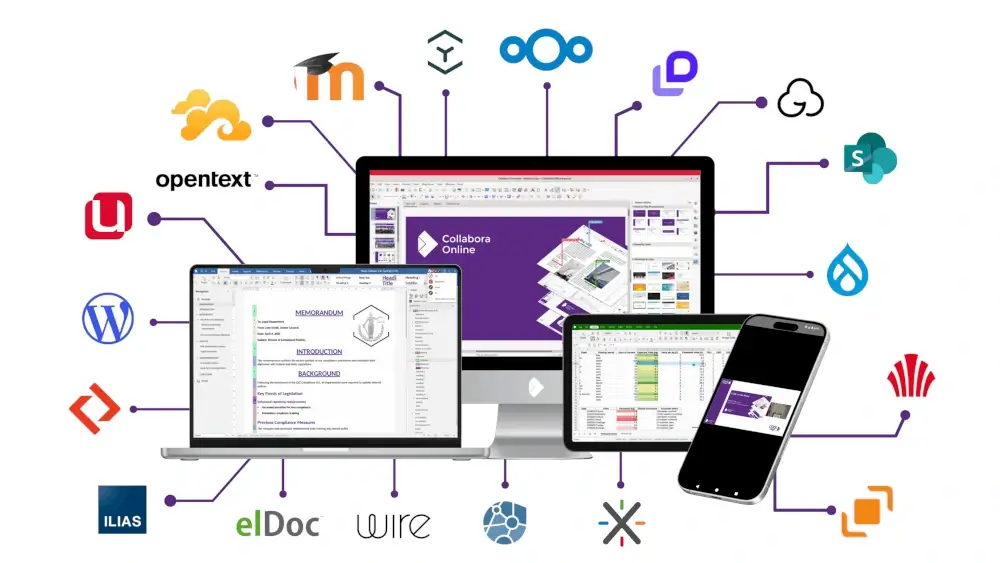
Collabora Online is a powerful, collaborative online office suite built on LibreOffice technology. It’s what you get when LibreOffice learns to live in a browser tab rather than on a desktop, and it’s the most natural fit for teams already running Nextcloud.
Collabora Online is the default document editor that ships with Nextcloud Hub, which means if you’re already running Nextcloud for file storage, you can add Collabora as the document editor with a single app install and no additional server setup.
In late 2025, Collabora also launched a new desktop version called Collabora Office, which brings the same modern web interface to Linux, Windows, and macOS as a native offline application. It removes the Java dependency entirely, resulting in a cleaner install and a smaller download. Your documents stay on your device unless you choose to share them.
Installing Collabora Online on Linux
The Docker install is the fastest path for the server-side Collabora Online Development Edition (CODE):
sudo docker run -t -d -p 127.0.0.1:9980:9980 \
  -e "aliasgroup1=https://" \
  --restart always collabora/code
Replace Permission denied error on the port, check that your firewall isn’t blocking 9980.
On Ubuntu/Debian without Docker:
mkdir -p /etc/apt/keyrings && cd /etc/apt/keyrings
sudo wget -O collaboraonline-release-keyring.gpg \
  https://collaboraoffice.com/downloads/gpg/collaboraonline-release-keyring.gpg

cat << EOF | sudo tee /etc/apt/sources.list.d/collaboraonline.sources
Types: deb
URIs: https://www.collaboraoffice.com/repos/CollaboraOnline/CODE-deb
Suites: ./
Signed-By: /etc/apt/keyrings/collaboraonline-release-keyring.gpg
EOF

sudo apt update && sudo apt install coolwsd
On RHEL/Rocky Linux:
wget https://www.collaboraoffice.com/repos/CollaboraOnline/CODE-rpm/repodata/repomd.xml.key \
  && sudo rpm --import repomd.xml.key
sudo yum-config-manager --add-repo \
  https://www.collaboraoffice.com/repos/CollaboraOnline/CODE-rpm
sudo yum install coolwsd
After installation, edit /etc/coolwsd/coolwsd.xml to set your allowed hosts and SSL settings, then restart the service:
sudo systemctl restart coolwsd
sudo systemctl status coolwsd
Collabora logs to the systemd journal by default. If something’s not connecting, journalctl -u coolwsd -f will show you exactly what’s happening in real time.
For the new desktop version on Linux, install it via Flatpak:
flatpak install flathub com.collaboraoffice.Office
Key benefits:
- Built on LibreOffice technology with full ODF and OOXML support.
- Native Nextcloud and ownCloud integration.
- No Java dependency in the new desktop version.
- Available as a server suite, desktop app, and mobile app.
- Open source under the MPL 2.0 license.
Running Collabora on your own server is one of the cleanest setups for a privacy-conscious team. If this helped you see that, who’s been meaning to ditch Google Docs.
3. CryptPad
CryptPad is an end-to-end encrypted and open source suite of collaborative apps. This service, with servers hosted in France, is perhaps best suited to those who want the benefits of real-time collaboration without trusting a third party with their content.
Using CryptPad, you can be absolutely sure that your data is encrypted in the web browser before it ever leaves your machine. Only you can access your files stored in CryptDrive, the service’s file storage hub. Even the CryptPad administrators cannot see any user data.
CryptPad includes a rich text editor, spreadsheets, Kanban boards, whiteboards, a code editor, markdown slides, and forms. The Spring 2026 release upgraded the office document apps to OnlyOffice 9 and added a new sketch-mode whiteboard that defaults to a simpler canvas, which works well for quick diagrams without the full draw.io feature set getting in the way.
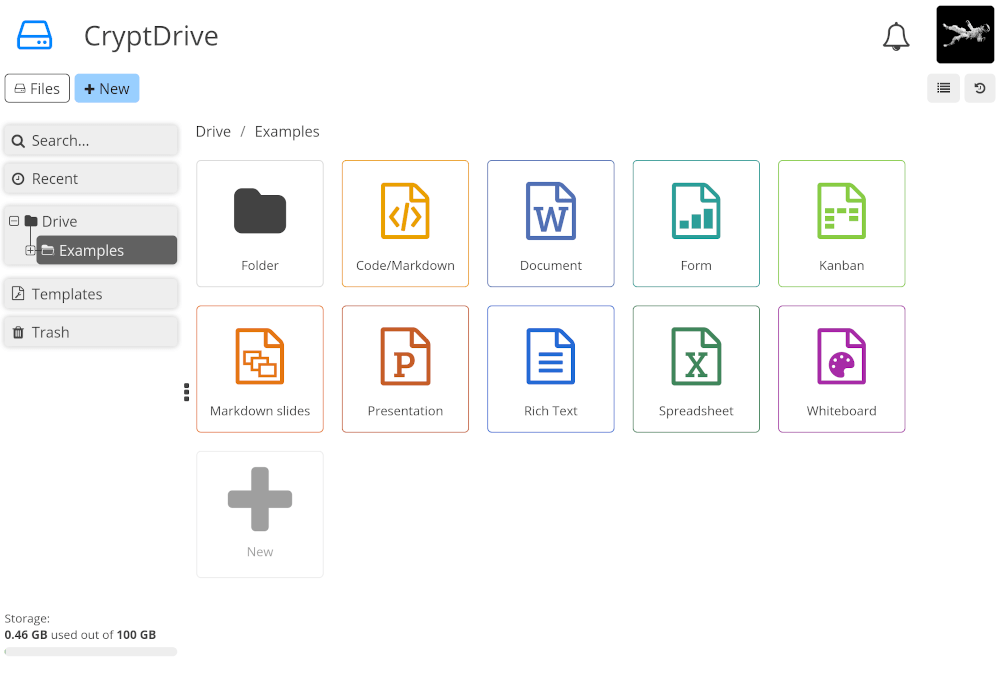
Team drives, calendars, and file sharing are the main features offered by CryptPad for collaborative work. You can create shared folders, share files with other users, add contacts for encrypted collaboration, and create user profiles. You can also adjust access configuration and access your CryptDrive account from any device.
The good news about CryptPad is that you can use its most essential features for free without registering for an account. As an anonymous guest, you can create and edit files, but they can’t be shared and will be deleted after 90 days of inactivity. A free registered account requires no personal information and gives you 1GB of cloud storage space.
Installing CryptPad on Linux
To self-host it on your own server:
git clone https://github.com/cryptpad/cryptpad.git
cd cryptpad
npm install
./install-onlyoffice.sh
cp config/config.example.js config/config.js
Next, edit config/config.js to set your domain and storage paths, then start the server:
node server.js
For production, put Nginx in front of it as a reverse proxy and run it under a process manager like PM2. The official CryptPad documentation has a detailed server setup guide if you need it.
Key benefits:
- End-to-end encrypted collaboration in real-time.
- Zero-knowledge architecture, even administrators can’t read your files.
- Completely anonymous access with no account required.
- Full suite including documents, spreadsheets, whiteboards, and forms.
- Self-hostable on any Linux server running Node.js
4. Proton Docs
Proton Docs is the newest addition to this list and the easiest to start using. It’s built by the team behind ProtonMail and Proton VPN, and it brings the same end-to-end encryption philosophy to document editing.
Every document you create in Proton Docs is encrypted client-side before it leaves your browser. Proton’s servers in Switzerland store only encrypted data, which means even Proton cannot read your files. This is a meaningful distinction from Google Docs, where Google has full access to everything you write.
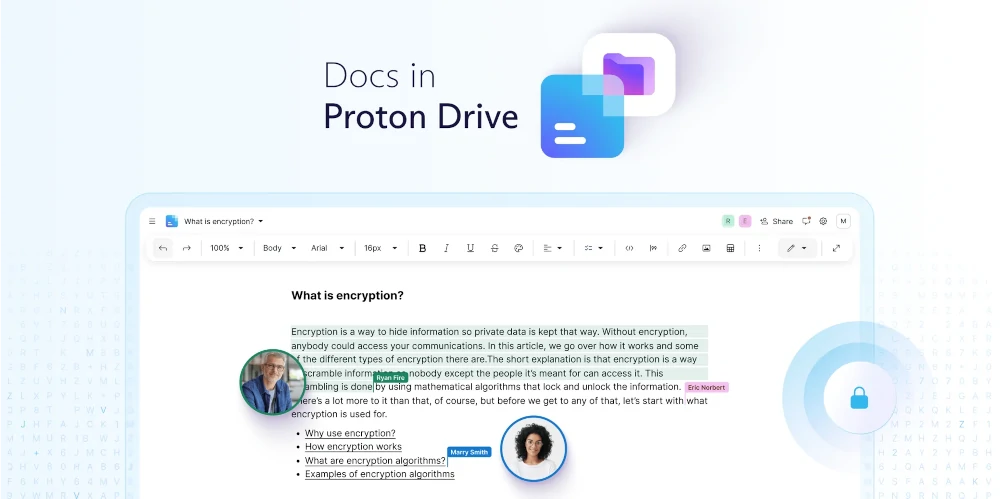
Proton Docs is part of Proton Drive, which means your documents live alongside your other encrypted files and can be shared with the same access controls. Proton Sheets, an encrypted spreadsheet companion, launched in late 2025, and the suite continues to grow steadily.
The one limitation compared to the self-hosted tools on this list is that there’s no Linux desktop app yet. Proton Docs runs in the browser, and a native Linux client for Proton Drive is currently in active development. In June 2026, Proton did release a Drive CLI for Linux users who want to manage their files from the terminal:
npm install -g @protontech/drive-cli
proton-drive auth login
proton-drive filesystem list /
The CLI is built on the same SDK as the Drive apps, so it’s fully interoperable with anything you create in the web interface. For scripting encrypted backups or syncing documents from a server, it’s already useful today.
To start using Proton Docs right now, create a free account at proton.me. The free tier gives you 1GB of storage and access to both Proton Docs and Proton Sheets.
Key benefits:
- End-to-end encrypted documents with a zero-knowledge architecture.
- No setup required, works in any browser on Linux.
- Part of the broader Proton privacy ecosystem.
- CLI tool for Linux users to manage files from the terminal.
- Free tier available with no credit card required.
5. Etherpad – Collaborative Online Editor
Etherpad is an interesting software tool, but it’s not a complete alternative to Google Docs because it focuses entirely on text editing.
It doesn’t allow you to create and edit spreadsheets or presentations, which can be a big disadvantage for some Linux users. However, Etherpad is a solid option if you just want to use your web browser and collaborate on text documents in real-time.
Etherpad is open source, which gives you access to its code. That’s why you can modify the Etherpad code for any purpose. Because Etherpad is hosted on your own server, you know you have full control over your documents.
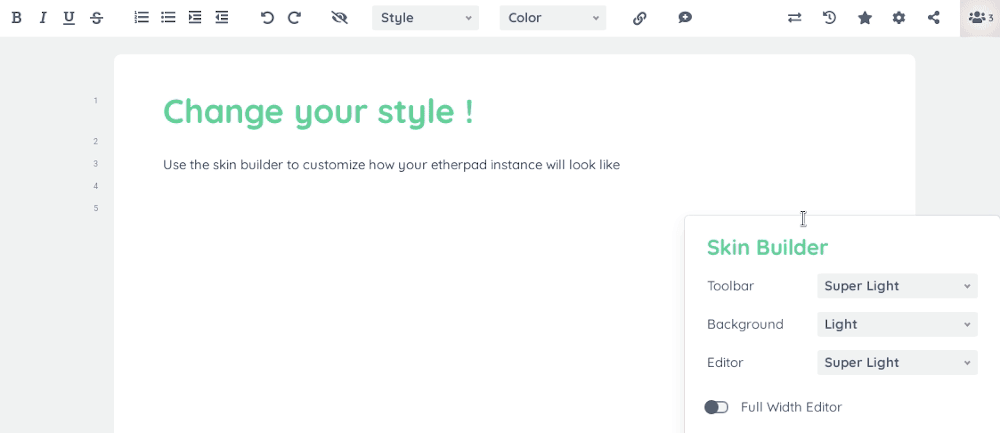
Getting started with Etherpad is a piece of cake. You can choose one of the publicly available instances that have already been set up and configured by other enthusiasts from all over the world. Obviously, this option is not good if you are going to work with sensitive data and confidential text documents. Alternatively, you can deploy your own instance to work in a more secure environment.
When it comes to functionality, Etherpad has all the necessary basic features to create, edit, and collaborate on text documents with other users. Another advantage of the editor is that it’s highly customizable through plugins.
For example, you can add various formatting and editing add-ons, like a table of contents and hyperlinks. Also, you can even enable audio and video calls and embed media files, such as YouTube videos.
Etherpad is free, but you are always welcome to donate if you like the project.
Installing Etherpad on Linux
Getting it running takes less than 2 minutes:
git clone --branch master https://github.com/ether/etherpad-lite.git
cd etherpad-lite
src/bin/run.sh
Etherpad starts on port 9001 by default, so point your browser at http://localhost:9001 and the pad interface is ready immediately.
For production, set up Nginx as a reverse proxy in front of port 9001 and run Etherpad as a systemd service.
Key benefits:
- Lightweight and easy to self-host on any Linux server..
- Publicly available instances for immediate start.
- Highly customizable through a large collection of plugins.
- No account required to start collaborating.
Conclusion
If you need collaborative document software to work with other users in real-time, your choice is not limited to Google Docs, but there are solid web-based solutions you can install on your Linux machine or access via your web browser, all of which give you more control over your data than Google ever will.
Our recommendations:
- ONLYOFFICE Docs if you want to build a full-featured collaborative environment on your own server, with complete Microsoft Office format compatibility.
- Collabora Online if you’re already running Nextcloud and want document editing that integrates directly with it.
- CryptPad if you need end-to-end encrypted collaboration and want to self-host the entire stack.
- Proton Docs if you want encrypted documents without any server setup, from a team with the resources to keep the product improving.
- Etherpad if you only collaborate on text documents and want the lightest possible setup.
All of these options are available for free and work fine on Linux. Is there anything that we missed? Let us know by joining the discussion below.
If this article helped, with someone on your team.
