

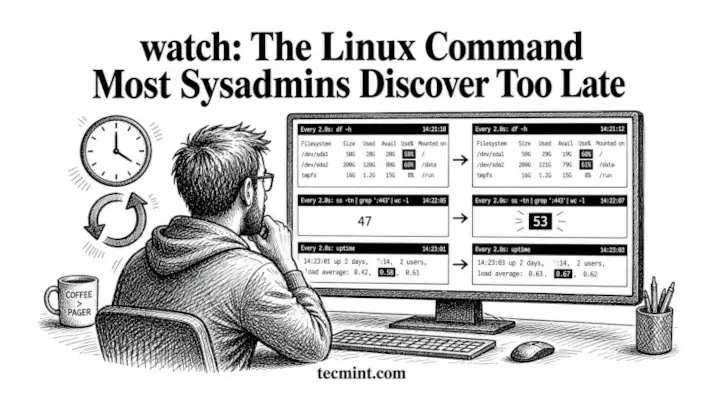
You’re running df -h every 30 seconds by hand to watch a disk fill up, typing the same command over and over like it’s your job, when there’s a single built-in tool that does it for you automatically.
Every sysadmin hits this situation at some point. You’re watching something (like disk usage or a process), and you keep running the same command again and again to see updates. Using tail isn’t helpful here, and you don’t feel like writing a loop or setting up a cron job.
That’s where the watch command comes in, which is a simple tool that you can give it any command you already use, and it will run it repeatedly at a fixed interval. It automatically refreshes the output on your screen, so you can easily see what’s changing in real time.
How the watch Command Works in Linux
The watch command runs a command repeatedly at a set interval, which defaults to every 2 seconds. It redraws the terminal output each time, so you get a live updating view instead of a scrolling wall of text.
The key advantage over a raw loop is that it shows a clear timestamp at the top, along with the interval it is running on. It also uses a full screen display that refreshes in place instead of scrolling.
This makes it much easier to track changes like disk usage or process counts, since you can see differences at a glance without digging through scroll history.
The basic syntax is:
watch [options] command
Replace command with any command you’d normally run in your terminal, and watch handles the rest.
Run watch for the First Time
The simplest thing to do is just hand watch a command and let it run:
watch df -h
This will run the df -h command every 2 seconds and keep refreshing the output on your screen. You will see a live view of your disk usage without needing to rerun the command manually.
If this saved you from a bash while loop you were about to write, share it with someone who’s still doing it the hard way.
How to Set Custom Interval in watch Command
The default 2-second interval is fine for most things, but sometimes you want faster feedback during an incident or slower refresh for something that changes infrequently. Use -n followed by a number in seconds:
watch -n 5 free -m
Output:
Every 5.0s: free -m                            ubuntu: Sat May 02 14:33:45 2026

               total        used        free      shared  buff/cache   available
Mem:            3840        1024         512          64        2304        2752
Swap:           2047           0        2047
This refreshes free -m every 5 seconds, showing memory usage in megabytes. You can set -n 1 for a near-realtime view or -n 60 if you’re watching something slow like a log rotation.
The -n flag accepts decimal values too, so -n 0.5 gives you a half-second refresh if you need it and your system can keep up.
Monitor Changes Live Using watch -d in Linux
This is the flag that turns watch from useful into genuinely good: -d highlights exactly what changed between the last refresh and the current one. Any value that’s different gets inverted on screen so you can spot the change immediately without comparing outputs in your head.
watch -d free -m
Output:
Every 2.0s: free -m                            ubuntu: Sat May 02 14:35:22 2026

               total        used        free      shared  buff/cache   available
Mem:            3840        [1056]       [480]         64        2304        [2720]
Swap:           2047           0        2047
The values in brackets above represent what watch highlights in inverted text on your actual terminal, which is the memory numbers that changed since the last run.
In practice you’ll see those cells visually flipped without any brackets, but the effect is immediate and obvious. So if you’re watching netstat output or a process list and something spikes or disappears, -d flags the exact field that moved.
How to Run Piped Commands with watch Correctly
Here’s where people run into trouble: watch passes the command to your shell, and the shell interprets special characters before watch ever sees them.
So if you write watch ps aux | grep nginx, the pipe gets interpreted by your current shell and only watch ps aux actually runs under watch.
The fix is to wrap the whole command in quotes:
watch "ps aux | grep nginx"
Output:
Every 2.0s: ps aux | grep nginx               ubuntu: Sat May 02 14:37:55 2026

www-data  1847  0.0  0.2  10428  4096 ?        S    14:20   0:00 nginx: worker
www-data  1848  0.0  0.2  10428  4096 ?        S    14:20   0:00 nginx: worker
ravi      2101  0.0  0.0   6480   828 pts/1    S+   14:37   0:00 grep nginx
The breakdown for this command:
ps auxlists all running processes with CPU and memory stats.| grep nginxfilters output to lines containingnginx.- The double quotes tell
watchto treat the whole string as one command and pass it to the shell intact.
If you see Permission denied or the command exits immediately, check that the command itself works without watch first. If it works alone but not under watch, the issue is almost always unquoted special characters or a command that depends on your shell’s environment variables.
If this cleared up why your pipes weren’t working inside watch, send this to a teammate who’s fighting the same thing.
How to Hide Title Bar in watch Command
The header line is helpful, but on a small screen or inside a tmux pane you might want to drop it so the full output fits.
watch -t -n 2 "df -h /"
Output:
Filesystem      Size  Used Avail Use% Mounted on
/dev/sda1        49G   18G   29G  38% /
Clean output, no header, refreshes every 2 seconds. Useful when you’re embedding watch into a monitoring pane where you’ve already labeled the pane yourself.
How to Auto Exit watch When Results Change
The -g tells watch to exit automatically the moment the command’s output changes, which is useful when you’re waiting for something to happen and you want watch to stop on its own:
watch -g "ping -c1 192.168.1.50 | grep '1 received'"
This keeps running the ping test until the host responds with 1 received, then exits. You could use this to wait for a server to come back online after a reboot without sitting there watching it yourself.
Note: The -g flag exits on any change in output, including whitespace or timing differences in some commands. Test your command first to make sure the output is stable when nothing has changed, or you’ll get a premature exit.
watch, vmstat, and sar come up in hands-on exam scenarios, and the RHCSA Certification Course on Pro TecMint walks through the full exam scope.3 watch Commands That Save You Time
Watching a log file’s line count grow:
watch "wc -l /var/log/syslog"
Monitoring how many active connections are on port 443:
watch "ss -tn | grep ':443' | wc -l"
Tracking CPU load average while a build runs:
watch -n 1 -d "cat /proc/loadavg"
Learned something from this that you’ll actually use at 2am? Share it with your team before they reinvent the wheel next outage.
Conclusion
The watch command is one of those tools you use once on a live system and then wonder how you ever lived without it. You covered the basics of running any command on a timer, changing the interval with -n, catching changes visually with -d, handling pipes and special characters correctly with quotes, and stripping the header with -t when screen space matters.
The best thing to try right now is watch -d -n 1 free -m in one terminal pane while you run a memory-hungry process in another, because watching the numbers change in highlighted cells gives you an immediate feel for how the flag works in practice, and that instinct for spotting deltas is exactly what you need when something is leaking memory at 3am.
What command do you reach for most when you need to keep an eye on a live system? Leave it in the comments – I’m always curious what the rest of the community is monitoring.
