

Are you diversifying your DBA skillset? My recent job search made one thing clear: the database landscape is broader than just SQL Server and Oracle. More and more companies are seeking experience with open-source platforms like PostgreSQL and MySQL.
While I’ve always focused on SQL Server, I recently deployed PostgreSQL for a project and successfully configured, secured, and restored it with data. Beyond that, my experience was limited, so I decided to dig deeper.
To build hands-on familiarity, I installed PostgreSQL in my home lab. This post walks through the installation process step-by-step, with a SQL Server DBA lens on what’s familiar and what’s different.
Step-by-Step: Installing PostgreSQL 17.6 on Windows
Step 1: Download the Installer
I used version 17.6 for this walkthrough. You can grab the installer from the official PostgreSQL download page.
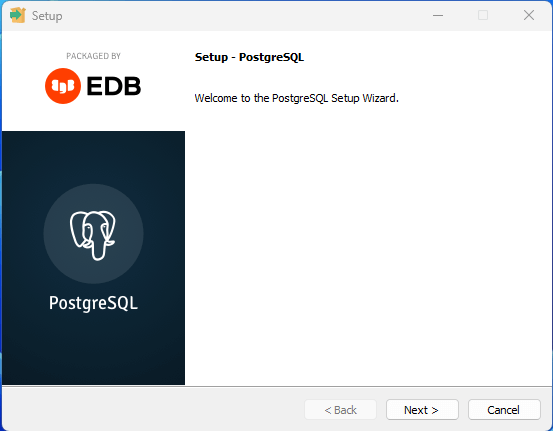
Step 2: Launch the Installer
Run
postgresql-17.6-1-windows-x64.exe to begin. Click Next to proceed.
Step 3: Choose Installation Directory
Select the folder where PostgreSQL should be installed. Once set, click Next.

Step 4: Select Components
Choose the components you want to install. I went with the defaults, which include PostgreSQL Server, pgAdmin, StackBuilder, and command-line tools. Click Next.

Step 5: Set Data Directory
Specify the location for your PostgreSQL data files, similar to SQL Server’s data directory. Click Next.

Step 6: Set Superuser Password
You’ll be prompted to set a password for the
postgres superuser account, think of it like SQL Server’s
sa account. Store this securely.

Step 7: Configure Port
PostgreSQL defaults to port 5432. Unless you have a conflict, it’s safe to leave this unchanged.

Step 8: Finalize Settings
Review the installation summary. If everything looks good, click Next to begin the installation.

Conclusion
PostgreSQL is now installed and ready to go. In the next post, I’ll walk through installing DBeaver, a cross-platform database tool, and show how to connect to your new PostgreSQL instance.
The post Expanding Your DBA Horizons: Installing PostgreSQL in a Home Lab appeared first on GarryBargsley.com.
