

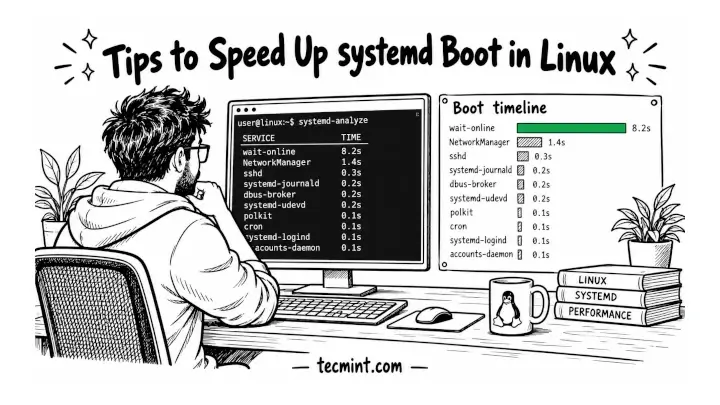
A Linux server that takes a minute to boot may be spending much of that time waiting for one or two systemd units. Here’s how to identify the delays with systemd-analyze and fix common causes involving wait-online, /etc/fstab, and unit dependencies.
Imagine rebooting a server after a kernel update, only to find that SSH remains unavailable for over a minute. The hardware may be fine. A network interface that never becomes ready, a disk that times out, or a service waiting on another unit can delay the boot process.
systemd tracks unit startup activity, while systemd-analyze helps you inspect boot timing and identify potential bottlenecks. The commands in this guide apply to most of the linux distributions and configuration paths can vary by distribution.
How systemd Unit Dependencies Work
Understanding how systemd schedules units makes boot-delay troubleshooting easier. systemd starts independent units in parallel and uses dependencies and ordering rules to determine which units must wait for others.
Two pairs of directives control much of this behavior:
Wants=andRequires=define dependencies.Wants=pulls another unit into the transaction without making its success mandatory and whileRequires=establishes a stronger dependency, although its exact failure and stop behavior also depends on the ordering relationship and other unit settings.After=andBefore=define startup order only, and they do not pull another unit into the transaction or start it by themselves. For example,After=network-online.targetmeans a unit starts after that target if both are part of the transaction.
On a typical Linux server, multi-user.target is the default target. Units that must start before the system reaches this target can contribute to boot delays. The critical chain shows the longest relevant sequence of ordered unit activations, helping you identify where to investigate first.
1. Check Boot Time with systemd-analyze
Start by measuring boot time to establish a baseline. You can compare this result with later measurements to see whether your changes actually improve startup:
systemd-analyze time
Example output:
Startup finished in 1.912s (kernel) + 2.877s (initrd) + 34.118s (userspace) = 38.907s
multi-user.target reached after 34.090s in userspace.
In this example, the system took approximately 39 seconds to boot, with most of the reported time spent in userspace. This is where systemd starts services, mounts filesystems, and brings up other system components. Your timings will vary by hardware, distribution, and configuration.
2. Find Slow Units with systemd-analyze blame
Once you have the baseline, identify units that spend the longest time activating. The blame command sorts units by activation time, placing the longest-running entries first:
systemd-analyze blame | head -n 4
Example output:
30.061s systemd-networkd-wait-online.service
 4.882s snapd.seeded.service
 1.912s snapd.service
 1.204s cloud-init-local.service
In this example, systemd-networkd-wait-online.service is the first unit to investigate because it spent about 30 seconds activating.
However, do not assume the slowest unit is necessarily delaying boot by that entire amount. Units can start concurrently, and some may continue activating without blocking the default target.
Use systemd-analyze blame to identify suspects, then inspect the critical chain and unit logs to determine whether a particular service is actually holding up startup.
3. Find Boot Bottlenecks with critical-chain
To identify which units actually delayed the default target, use critical-chain. It shows the relevant dependency chain, with the activation time after @ and the unit’s startup duration after +:
systemd-analyze critical-chain
Output (header lines trimmed):
multi-user.target @34.090s
└─nginx.service @33.851s +231ms
  └─network-online.target @33.842s
    └─systemd-networkd-wait-online.service @3.779s +30.061s
      └─systemd-networkd.service @3.551s +215ms
Nginx is ordered after network-online.target, which waited 30 seconds for the wait-online service, while snapd never appears in the chain.
If this helped you see the difference between a slow unit and one that delays boot, share it with someone who still disables services straight from the blame list.
4. Mask Unneeded Services with systemctl
Before tuning boot delays, disable services the server does not need. List enabled service units and check for software or hardware the machine never uses:
systemctl list-unit-files --type=service --state=enabled
For example, a virtual server without a mobile broadband modem may not need ModemManager. If nothing depends on it, stop the service and disable it at boot:
sudo systemctl disable --now ModemManager.service
Disabling removes the service’s boot-time enablement, but another unit or a D-Bus request may still start it. To prevent normal activation, mask the service:
sudo systemctl mask ModemManager.service
Output:
Created symlink '/etc/systemd/system/ModemManager.service' → '/dev/null'.
Masking is stronger than disabling because systemd cannot start the unit through normal means while the mask remains in place. To reverse it, unmask the service:
sudo systemctl unmask ModemManager.service
Be careful: Do not blindly disable or mask systemd-*, storage, or networking services. Some are essential for booting, mounting filesystems, and maintaining remote access. Verify each service’s purpose and dependencies before changing it.
5. Fix systemd-networkd-wait-online Delays
On Ubuntu Server, systemd-networkd-wait-online can delay boot when a managed interface never reaches the required online state. For example, an unplugged secondary NIC may hold up network-online.target until the configured timeout expires, while the console displays a message such as “A start job is running for Wait for Network to be Configured”.
Do not disable the wait service blindly if Nginx or another application depends on network-online.target. First, inspect its current configuration and executable path:
systemctl cat systemd-networkd-wait-online.service
Check your network interfaces to identify the one that must be online:
ip -br link
If the installed systemd version supports the required interface-specific behavior, create a drop-in override:
sudo systemctl edit systemd-networkd-wait-online.service
Add the following configuration, replacing enp1s0 with your actual interface and adjusting the timeout to suit your environment:
# /etc/systemd/system/systemd-networkd-wait-online.service.d/override.conf
[Service]
ExecStart=
ExecStart=/usr/lib/systemd/systemd-networkd-wait-online --interface=enp1s0 --timeout=20
Save the file and exit the editor.
ExecStart=clears the original command so systemd uses the replacement.--interface=enp1s0specifies the interface whose online state matters. Verify the option’s behavior for your installed systemd version.--timeout=20limits the wait to 20 seconds.
Reload systemd’s configuration and restart the service to apply the override for subsequent starts:
sudo systemctl daemon-reload
Reboot during a suitable maintenance window and compare the results:
systemd-analyze critical-chain network-online.target
On Rocky Linux, AlmaLinux, and RHEL, NetworkManager commonly handles network configuration. If NetworkManager-wait-online.service is delaying boot, inspect the connection profile and identify why it is waiting, such as a DHCP response that never arrives, before changing the configuration.
If an unplugged network card ever added two minutes to your boot, share this with a teammate who reboots servers during maintenance windows.
6. Fix Slow fstab Mounts with nofail
Missing disks and unreachable network shares can delay boot when systemd waits for their mount units. Use nofail for optional disks and x-systemd.automount to defer mounting network shares until they are accessed.
Open /etc/fstab on Ubuntu or Debian:
sudo nano /etc/fstab
On Rocky Linux, AlmaLinux, and RHEL, minimal installs ship vi instead:
sudo vi /etc/fstab
For example, configure an optional data disk and an NFS backup share as follows:
# /etc/fstab
UUID=3f1c2a7e-8b4d-4e2a-9c61-5d7f0b9e2a14  /data         ext4  defaults,nofail,x-systemd.device-timeout=10s  0 2
192.168.122.250:/srv/backups               /mnt/backups  nfs   defaults,_netdev,x-systemd.automount           0 0
Replace the example UUID with the value reported by blkid and the NFS address with your server’s address.
These options control how systemd handles the mounts:
- nofail allows boot to continue if the optional disk cannot be mounted.
- x-systemd.device-timeout=10s limits how long systemd waits for the device to appear. It does not limit the time required to mount the filesystem itself.
- _netdev identifies the mount as network-dependent.
- x-systemd.automount creates an automount unit that triggers the actual mount when the path is accessed, rather than mounting the share immediately during boot.
Validate the edited file and reload systemd’s unit configuration:
sudo findmnt --verify
sudo systemctl daemon-reload
Check the generated units:
systemctl status data.mount
systemctl status mnt-backups.automount
Unit names are derived from their mount paths, so /data becomes data.mount and /mnt/backups becomes mnt-backups.automount.
Fix any validation errors before proceeding. On a suitable test system, verify that the optional disk can be absent without blocking boot and that the NFS share mounts successfully when /mnt/backups is accessed. \
Remember that startup services that access the share can still trigger the NFS mount and encounter network delays.
7. Use Wants= Instead of Requires=
Systemd dependency mistakes can delay boot or cause services to stop unexpectedly. For example, an application that only listens on a local socket does not necessarily need to wait for network-online.target. Likewise, Requires= creates a stronger dependency than Wants=, but neither directive replaces proper service readiness handling.
Create a unit file with nano on Ubuntu and Debian:
sudo nano /etc/systemd/system/myapp.service
On Rocky Linux, AlmaLinux, and RHEL, use vi:
sudo vi /etc/systemd/system/myapp.service
Add the following configuration, replacing the executable path and service account with your own values:
# /etc/systemd/system/myapp.service
[Unit]
Description=Internal API for tecmint.lan
Wants=postgresql.service
After=network.target postgresql.service

[Service]
User=tecmint
ExecStart=/opt/myapp/bin/myapp
Restart=on-failure

[Install]
WantedBy=multi-user.target
Save the file and exit the editor.
Wants=postgresql.servicepulls PostgreSQL into the transaction when the application starts, but the application can still start if PostgreSQL fails.After=network.target postgresql.serviceorders the application after these units during startup. It does not itself pull them into the transaction or guarantee that PostgreSQL is ready to accept connections.Restart=on-failurerestarts the application if it exits unsuccessfully, subject to systemd’s restart limits. It does not retry database connections unless the application exits or implements its own retry logic.
Use Wants=network-online.target together with After=network-online.target only when the service genuinely needs the network configured before startup and this may reintroduce the wait-online delay discussed in Tip 5.
Validate the unit, reload systemd, and enable the service:
sudo systemd-analyze verify /etc/systemd/system/myapp.service
sudo systemctl daemon-reload
sudo systemctl enable --now myapp.service
If verification succeeds, it normally produces no output. Check the service status and logs to confirm that the application actually starts and connects to PostgreSQL:
systemctl status myapp.service
journalctl -u myapp.service -b --no-pager
Remember: Wants= controls dependency activation, while After= controls ordering. For reliable database startup, configure the application to retry connections or use a readiness check appropriate to the application and database.
If Requires= versus Wants= finally makes sense, share this with a developer who writes systemd units for your team.
Pro Tips: Confirm the Gains and Avoid Boot Failures
With these changes in place, reboot and run systemd-analyze time and critical-chain again to compare against your baseline.
If boot stops at “You are in emergency mode” after editing fstab, run journalctl -xb to find the failing .mount unit. Ubuntu locks the root account by default, so emergency mode may not open a shell, which is why findmnt --verify matters on SSH-only servers.
“Unit ModemManager.service is masked” means something still needs that unit, and “Found ordering cycle” means two After= lines point at each other.
Conclusion
You can now measure boot time, find the units that really delay it, and fix unused services, wait-online delays, slow mounts, and unit ordering.
We’d love to hear what you found. Which unit topped your critical chain? Has masking a service ever broken something unexpected? Feel free to share your wait-online overrides or fstab options in the comments.
