

If your Bash prompt still feels like it belongs in 2005, with no syntax highlighting, no fuzzy history search, and just a blinking cursor, Flyline can modernize it in about 30 seconds.
I’ve used Readline for as long as I’ve used Bash, which is most of my adult life. It always worked, so I never really thought about replacing it.
That changed when a colleague shared his terminal during a screen-sharing session. I noticed his shell highlighted a broken pipe in red before he even pressed Enter, and he could fuzzy-search through his command history as easily as searching messages in Slack.
That immediately caught my attention, so I asked what he was using. It turned out to be Flyline, a lightweight plugin written in Rust.
I installed it on my main Ubuntu workstation that same evening and on a Rocky Linux test server the next morning. Both installations took just a command or two and didn’t require sudo.
What impressed me most was how many tools I no longer needed. Features like fuzzy history search and prompt enhancements were already built into Flyline, and because it runs directly inside Bash instead of launching external programs whenever you press a key, everything feels fast and responsive.
What Flyline Actually Does
Flyline is a Bash loadable builtin written in Rust that replaces GNU Readline, the library that has handled command-line editing in Bash for decades.
Readline provides the basics, such as moving the cursor, recalling command history, and tab completion. Flyline does all of that too, but adds modern features like syntax highlighting as you type, undo and redo, mouse support for clicking and selecting text, tooltips, an animated cursor, and fuzzy history search with Ctrl+R, similar to what you get with fzf.
It also includes an Agent Mode, which lets you describe what you want to do in plain English. A connected AI agent can then suggest the corresponding Bash command for you. This is especially helpful when you know what you want to accomplish but can’t remember the exact command or its options. We’ll look at this feature later in the article.
Another advantage is performance. Since Flyline runs directly inside the Bash process instead of relying on external wrapper scripts or launching separate programs, it feels fast and responsive. It’s built using ratatui, a Rust library for building terminal user interfaces, which gives Flyline a smoother, more modern feel than the traditional Bash prompt.
Prerequisites
Before installing Flyline, make sure you have:
- A Linux system running Bash 4.4 or later (check with
bash --version). - curl installed, since the quick installer downloads the required files.
- No
sudoor root access required for the default installation. - Optional: Rust and Cargo if you want to build Flyline from source instead of using the installer script.
Note: Flyline installs as a per-user Bash builtin, not as a system-wide package. The standard installation does not require root privileges and only places files inside your home directory, so it will not modify anything outside your user account.
Step 1: Install Flyline Using the Official Install Script
The easiest way to install Flyline is by using the official installation script that automatically downloads the correct binary for your system and updates your ~/.bashrc so Flyline loads every time you start Bash.
curl -sSfL https://raw.githubusercontent.com/HalFrgrd/flyline/master/install.sh | sh
Here’s what each part of the command does:
curldownloads the installation script from GitHub.-srunscurlin silent mode, hiding the progress meter.-Sdisplays an error message if the download fails, even in silent mode.-fmakescurlstop if the server returns an error instead of downloading an error page.-Lfollows any redirects to the final download location.| shsends the downloaded script directly to the shell for execution.
To start using Flyline immediately, either open a new terminal or reload your Bash configuration:
source ~/.bashrc
Once your shell reloads, Flyline replaces the default Readline interface automatically.
Step 2: Verify the Installation and Run the Interactive Tutorial
After restarting your terminal or reloading ~/.bashrc, verify that Flyline is active by launching its built-in interactive tutorial:
flyline run-tutorial
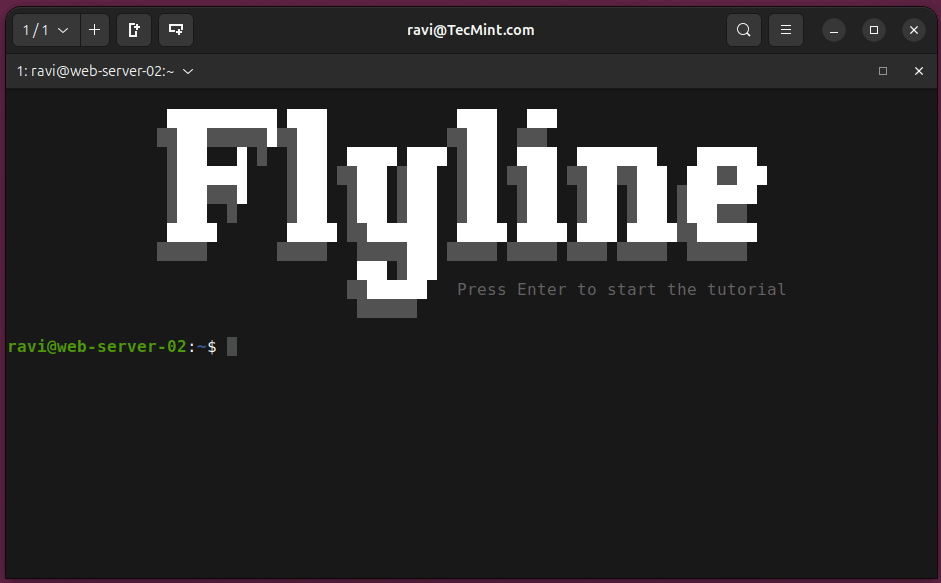
The tutorial is the quickest way to get familiar with Flyline’s features. It walks you through syntax highlighting, fuzzy history search, undo and redo, tab completion, inline suggestions, and mouse support, letting you try each feature directly in your terminal.
If you built Flyline from source instead of using the installer script, you’ll need to load the builtin manually before you can use it.
On Ubuntu, Debian, Rocky Linux, RHEL, and most other Linux distributions, run:
enable -f ~/.local/lib/flyline/libflyline.so flyline
If you compiled Flyline from source, you’ll also need the Rust toolchain installed beforehand.
sudo apt install cargo rustc   [On Ubuntu/Debian]
sudo dnf install cargo rust    [On RHEL/Rocky Linux]
In this case, sudo is required because you’re installing the Rust compiler and related development tools system-wide. It is not required for the standard Flyline installation itself.
Step 3: Try Fuzzy History Search and Mouse Support
One of Flyline’s most useful features is its improved command history search. Instead of scrolling through old commands or searching for an exact match, you can search using just a few keywords.
Press Ctrl+R, then type part of a command you’ve run before:
Ctrl+R
> docker ps stopped
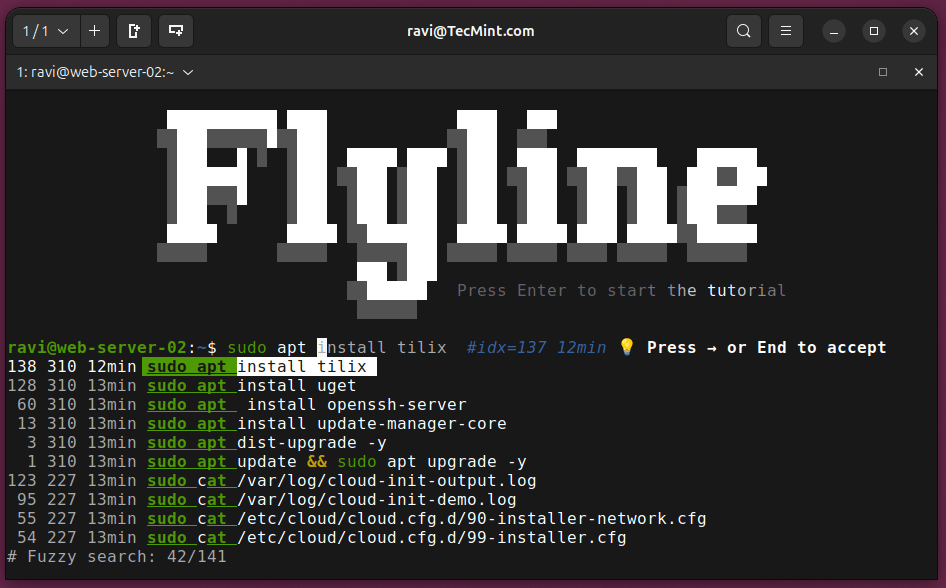
Notice that the search still finds matching commands even though the words you typed aren’t in the same order as the original command. This fuzzy matching makes it much easier to find long or complex commands without remembering their exact syntax.
As you type commands normally, Flyline also displays inline suggestions based on your command history. If the suggested command is what you want, move the cursor to the end of the line and press the Right Arrow or End key to accept it.
Flyline also enables mouse support by default. You can click anywhere on the current command line to move the cursor or click and drag to select text while editing a command.
Step 4: Customize Your Prompt
Flyline works with your existing PS1 prompt, so if you’ve already customized your Bash prompt, you don’t need to change anything. However, it also adds support for RPS1, a right-aligned prompt, along with PS1_FILL, which fills the space between the left and right prompts.
For example, you can display your normal prompt on the left and the current time on the right:
echo 'PS1="\u@\h:\w\$ "' >> ~/.bashrc
echo 'RPS1="\t"' >> ~/.bashrc
echo "PS1_FILL='-'" >> ~/.bashrc
source ~/.bashrc
Your prompt will look similar to this:
ravi@tecmint:~/projects -------------------- 14:32:07
$
The timestamp on the right updates automatically as the prompt is redrawn, so it always shows the current time.
If you prefer a custom time format, you can use \D{format} instead of \t. Flyline supports Chrono format strings, allowing you to display the time in different formats, including milliseconds.
For example:
RPS1='\D{%H:%M:%S.%3f}'
This displays the time in hours:minutes:seconds.milliseconds format.
Set Up Agent Mode (Optional)
One of Flyline’s standout features is Agent Mode, which lets you describe what you want to do in plain English and have an AI assistant suggest the corresponding Bash command.
Agent Mode isn’t enabled by default, so you’ll need to configure it using the flyline set-agent-mode command to specify a trigger prefix and the AI command-line tool that Flyline should use.
flyline set-agent-mode \
  --system-prompt "Be concise. Answer with a JSON array of at most 3 items with objects containing: command and description. Command will be a Bash command." \
  --trigger-prefix 'ai: ' \
  --command 'claude --print'
Here’s what each option does:
--system-prompttells the AI how to format its response. In this example, it returns a JSON array containing Bash commands and short descriptions so Flyline can display them correctly.--trigger-prefix 'ai: 'defines the text that tells Flyline to send your input to the AI. You can replace ai: with any prefix you prefer.--command 'claude --print'specifies the command-line AI client that Flyline should use. In this example, it uses Claude Code with your existing authentication, so no additional API key is required.
If the command succeeds, you’ll see:
Agent mode configured. Trigger prefix: 'ai: '
To avoid configuring Agent Mode every time you open a terminal, add the same flyline set-agent-mode command to your ~/.bashrc.
Once configured, start a line with your trigger prefix followed by your request:
ai: list files older than three days
Disabling Flyline
If you want to switch back to the default Readline interface, you don’t have to uninstall Flyline. You can simply disable it for the current Bash session.
enable -d flyline
This only affects your current terminal session. If you close the terminal and open a new one, Flyline will be loaded again from the enable -f line that was added to your ~/.bashrc during installation.
If you want to remove Flyline permanently, delete the enable -f line from your ~/.bashrc and remove the Flyline library from the directory where it was installed, typically under ~/.local/lib/flyline/.
Conclusion
Flyline gives the Bash prompt a more modern feel without changing how Bash itself works. You get features like syntax highlighting, fuzzy history search, mouse support, inline suggestions, and optional AI-powered command generation, all without needing root access or a complicated setup.
If you’re looking for a simple way to make Bash easier and more enjoyable to use, Flyline is definitely worth trying. Spend a few days using it in your normal workflow, and you’ll quickly find out which features become part of your daily routine.
If this article helped, with someone on your team.
