

If you’ve ever chained together ls, awk, and grep just to find a file or extract a piece of information, you’ve probably noticed how quickly shell commands can become messy. It works, but it also means you’re constantly parsing plain text and hoping the output format doesn’t change.
I’ve spent plenty of time writing quick awk and sed one-liners just to grab a column from ps or filter files by size. The problem is that traditional shells like Bash treat everything as text. Every command has to read and interpret the output from the previous one, which can make scripts harder to read and easier to break.
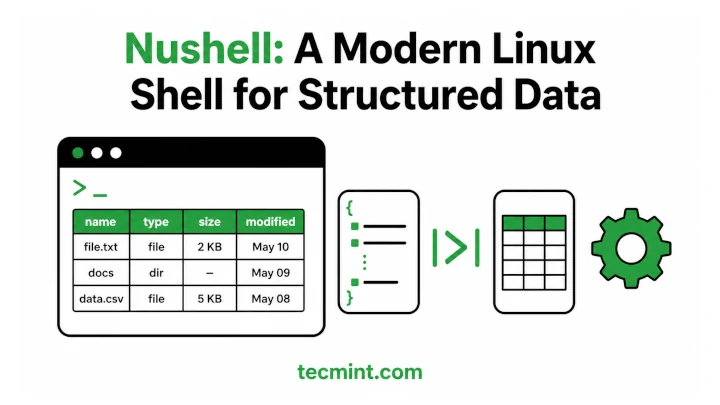
That’s what I like about Nushell. Instead of passing text between commands, it works with structured data, where files, processes, and other command outputs are treated like tables, so you can filter and search them directly.
The first time I tried a command like:
ls | where size > 10mb
it immediately made sense. It returned exactly the files I wanted without using regular expressions, counting columns, or worrying about filenames that contain spaces. The command is easy to read and does exactly what it says.
In this guide, I’ll show you how to install Nushell on Debian-based and RHEL-based Linux distributions. Then we’ll go through the commands you’ll use most often, including navigating structured output, searching files and processes, working with CSV and JSON data, and writing your first Nushell script.
What Nushell Actually Does
Traditional shells like Bash, Zsh, and Fish treat everything as plain text. For example, when you run ps, the output is just text. If you want to find a specific process or extract a column, you usually end up using tools like grep, awk, or cut to parse that text.
Nushell works differently. Instead of passing plain text between commands, it works with structured data, where commands return tables with named columns, so you can filter and query the data directly without worrying about column positions or text formatting.
For example, ps in Nushell returns a table with columns like pid, cpu, and mem, making it easy to filter the information you need.
This makes everyday tasks easier because:
- You don’t have to write regular expressions or awk commands just to extract a field.
- Commands work together more reliably because the data stays structured throughout the pipeline instead of being converted back into plain text after every command.
- Nushell can read and write formats like JSON, CSV, TOML, and YAML natively, so you can load a data file and immediately filter or sort it without extra parsing.
Keep in mind that Nushell is not a drop-in replacement for Bash, because existing Bash scripts won’t run in Nushell without changes because it has its own scripting language and command syntax.
Install Nushell in Linux
Nushell isn’t included in the default Ubuntu, Debian, or RHEL repositories. To install it, you first need to add the official community-maintained Fury.io repository. Once it’s added, you can install and update Nushell using your system’s package manager just like any other package
On Ubuntu/Debian, import the GPG key, add the repository, and update the package list:
wget -qO- https://apt.fury.io/nushell/gpg.key | sudo gpg --dearmor -o /etc/apt/keyrings/fury-nushell.gpg
echo "deb [signed-by=/etc/apt/keyrings/fury-nushell.gpg] https://apt.fury.io/nushell/ /" | sudo tee /etc/apt/sources.list.d/fury-nushell.list
sudo apt update
sudo apt install nushell
On RHEL, Fedora, and Rocky Linux, create the repository file with:
echo "[gemfury-nushell]
name=Gemfury Nushell Repo
baseurl=https://yum.fury.io/nushell/
enabled=1
gpgcheck=0
gpgkey=https://yum.fury.io/nushell/gpg.key" | sudo tee /etc/yum.repos.d/fury-nushell.repo
After adding the repository, installing Nushell takes just one command.
sudo dnf install -y nushell
If you don’t want to add a repository, you can also install Nushell using Homebrew (brew install nushell) or download a prebuilt binary from the GitHub releases page and place it somewhere in your PATH.
Start Nushell
Start Nushell from your current shell by running:
nu
Example output:
     __  ,
 .--()°'.' Welcome to Nushell,
'|, . ,'   based on the nu language,
 !_-(_\    where all data is structured!

Version: 0.114.0 (x86_64-unknown-linux-gnu)
Please join our Discord community at https://discord.gg/NtAbbGn
Our GitHub repository is at https://github.com/nushell/nushell
Our Documentation is located at https://nushell.sh
And the Latest Nushell News at https://nushell.sh/blog/
Learn how to remove this at: https://nushell.sh/book/configuration.html#remove-welcome-message

It's been this long since Nushell's first commit:
7yrs 1month 26days 13hrs 14mins 33secs 921ms 660µs 126ns

Startup Time: 6ms 453µs 536ns
You’re now inside a Nushell session and your regular Bash shell is still running underneath, and you can return to it anytime by typing:
exit
Let’s start with a familiar command:
ls
Output:
╭────┬────────────────────────────┬──────┬────────┬──────────┬───────────┬───────────┬─────╮
│  # │            name            │ type │ target │ readonly │   mode    │ num_links │ ... │
├────┼────────────────────────────┼──────┼────────┼──────────┼───────────┼───────────┼─────┤
│  0 │ LICENSE                    │ file │        │ false    │ rw-r--r-- │         1 │ ... │
│  1 │ README.txt                 │ file │        │ false    │ rw-r--r-- │         1 │ ... │
│  2 │ nu                         │ file │        │ false    │ rwxr-xr-x │         1 │ ... │
│  3 │ nu_plugin_custom_values    │ file │        │ false    │ rwxr-xr-x │         1 │ ... │
│  4 │ nu_plugin_example          │ file │        │ false    │ rwxr-xr-x │         1 │ ... │
│  5 │ nu_plugin_formats          │ file │        │ false    │ rwxr-xr-x │         1 │ ... │
│  6 │ nu_plugin_gstat            │ file │        │ false    │ rwxr-xr-x │         1 │ ... │
│  7 │ nu_plugin_inc              │ file │        │ false    │ rwxr-xr-x │         1 │ ... │
│  8 │ nu_plugin_polars           │ file │        │ false    │ rwxr-xr-x │         1 │ ... │
│  9 │ nu_plugin_query            │ file │        │ false    │ rwxr-xr-x │         1 │ ... │
│ 10 │ nu_plugin_stress_internals │ file │        │ false    │ rwxr-xr-x │         1 │ ... │
╰────┴────────────────────────────┴──────┴────────┴──────────┴───────────┴───────────┴─────╯
Unlike Bash, the output is already displayed as a table with named columns. Since Nushell understands this data, you can filter it directly without using grep or awk.
For example, to show only files larger than 10 MB, run:
ls | where size > 10mb
Output:
╭───┬─────────────────────────┬──────┬──────────┬───────────╮
│ # │          name           │ type │   size   │ modified  │
├───┼─────────────────────────┼──────┼──────────┼───────────┤
│ 0 │ nu                      │ file │  70.2 MB │ a day ago │
│ 1 │ nu_plugin_custom_values │ file │  12.7 MB │ a day ago │
│ 2 │ nu_plugin_example       │ file │  13.3 MB │ a day ago │
│ 3 │ nu_plugin_formats       │ file │  13.3 MB │ a day ago │
│ 4 │ nu_plugin_gstat         │ file │  19.4 MB │ a day ago │
│ 5 │ nu_plugin_polars        │ file │ 121.0 MB │ a day ago │
│ 6 │ nu_plugin_query         │ file │  19.9 MB │ a day ago │
╰───┴─────────────────────────┴──────┴──────────┴───────────╯
Here’s what’s happening in this pipeline:
lsreturns a table of files with columns such as name, type, size, and modified.- The
|operator passes that table directly to the next command without converting it to plain text. - where size
>10mb filters the rows where the size column is greater than 10 MB.
In Bash, doing the same thing usually means parsing the output of ls with tools like awk or grep and manually handling file sizes. In Nushell, you simply filter the size column because the shell already understands what that data represents.
Query Running Processes Like a Database
Nushell also makes it easy to work with running processes. Instead of piping ps through multiple text-processing tools, you can filter and sort the data directly.
ps | where cpu > 5.0 | sort-by cpu
Example output:
╭───┬───────┬──────────────┬──────┬────────╮
│ # │  pid  │     name     │ cpu  │  mem   │
├───┼───────┼──────────────┼──────┼────────┤
│ 0 │ 4821  │ nginx        │  6.2 │ 45.1 MB│
│ 1 │ 1092  │ mysqld       │ 18.7 │ 512 MB │
╰───┴───────┴──────────────┴──────┴────────╯
Here’s what each command does:
psreturns a table of running processes.- where
cpu > 5.0keeps only the processes using more than 5% CPU. sort-by cpusorts the results by CPU usage.
Work With CSV and JSON Natively
One of Nushell’s most useful features is that it can read common data formats without extra tools.
Suppose you have a CSV file containing website traffic logs. To count the number of 404 responses, run:
open traffic.csv | where status == 404 | length
Example output:
37
Here’s what happens:
open traffic.csvreads the CSV file and automatically converts it into a table.where status == 404keeps only the rows where the status column is 404.lengthcounts the remaining rows.
The same approach works with JSON files. For example, to read a value from a configuration file:
open config.json | get database.host
Write Your First Nushell Script
Nushell scripts use the .nu extension.
Create a new script:
nano disk-check.nu
Add the following code:
def check-disk [threshold: int] {
    df -h
    | where "use%" > $threshold
    | select filesystem "use%" available
}

check-disk 80
Example output:
╭───┬─────────────┬───────┬───────────╮
│ # │ filesystem  │ use%  │ available │
├───┼─────────────┼───────┼───────────┤
│ 0 │ /dev/sda1   │  87%  │  4.2 GB   │
╰───┴─────────────┴───────┴───────────╯
This script defines a function named check-disk that accepts a disk usage threshold as an integer. It lists the mounted filesystems, filters those using more than the specified percentage of disk space, and displays only the filesystem, use%, and available columns.
Conclusion
You now have Nushell installed on Ubuntu, Debian, RHEL, Fedora, or Rocky Linux, and you’ve seen how it handles everyday shell tasks using structured data instead of plain text.
If you’re new to Nushell, start with simple commands like:
ps | where cpu > 10 | sort-by cpu
Or
ls | where size > 10mb
These examples give you a good feel for how Nushell works and how its structured pipelines differ from traditional shells.
Nushell isn’t meant to replace Bash in every situation, especially if you already have existing Bash scripts and workflows. But for exploring data, filtering command output, and working with structured files, it’s a powerful tool that’s worth adding to your toolbox.
Give it a try for a few days and see how it fits into your workflow. You may end up using Bash for scripting and system administration, while reaching for Nushell whenever you need to search, filter, or analyze structured data more easily.
If this article helped, with someone on your team.
