

Ubuntu 26.04 LTS “Resolute Raccoon” shipped on April 23, 2026, and if you’re still on 24.04, this article walks you through the in-place upgrade using do-release-upgrade, the same tool Canonical recommends for every LTS-to-LTS jump.
Ubuntu 26.04 LTS is the newest long-term support release from Canonical, and many Ubuntu 24.04 users are already planning upgrades on desktops, VPS instances, and home lab servers. Since both are LTS releases, the upgrade path is officially supported and relatively smooth when the system is prepared properly beforehand.
Every failed Ubuntu release upgrade I’ve seen over the years usually came down to one of three things: the system wasn’t fully updated first, an old third-party PPA broke dependency resolution, or the machine wasn’t rebooted after a kernel update. Once those issues are handled, the actual upgrade process becomes much easier.
One thing to know before starting is that Canonical normally staggers LTS-to-LTS upgrade notifications gradually, but some Ubuntu 24.04 systems may not immediately receive the Ubuntu 26.04 upgrade prompt until the first point release becomes available.
In this tutorial, you’ll learn how to safely upgrade from Ubuntu 24.04 LTS to Ubuntu 26.04 LTS using the terminal, including pre-upgrade checks, repository cleanup, post-upgrade tasks, and common fixes for upgrade-related issues.
What’s New in Ubuntu 26.04 LTS
Ubuntu 26.04 LTS includes several improvements for desktop users, developers, and server administrators. Some changes are immediately noticeable after login, while others improve hardware support and system behavior quietly in the background.
One of the biggest updates is the newer GNOME 50 desktop environment, which feels smoother on multi-monitor systems and modern laptops. Wayland support has improved further, fractional scaling behaves better on high-resolution displays, and desktop responsiveness feels more polished overall.
Ubuntu 26.04 also ships with the Linux 7.0 kernel, which adds better support for newer AMD and Intel hardware, updated Wi-Fi drivers, and improved power management for laptops and mobile workstations.
Developers will notice newer versions of Python 3.14, GCC, OpenSSL, and updated container-related packages. Ubuntu’s Snap integration has also improved, reducing some of the package conflicts users occasionally experienced on older releases.
Server administrators benefit from updated virtualization packages, newer cloud-init support, and improved compatibility for Docker and Kubernetes environments.
Note: Some third-party applications and PPAs may not support Ubuntu 26.04 immediately after release, so always verify compatibility before upgrading production systems.
Pre-Upgrade Checklist for Ubuntu 26.04
Before starting the Ubuntu 26.04 upgrade, spend a few minutes checking the current system state, because most upgrade failures happen due to pending updates, broken repositories, or low disk space that were ignored beforehand.
I normally run these checks first on both desktops and remote Linux servers before touching any major release upgrade.
1. Back Up Your Important Data
Always create a backup before upgrading the operating system, because even a stable LTS upgrade can fail due to power loss, package conflicts, or unexpected hardware problems.
For desktop systems, backing up the /home directory is usually enough. On servers, also back up databases, website files, SSH keys, and important configuration files inside /etc.
A simple backup using rsync looks like this:
sudo rsync -avh /home /backup-drive
Command breakdown:
-apreserves file permissions and symbolic links.-vdisplays detailed progress output.-hshows file sizes in human-readable format.
A common mistake is storing backups on the same disk as the operating system. If the drive fails, the backup becomes useless too.
2. Fully Update Your Current Ubuntu System
Your Ubuntu 24.04 system should be fully updated before attempting a release upgrade, because it refreshes package indexes and installs all pending package updates.
sudo apt update && sudo apt upgrade -y
If packages are still being held back, run:
sudo apt dist-upgrade -y
3. Apply Any Pending Snap Updates
Ubuntu uses Snap packages for several built-in applications, so outdated snaps can occasionally create issues during major upgrades.
Refresh installed snaps using:
sudo snap refresh
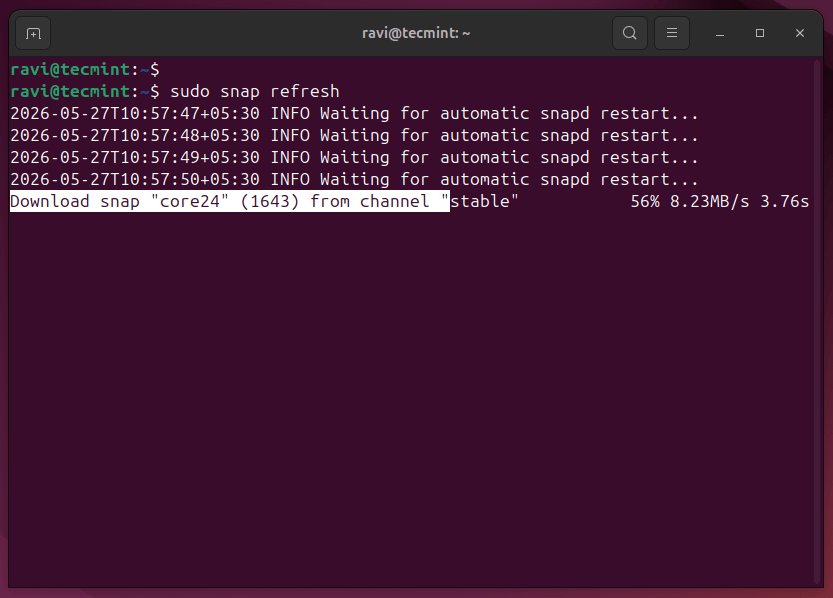
If updates are available, Ubuntu downloads and installs them automatically.
4. Reboot After Kernel Updates
If the system has recently installed a new kernel, reboot before starting the release upgrade.
Check whether a reboot is required:
[ -f /var/run/reboot-required ] && echo "Reboot required"
Expected output:
Reboot required
If you see that message, reboot the machine:
sudo reboot
After rebooting, verify the active kernel:
uname -r
This confirms the running kernel matches the installed packages.
6.17.0-29-generic
5. Check Available Disk Space
Ubuntu upgrades need several gigabytes of free disk space for package downloads and temporary files, so check available storage using:
df -h /
Expected output:
Filesystem      Size  Used Avail Use% Mounted on
/dev/vda2        59G   11G   45G  20% /
Try to keep at least 10 GB of free space available before upgrading, because low disk space during upgrades can leave the package manager in a broken state.
6. Check Your PPAs and Third-Party Repositories
Third-party repositories are one of the most common causes of Ubuntu upgrade failures, so list enabled repositories using:
grep -r "^deb " /etc/apt/sources.list.d/
Expected output:
/etc/apt/sources.list.d/docker.list:deb https://download.docker.com/linux/ubuntu noble stable
/etc/apt/sources.list.d/nodesource.list:deb https://deb.nodesource.com/node_20.x noble main
These repositories may not yet provide packages for Ubuntu 26.04, so temporarily disable them.
sudo mv /etc/apt/sources.list.d/docker.list /etc/apt/sources.list.d/docker.list.disabled
sudo mv /etc/apt/sources.list.d/nodesource.list /etc/apt/sources.list.d/nodesource.list.disabled
Warning: PPAs built for Ubuntu 24.04 may break package dependencies on Ubuntu 26.04 until maintainers release updated packages.
If this pre-upgrade checklist saved you a headache, who’s about to run the upgrade on their own machine.
Configure Ubuntu LTS Upgrade Settings
Ubuntu systems use the /etc/update-manager/release-upgrades configuration file to decide which releases should be offered.
Check the current upgrade setting:
cat /etc/update-manager/release-upgrades
Expected output:
[DEFAULT]
Prompt=lts
The Prompt=lts setting tells Ubuntu to follow only LTS upgrades.
If the value is different, update it using:
sudo sed -i 's/Prompt=.*/Prompt=lts/' /etc/update-manager/release-upgrades
Start Ubuntu 24.04 to 26.04 Upgrade (Desktop)
Ubuntu uses the do-release-upgrade utility to safely handle major release upgrades, so install the required upgrade manager package if it is missing:
sudo apt install update-manager-core
Now start the Ubuntu 26.04 upgrade:
sudo do-release-upgrade
Some Ubuntu 24.04 systems may currently display this message when running the above upgrade command:
Checking for a new Ubuntu release
There is no development version of an LTS available.
To upgrade to the latest non-LTS development release
set Prompt=normal in /etc/update-manager/release-upgrades.
This usually happens because Canonical rolls out LTS upgrades gradually instead of enabling them for everyone immediately after release day, but you can temporarily force the Ubuntu 26.04 upgrade using -d option, which simply bypasses the staged rollout restriction and forces the upgrader to check for the newest available release.
sudo do-release-upgrade -d
Warning: Avoid using -d on important production servers unless you already tested the upgrade on another machine first.
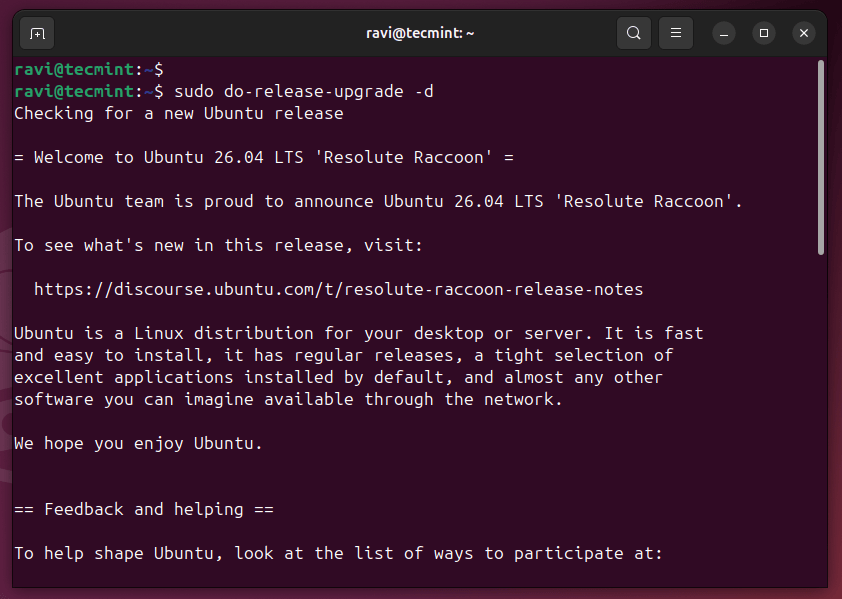
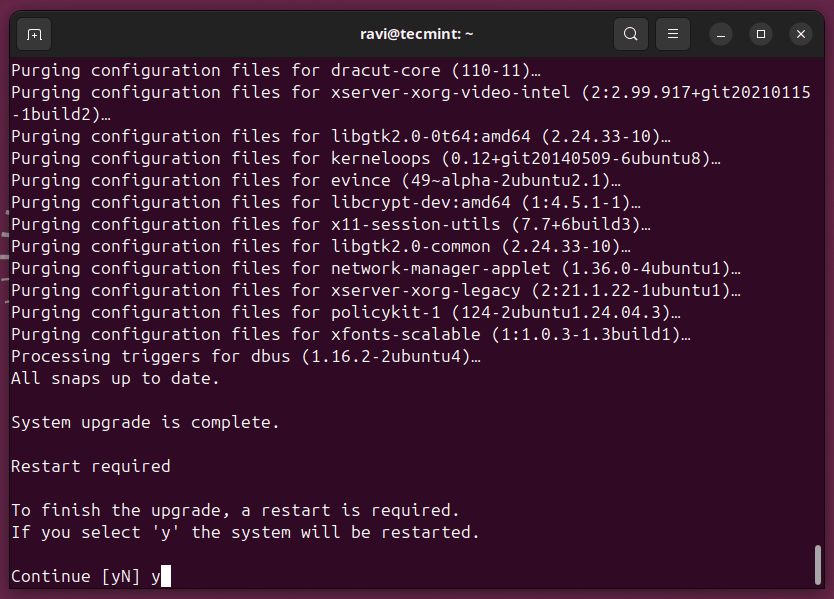
The upgrade process normally goes through four stages:
- Calculating package changes
- Downloading packages
- Installing upgraded packages
- Removing obsolete packages
Depending on your internet connection and system speed, the process may take anywhere from 20 minutes to over an hour.
Upgrading Ubuntu Over SSH (Servers Only)
If you’re upgrading a remote server over SSH, you need extra protection against a dropped connection killing the upgrade mid-process, so wrap the upgrade in tmux so the session keeps running on the server even if your local connection drops:
sudo apt install tmux -y
tmux new -s upgrade
Then run the following command inside the tmux session.
sudo do-release-upgrade -d
If your SSH connection drops, reconnect to the server and reattach to the running session with:
tmux attach -t upgrade
Your upgrade will still be running exactly where it left off. Also note that do-release-upgrade may start a secondary SSH daemon on port 1022 as a fallback during the upgrade, so make sure your firewall or cloud security group allows traffic on that port before you start.
Verify the Upgrade After Reboot
Once the system comes back up, desktop users will see the Ubuntu 26.04 LTS welcome screen with the Resolute Raccoon logo and a “Welcome to Ubuntu 26.04 LTS!” message.
That’s your first confirmation that the upgrade worked, so click Next to dismiss it, then open a terminal to verify from the command line.
lsb_release -a
Also, verify the kernel version to confirm you booted into the new kernel that ships with 26.04.
uname -r
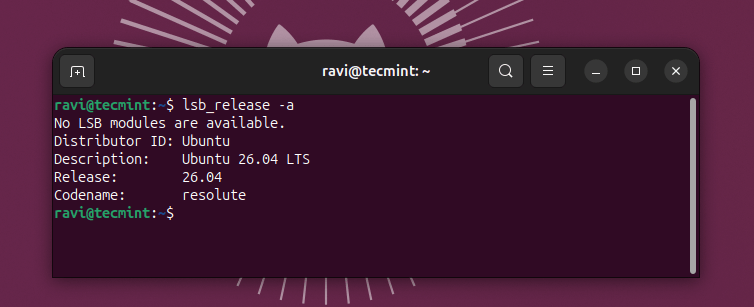
This confirms the system is now running Ubuntu 26.04 LTS with the newer Linux kernel.
Step 7: Clean Up After the Upgrade
After the upgrade, remove packages that are no longer needed, which are mostly old kernel images and library versions that got orphaned during the transition:
sudo apt autoremove --purge -y
Run a final update pass to make sure everything in 26.04 is current before you put the system back into service. Some packages get held back during the release upgrade and only resolve cleanly once you’re fully on the new release:
sudo apt update && sudo apt upgrade -y
If this guide got you to a clean 26.04 system, who’s still staring at their 24.04 terminal, wondering where to start.
Conclusion
You learned how to prepare Ubuntu 24.04 for a safe release upgrade, apply pending updates, clean up third-party repositories, run the Ubuntu 26.04 upgrade process, and handle important post-upgrade tasks afterward.
A good next step is testing the upgrade first inside a virtual machine or spare VPS before upgrading an important workstation or production server. That gives you time to verify application compatibility and check how services behave on Ubuntu 26.04.
Have you already upgraded to Ubuntu 26.04 LTS, or are you waiting for the first point release before moving from Ubuntu 24.04? Let us know how the upgrade went and what changes you noticed after upgrading.
If this article helped, with someone on your team.
