

If you work with SQL Server long enough, you or someone will eventually want to know, “Did anyone change that setting?” And if you cannot prove it one way or the other, well you might just be in luck.
The good news is that SQL Server already tracks configuration changes in a few places. You just need to know where to look and what each option can (and cannot) do for you.
The easiest option: standard reports
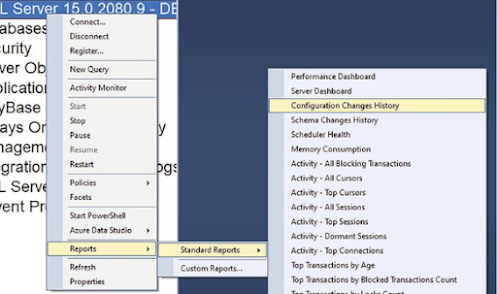
The simplest place to start is the SSMS GUI. Right-click the server ? Reports ? Standard Reports, and look for the one that shows configuration history.
This standard report reads from SQL Server’s default trace, which being the “default setting, would have been already running. That means you don’t need to setup and enable it. It is just there ready to view, unless of course it was purposely disabled/stopped.
However, the default trace comes with an important limitation: it is small by design. It is typically about 20 MB total, spread across up to 5 rollover files. You cannot change that size, so older entries will eventually roll off as new activity fills the trace.
If you want your own custom tracking, Extended Events is usually a better choice than building a new trace. Microsoft has largely moved the ecosystem toward Extended Events, and that’s where you should focus any new work.
When you need better control: auditing and Extended Events
SQL Server Auditing and Extended Events can also capture configuration changes, but there is one big catch: you must set them up before the change happens.
If you only think about tracking after the fact, auditing and Extended Events won’t help you. Once a setting is changed, they cannot retroactively tell you when it happened (unless they were already recording).
That is why many DBAs still start with the default trace or the SQL Server error log. Those options are already there, and they can answer the question right now, even if you did not plan for it.
The SQL Server error log
Another powerful, often overlooked place to check is the SQL Server error log. Every time a configuration option is changed with sp_configure, SQL Server usually writes a message into the error log that includes the phrase “Configuration option”.
Because of that, the error log becomes a built-in change history for key settings, as long as the log files are still present. You can search this log in several ways:
- In SSMS, by opening the SQL Server logs.
- In a text editor, by opening the .log files directly.
- Programmatically, using sys.xp_readerrorlog from T-SQL.
Please note: You may notice that Microsoft documents sp_readerrorlog as the supported way to read SQL Server error logs, while this post uses sys.xp_readerrorlog instead. In practice, both procedures read the same underlying log files and return the same core information; the main difference is that sp_readerrorlog is a wrapper that first checks your permissions and then calls xp_readerrorlog under the hood. The supported version also accepts a slightly simpler parameter list, while xp_readerrorlog exposes extra parameters such as a start date, end date, and sort order, which makes it more flexible for ad-hoc troubleshooting and filtered searches. Because of this extra flexibility, many DBAs, including examples in this blog post, continue to rely on xp_readerrorlog in day-to-day work, even though it remains an undocumented extended stored procedure.
Examples:
Here is a basic example that searches the current SQL Server error log for configuration change:
USE master;
GO
EXEC sys.xp_readerrorlog
    0,          -- LogNumber: 0 = current error log
    1,          -- LogType: 1 = SQL Server error log
    N'Configuration option', -- SearchString1: text to search for
    NULL,       -- SearchString2: additional text filter (none)
    NULL,       -- StartTime: no start-time filter
    NULL,       -- EndTime: no end-time filter
    N'desc';    -- Sort order: newest entries first
This returns all entries in the current log file that contain Configuration option, ordered newest first.
If you want to narrow it by time, you can pass a start-time filter:
USE master;
GO
EXEC sys.xp_readerrorlog
    0,          -- LogNumber: 0 = current error log
    1,          -- LogType: 1 = SQL Server error log
    N'Configuration option', -- SearchString1: text to search for
    NULL,       -- SearchString2: additional text filter (none)
    '2026-05-10 16:00:00', -- StartTime: start datetime filter
    NULL,       -- EndTime: no end-time filter
    N'desc';    -- Sort order: newest entries first
Now you only see configuration-change lines from that specific point onward.
You can also search for a specific setting by adding a second text filter. For example, this looks for configuration messages that also contain the word Optimize:
USE master;
GO

EXEC sys.xp_readerrorlog
    0,          -- LogNumber: 0 = current error log
    1,          -- LogType: 1 = SQL Server error log
    N'Configuration option', -- SearchString1: primary text to search for
    N'Optimize', -- SearchString2: secondary text to search for
    NULL,       -- StartTime: no start-time filter
    NULL,       -- EndTime: no end-time filter
    N'desc';    -- Sort order: newest entries first
These patterns make it easy to quickly corner the exact change you are investigating.
What happens after a restart
Here is an important detail that trips people up: every time SQL Server restarts, it starts a new error log file. The previous file is renamed to errorlog.1, the one before that becomes errorlog.2, and so on.
By default, SQL Server keeps up to 7 of these archived log files, but you can configure it to keep more (up to 99). If needed, you can also manually rotate the log without restarting by running sp_cycle_errorlog. This is useful if you want to “start fresh” and still keep older logs around.
Because of this cycling behavior, older configuration changes may move into errorlog.1, errorlog.2, and so on. The good news is that sys.xp_readerrorlog can read those archived logs too. The bad news is that the oldest logs will eventually be removed unless you copy that data somewhere else.
So while the error log is a great tool for recent history, it is still not a permanent, long-term auditing solution.
Usefulness beyond configuration changes
sys.xp_readerrorlog is not only useful for tracking configuration changes. You can also use it to search for errors, warnings, startup messages, and other events.
For example, say you want to check for severity 16 errors containing a specific error number over the last 24 hours:
USE master;
GO

DECLARE @start_time datetime = GETDATE() - 1;

EXEC sys.xp_readerrorlog
    0,          -- LogNumber: 0 = current error log
    1,          -- LogType: 1 = SQL Server error log
    N'Severity: 16', -- SearchString1: primary text to search for
    N'41145',  -- SearchString2: secondary text to search for
    @start_time, -- StartTime: start datetime filter (yesterday)
    NULL,       -- EndTime: no end-time filter
    N'desc';    -- Sort order: newest entries first
This kind of pattern is very handy when troubleshooting a server and you want to quickly focus on a specific kind of error.
The bottom Line:
Here is how I usually think about this in practice:
Need to do a quick check? Use the Standard Reports in SSMS. They read from the default trace and give you an easy, visual way to see recent changes.
Need more detail, but don’t want to set up a new system? Use sys.xp_readerrorlog against the SQL Server error log. It is fast, already available, and works great for recent configuration changes.
For long-term auditing and compliance: Use the Extended Events or SQL Server Auditing. These tools require planning and setup, but they are the right choice if you need reliable, long-lasting change history.
So if someone tells you that a setting was never touched, check the default trace first. If that has already rolled off, search the error log. Only then, if you need a permanent answer, invest in a more structured auditing solution.
