

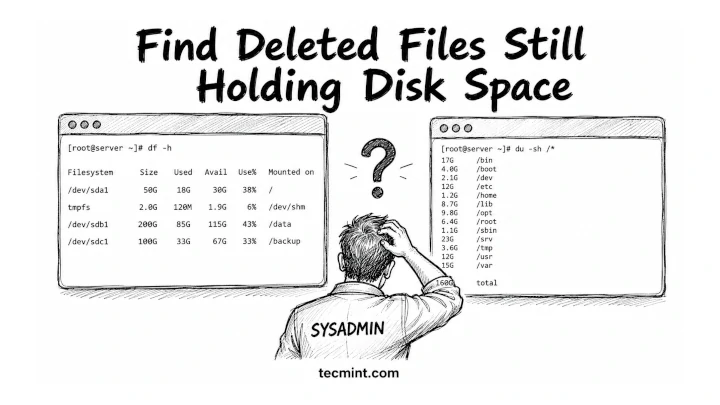
df says your disk is 80% full, but du says you’re barely using half, so one of them is lying, and it’s probably not the one you think.
You’re debugging a full disk alert at 2 am, and the df command is showing red while du / comes back looking totally fine. You run both commands 3 times, thinking you misread something. The numbers don’t match, and now you’re doubting your own terminal.
This happens on production Linux systems more often than you’d expect, and the fix is usually just 2 commands away once you understand what’s actually happening.
Here’s the trick:
dfchecks actual filesystem usage from the disk itself.duonly counts files and directories it can currently see.
So if a process deleted a huge log file but still keeps it open, du won’t see the file anymore, but df still counts the space as used.
Other common reasons:
- Reserved filesystem blocks
- Hidden mount points
- Open deleted files
- Container or overlay filesystem quirks
The numbers look wrong, but both commands are technically correct, and they’re just measuring disk usage in different ways.
What df and du Are Actually Measuring
df reads disk usage directly from the filesystem metadata, which checks the filesystem superblock, which keeps track of how many disk blocks are allocated and how many are free. It doesn’t scan directories or inspect files individually.
It simply asks the kernel:
“How many filesystem blocks are currently marked as used?”
du command works very differently, as it walks through the directory tree starting from the path you specify, checks every reachable file and directory, and adds up their sizes.
So when you run:
du -sh /
it only counts files that still exist in the directory structure.
This is why the numbers sometimes don’t match.
If a file gets deleted but a running process still has it open, the filesystem blocks remain allocated and df still sees those blocks as used because the kernel hasn’t released them yet.
But du can’t see the file anymore because its directory entry is already gone.
From the filesystem’s point of view, the space is still occupied. From the directory tree’s point of view, the file no longer exists.
That’s the gap you’re seeing between df and du.
The Real Cause: Deleted Files Still Held Open
The most common reason df and du disagree is deleted-but-still-open files.
When a process opens a file, and you delete it with the rm command, Linux doesn’t immediately free the disk space. Instead, it removes the directory entry, so the file disappears from the filesystem view. That’s why du can’t see it anymore.
But the data is still there.
If a process is still holding that file open, the kernel keeps the underlying disk blocks allocated. From Linux’s perspective, that data is still in use.
So now you get this split reality:
- du stops counting it immediately because the file is “gone” from the directory tree.
dfstill counts it because the filesystem blocks are still allocated.
A very common real-world case is log files.
An application keeps writing to a log file, and you delete it with rm to free space, and everything looks cleaned up, but the process never closed the file descriptor, so it continues writing to a file that no longer has a name.
Result:
dushows disk usage droppingdfshows no change at all- your disk still looks full
The space only gets released when the process closes the file or restarts, because that’s when the kernel finally drops the last reference and frees the blocks.
This is one of the most common “invisible disk usage” issues on production Linux systems.
If your disk usage numbers look completely wrong after a log cleanup or a large file delete, this is almost certainly what happened. [share]Share this with your team[/share] before anyone starts deleting random files trying to recover space that’s already “gone.”
How to Find the Culprit Processes
The tool you want here is lsof, which lists open file descriptors system-wide. R
To catch deleted-but-still-open files, you can use:
sudo lsof +L1
This filters for files with a link count below 1, which usually means the file has been deleted but is still held open by a running process.
The sudo is important here because without it, lsof only shows files opened by your current user. That means you’ll miss most system services, daemons, and production workloads that are often the real cause of disk issues.
If you run it without sudo and see incomplete output or permission-related gaps, that’s exactly why.
A typical output looks like this:
COMMAND     PID   USER   FD   TYPE DEVICE  SIZE/OFF NLINK NODE NAME
nginx      1423   root   10w   REG  253,1  524288000     0 1048 /var/log/nginx/access.log (deleted)
java       2201 tomcat   22w   REG  253,1  209715200     0 2341 /tmp/app.log (deleted)
The (deleted) tag at the end confirms the file has no directory entry. The SIZE/OFF column tells you exactly how much space it’s still occupying. In this output, nginx is sitting on 500MB that du can’t see but df is fully counted.
Once you identify the process, the fix is usually to restart it or force it to close the file handle, which immediately releases the space.
How to Free the Space Without Rebooting
You have 2 options here. One is clean, and the other is what you use when production is on fire, and you cannot restart anything.
Option 1: Restart the process holding the file open
This is the safest and most reliable fix.
sudo systemctl restart nginx
When the service restarts, it closes all open file descriptors, and the kernel then releases the disk blocks, and df immediately reflects the freed space.
Use this whenever:
- The service can tolerate a restart
- You want a clean, predictable recovery
- You don’t want to risk touching
/proc
Option 2: Truncate the file via /proc
This is the “no downtime” rescue method.
From your lsof output, grab the PID and FD, then truncate directly through the process file descriptor:
sudo truncate -s 0 /proc/1423/fd/10
What this does:
truncate -s 0sets file size to zero./proc/1423/fd/10points to the already-open file inside the running process.
Verify the result.
df -h /var/log
Example output:
Filesystem      Size  Used Avail Use%  Mounted on
/dev/sda1        50G   18G   30G  38%  /
The space shows up immediately. The process keeps running with its file descriptor open, it just has nothing left in the file.
Warning: Never truncate through /proc on a database write-ahead log or any file a process uses for crash recovery. You’ll corrupt data. This trick is safe on plain application log files where losing the contents is acceptable.
df, du, lsof, tune2fs, and the full storage toolchain with hands-on examples.Which Tool for Which Situation
| Situation | Command |
|---|---|
| Is my filesystem actually full? | df -h |
| What’s using all the space in this directory? | du -sh * | sort -rh |
| Why won’t the space be free after I deleted files? | lsof +L1 |
| How much space is a sparse file actually using? | du -sh (no --apparent-size) |
| How much space is the filesystem reserving? | tune2fs -l /dev/sdX |
Conclusion
You now know why df and du give you different numbers. df reads filesystem block allocation at the kernel level, du walks the directory tree, and anything that lives at the block level without a directory entry creates the gap.
Deleted-but-open files are the most common cause, and lsof +L1 is the fastest way to find what’s holding the space.
The next time you hit this, run lsof +L1 | sort -k7 -rn to sort by file size descending and go straight to the biggest offender. Nine times out of ten it’s a log file a daemon is still writing to after someone deleted it thinking they freed the space.
Have you ever had df and du disagree by more than 10GB on a system you thought you understood? What turned out to be the cause? Drop it in the comments, the edge cases are always more interesting than the common ones.
