

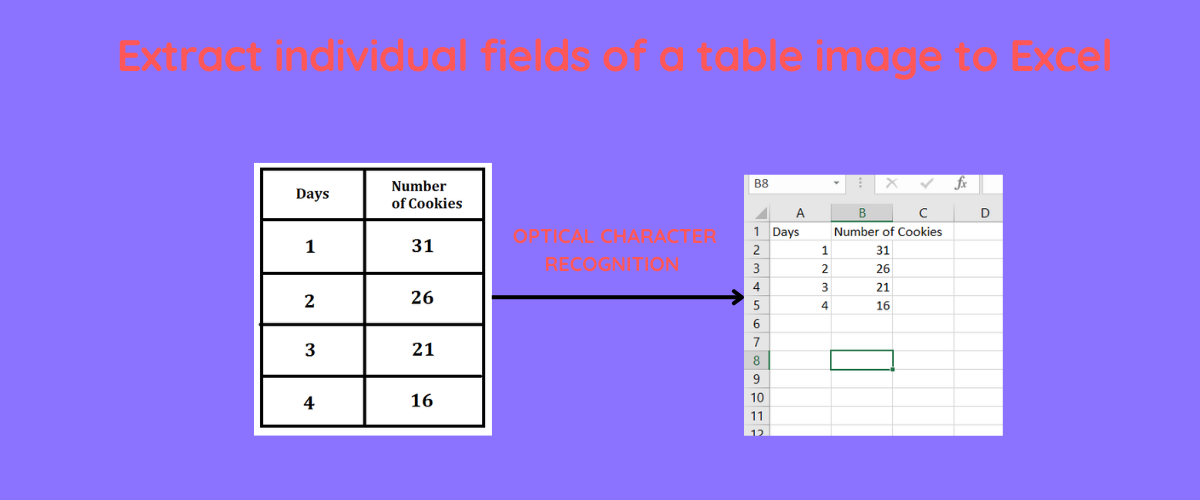
Optical Character Recognition lets you extract printed, handwritten, or scanned text from images and convert it into machine-readable data. If you have ever stared at a photograph of a table and dreaded typing all that data into a spreadsheet by hand, OCR is the solution. You write the code once, feed it any image, and get clean spreadsheet rows out the other end without touching a keyboard.
In this article you will build two complete Python pipelines that handle end-to-end OCR on table images and write the results directly to Excel files. The first pipeline uses Pytesseract, the wrapper around the open-source Tesseract 5 engine. The second uses EasyOCR, a deep-learning-based OCR library that returns bounding box coordinates along with recognized text. Both pipelines include image preprocessing, row detection, and Excel output. By the end you will know exactly which engine to reach for depending on your image quality and accuracy requirements.
TLDR
- Install Tesseract system-wide, then pip install pytesseract opencv-python pandas openpyxl.
- Preprocess images with cv2.cvtColor for grayscale conversion and cv2.threshold with THRESH_BINARY_INV + THRESH_OTSU before passing to pytesseract.
- Use –oem 3 –psm 6 for uniform table layouts. Change PSM to 11 for irregular documents or multi-column layouts.
- EasyOCR returns bounding boxes natively. Use Y-coordinates to group detections into rows and X-coordinates to sort within each row.
- Use pandas to_excel() to write extracted rows directly to a spreadsheet without manual copy-paste.
What is OCR?
OCR stands for optical character recognition. The term covers any process that takes an image containing text and produces raw character data as output. The input image might be a scanned passport, a photograph of a handwritten form, a screenshot of an invoice, or a multi-row table extracted from a PDF. In every case the underlying task is identical: identify the shape of each character and map it to the correct Unicode code point.
Modern OCR engines running on CPUs achieve over 99% accuracy on clean printed text. Tesseract 5, released in October 2021, powers the Pytesseract Python wrapper and remains the most widely deployed open-source OCR engine in production systems worldwide. It was originally developed by HP Labs and is now maintained by Google. Tesseract 5 includes a LSTM-based neural network layer alongside the legacy recognition engine, giving you multiple modes to choose from depending on your use case.
EasyOCR, developed by the JA VIP and released in 2019, takes a different approach. It is built on PyTorch and uses a deep learning model trained on millions of images. The key practical difference is that EasyOCR returns bounding box coordinates alongside recognized text, while Pytesseract only returns raw text. When you need to reconstruct table rows and columns from detected text, those bounding boxes are invaluable.
Raw text alone is insufficient for table extraction. When an OCR engine reads a photograph of a table, it typically returns the text left-to-right, top-to-bottom, with no structural information about which cells belong to the same row or column. Without knowing the spatial position of each text block, you cannot reliably reconstruct the table layout in an Excel file. Both pipelines in this article solve this problem in different ways.
Installing OpenCV
Both pipelines depend on OpenCV for image preprocessing. OpenCV is the de facto standard for computer vision in Python and provides reliable, fast image loading and transformation functions. Install it with pip:
pip install opencv-python
Verify the installation and check your OpenCV version:
import cv2
print(cv2.__version__)
You should see something like 4.10.0 printed to your terminal. The version number matters when you are debugging preprocessing issues, since different OpenCV versions handle some color conversion functions slightly differently.
Installing Tesseract OCR
Tesseract is a C++ engine. Unlike pure Python packages, it must be installed system-wide before the Python wrapper can use it. On Ubuntu or Debian, install it with apt:
sudo apt-get install tesseract-ocr
On macOS, use Homebrew:
On Windows, download the installer from the Tesseract GitHub releases page at github.com/tesseract-ocr/tesseract. Run the installer and add the installation directory to your system PATH environment variable. Restart your terminal after adding it to PATH, then verify with:
You should see tesseract 5.x listed in the output. If you see an older version or an error that tesseract is not found, the installation or PATH configuration did not take. On Linux, verify with which tesseract to confirm the binary is in your PATH.
Pytesseract Pipeline
Install the Python packages for the first pipeline:
pip install pytesseract pandas openpyxl
Pandas handles the dataframe operations and openpyxl lets pandas write proper .xlsx files with formatting intact.
Create a preprocessing function that normalizes the image for Tesseract. The key operations are converting to grayscale and applying binary thresholding. Grayscale removes color information that Tesseract does not use and reduces noise. Binary thresholding converts the image to pure black and white, which Tesseract is particularly good at reading.
import cv2

def preprocess_image(image_path):
    image = cv2.imread(image_path)
    gray = cv2.cvtColor(image, cv2.COLOR_BGR2GRAY)
    _, binary = cv2.threshold(gray, 0, 255, cv2.THRESH_BINARY_INV + cv2.THRESH_OTSU)
    return binary
cv2.threshold with THRESH_BINARY_INV + THRESH_OTSU works as follows. THRESH_OTSU automatically determines the optimal threshold value for the image by analyzing its histogram. THRESH_BINARY_INV inverts the result so text appears white on a black background, which is what Tesseract expects. Without this inversion, Tesseract reads black text on a white background, which produces worse results on most document images.
The main OCR function calls pytesseract.image_to_string with the –oem 3 and –psm 6 flags. These flags control which OCR engine model Tesseract uses and how it segments the image before recognition. After extracting raw text, the function splits on newlines and groups words into tab-separated columns assuming uniform spacing.
import pytesseract
import pandas as pd

def ocr_pytesseract(image_path, output_path):
    preprocessed = preprocess_image(image_path)
    raw_text = pytesseract.image_to_string(preprocessed, config="--oem 3 --psm 6")
    rows = []
    for line in raw_text.split("\n"):
        if not line.strip():
            continue
        cleaned = "\t".join(line.split())
        cleaned = "".join(char for char in cleaned if ord(char) < 128)
        if cleaned.strip():
            rows.append(cleaned.split("\t"))
    df = pd.DataFrame(rows)
    df.to_excel(output_path, index=False, header=False)
    print(f"Saved {len(rows)} rows to {output_path}")
Run the pipeline on your table image:
ocr_pytesseract("table_image.png", "output.xlsx")
Understanding OEM and PSM
Tesseract has two key configuration parameters that control recognition behavior. OEM stands for OCR Engine Mode and PSM stands for Page Segmentation Mode.
–oem 3 is the default for Tesseract 5 and is the setting you should use in most cases. It enables both the legacy Tesseract engine and the LSTM neural network and selects whichever produces better results for each image region. There are four OEM modes:
- OEM 0: Legacy engine only
- OEM 1: LSTM neural network only
- OEM 2: Legacy + LSTM, results combined
- OEM 3: Default mode, uses both and picks the best result per region
–psm 6 tells Tesseract to treat the image as a single uniform block of text. This is the right mode for clean table images where text is evenly spaced. Here is how the other PSM modes differ:
- PSM 4: Single text column. Good for invoices with one column of text.
- PSM 6: Uniform block of text. Good for clean tables with even line spacing.
- PSM 11: Sparse text. Good for noisy documents or irregular layouts.
Choosing the wrong PSM mode is one of the most common reasons Pytesseract produces garbled output on table images. If your document has multi-column layout or irregular spacing, try PSM 11 instead of PSM 6.
EasyOCR Pipeline
EasyOCR uses a PyTorch deep learning model that handles noisy, warped, and handwritten text significantly better than Tesseract. Install it with:
pip install easyocr opencv-python pandas openpyxl
EasyOCR downloads model weights automatically on first run. The initial download is around 200MB for the English model, so expect a short wait the first time you import easyocr in a new environment.
The Reader object initializes the deep learning model. You pass a list of language codes to specify which languages the model should recognize. The key advantage over Pytesseract is that readtext returns three values per detection: the bounding box coordinates, the recognized text, and a confidence score between 0 and 1.
import easyocr

reader = easyocr.Reader(["en"])

def extract_with_easyocr(image_path):
    results = reader.readtext(image_path)
    for bbox, text, confidence in results:
        print(f"[{confidence:.2f}] {text}")
    return results
Each bbox is a list of four corner coordinates: top-left, top-right, bottom-right, bottom-left. The Y-coordinates of these corners tell you the vertical position of the text block on the page, which is how you group detections into rows.
Saving EasyOCR Results to Excel
The save_easyocr_to_excel function groups detections by their Y-coordinate. Items whose center Y differs by less than 20 pixels are placed on the same row. Within each row, items are sorted by their center X-coordinate to maintain left-to-right reading order.
import pandas as pd

def save_easyocr_to_excel(results, output_path):
    items = []
    for bbox, text, confidence in results:
        if not text.strip():
            continue
        centres = [pt[1] for pt in bbox]
        centre_y = sum(centres) / len(centres)
        centre_x = sum(pt[0] for pt in bbox) / len(pt[0])
        items.append((centre_y, centre_x, text.strip()))
    if not items:
        return
    items.sort(key=lambda x: x[0])
    row_groups = []
    current_row = [items[0]]
    row_y = items[0][0]
    for item in items[1:]:
        if abs(item[0] - row_y) < 20:
            current_row.append(item)
        else:
            row_groups.append(sorted(current_row, key=lambda x: x[1]))
            current_row = [item]
            row_y = item[0]
    row_groups.append(sorted(current_row, key=lambda x: x[1]))
    rows = [[" ".join(item[2] for item in row)] for row in row_groups]
    df = pd.DataFrame(rows)
    df.to_excel(output_path, index=False, header=False)
    print(f"Saved {len(rows)} rows to {output_path}")
Reading Images from URLs
Both pipelines work on images loaded from disk, but you may need to process images from a URL without saving them to disk first. You can use the requests library to fetch the image bytes and numpy to convert them into an OpenCV-compatible image in memory.
import cv2, numpy as np, requests

def load_image_from_url(url):
    response = requests.get(url)
    image_array = np.asarray(bytearray(response.content), dtype=np.uint8)
    return cv2.imdecode(image_array, cv2.IMREAD_COLOR)

def ocr_from_url(url, output_path):
    image = load_image_from_url(url)
    cv2.imwrite("/tmp/ocr_input.png", image)
    ocr_pytesseract("/tmp/ocr_input.png", output_path)
cv2.imdecode reads directly from a numpy array without needing to write to disk. We write to /tmp only as a temporary step because both OCR functions expect a file path rather than an in-memory image object.
Pytesseract vs EasyOCR
- Clean printed text: Both engines achieve 95-99% accuracy on high-quality scans. Pytesseract runs 2-5x faster on CPU for this use case.
- Noisy or warped text: EasyOCR significantly outperforms Pytesseract because its deep learning model generalizes better to degraded inputs.
- Bounding boxes: EasyOCR returns them natively, making table reconstruction straightforward. Pytesseract requires post-processing of the raw text output.
- Installation complexity: Pytesseract requires installing the Tesseract binary system-wide. EasyOCR downloads its model automatically via pip.
- GPU support: EasyOCR with CUDA is dramatically faster on large images but requires a CUDA-capable GPU. Pytesseract runs well on CPU alone.
For most tabular data extraction tasks on clean printed documents, Pytesseract is the practical choice: faster, lighter, and sufficient accuracy. Switch to EasyOCR when dealing with photographs of documents, low-resolution scans, or documents with complex layouts that Pytesseract cannot segment correctly.
Common Pitfalls
- Wrong PSM mode: PSM 6 on a sparse multi-column document produces garbled output with columns merged. Always match the PSM mode to your document layout.
- Skipping preprocessing: Running OCR directly on a raw photograph without grayscale conversion and thresholding almost always produces worse results. Preprocessing costs two lines of code and saves significant cleanup time.
- Ignoring confidence scores: EasyOCR returns a confidence value between 0 and 1 for each detection. Low-confidence detections are often misrecognitions. Filter with r[2] > 0.6 to remove unreliable detections.
- Assuming uniform row height: Real documents have irregular line spacing. Using a fixed pixel threshold of 20 for row grouping is a practical starting point, but you may need to adjust it based on your image resolution.
- Not handling empty cells: Blank cells in a table produce empty strings in the OCR output. Empty strings should be skipped in your row-grouping logic or explicitly written as empty cells in the output Excel file.
- Using Tesseract 4 instead of 5: Tesseract 5 includes the LSTM neural network layer that significantly improves accuracy on difficult inputs. If you have Tesseract 4 installed, upgrade to 5.
Frequently Asked Questions
Q: Tesseract not found after installation
The tesseract binary must be in your system PATH. On Windows, restart your terminal or IDE after adding the installation directory to PATH. On Linux, run which tesseract to confirm the binary is found. If it is not found, reinstall with sudo apt-get install tesseract-ocr and verify with tesseract –version.
Q: How to improve accuracy on low-quality images
Apply denoising with cv2.fastNlMeansDenoising() before thresholding. For skewed images (photographed at an angle), detect the document contour and deskew with cv2.minAreaRect before running OCR. On very dark or light images, try adjusting the threshold method from THRESH_OTSU to a fixed threshold like 127.
Q: Can I process multi-column layouts
Yes. Use EasyOCR with PSM 11 for sparse text detection, or define column boundaries using the X-coordinates of bounding boxes in your row-grouping logic. Sort all detections by Y first to establish rows, then split each row into columns by defining X thresholds that match your document layout.
Q: How to extract only high-confidence text
EasyOCR returns confidence as the third tuple element from readtext. Filter detections with r[2] > 0.6 to keep only those above 60% confidence. This removes obvious misrecognitions but keep in mind that some valid text on low-quality images may fall below this threshold, so adjust based on your accuracy requirements.
Q: Why does Pytesseract read my table as one long string instead of rows
Pytesseract.image_to_string returns text in reading order but does not preserve table structure. The ocr_pytesseract function in this article handles this by splitting on newlines and rejoining with tabs, which assumes roughly uniform column spacing. For more complex tables, use the EasyOCR pipeline which returns bounding boxes that let you reconstruct rows spatially.
