

AI agents are moving from demos to daily workflows. They write code, run commands, and complete multi-step tasks without constant hand-holding. But general-purpose agents don’t know Docker. They don’t understand your containers, your images, or your specific setup.
Gordon does. Just run docker ai in your terminal or try it in Docker Desktop.
Available today in Docker Desktop 4.61, still in beta, Gordon is an AI agent purpose-built for Docker. It has shell access, Docker CLI access, your filesystem, and deep knowledge of Docker best practices. Point it at a problem, approve its actions, and watch it work.
[docker ai command launching Gordon in terminal interface]
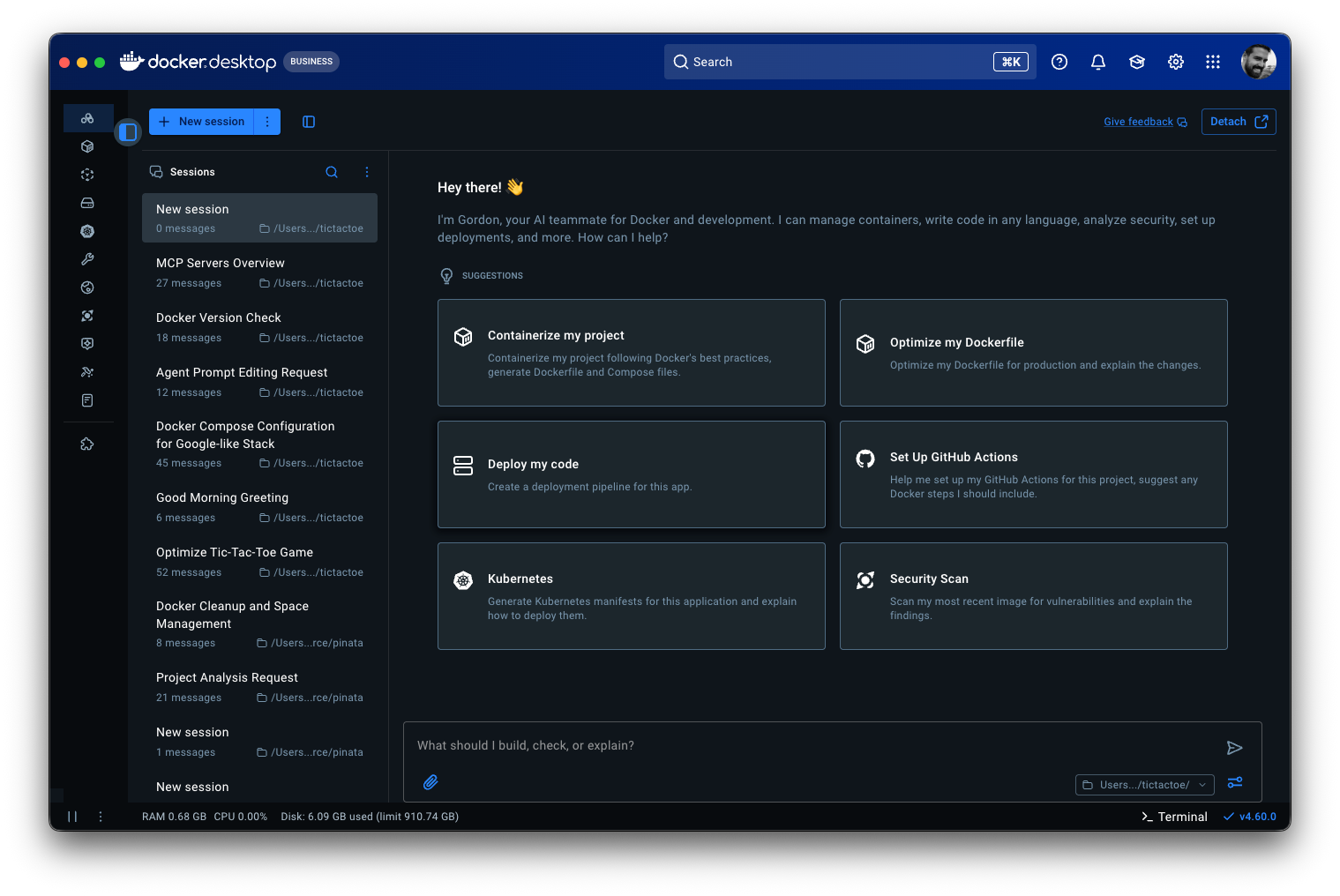
[Gordon in Docker Desktop sidebar]
Why Docker Needs Its Own Agent
When your container exits with code 137, Claude or ChatGPT will explain what OOM means. Gordon checks your container’s memory limit, inspects the logs, identifies the memory-hungry process, and proposes a fix. One approval, and it’s done.
When you need to containerize a Next.js app, Copilot might suggest a Dockerfile. Gordon examines your project structure, detects your dependencies, generates a production-ready Dockerfile with multi-stage builds, creates docker-compose.yml with the right services, and sets up your environment configs.
The difference is context and execution. Gordon knows what’s running on your machine. It can read your Docker state, access your filesystem, and take action. It’s not guessing – it’s working with your actual environment.
What Gordon Does
Debug and fix – Container won’t start. Service is unhealthy. Something is consuming all the memory. Gordon inspects logs, checks container status, identifies root cause, and proposes fixes. You approve, it executes.
Build and containerize – Take this application and make it run in Docker. Gordon examines your project, generates production-ready Dockerfiles with multi-stage builds, creates docker-compose.yml with the right services, handles environment configs and dependencies.
Execute and manage – Clean up disk space. Stop all containers. Pull and run specific images. Routine Docker operations should be conversational, not a trip to the docs.
Develop and optimize – Add health checks. Implement multi-stage builds. Apply security best practices. Reduce image sizes. Make existing Docker setups production-ready.
Gordon handles all of it.
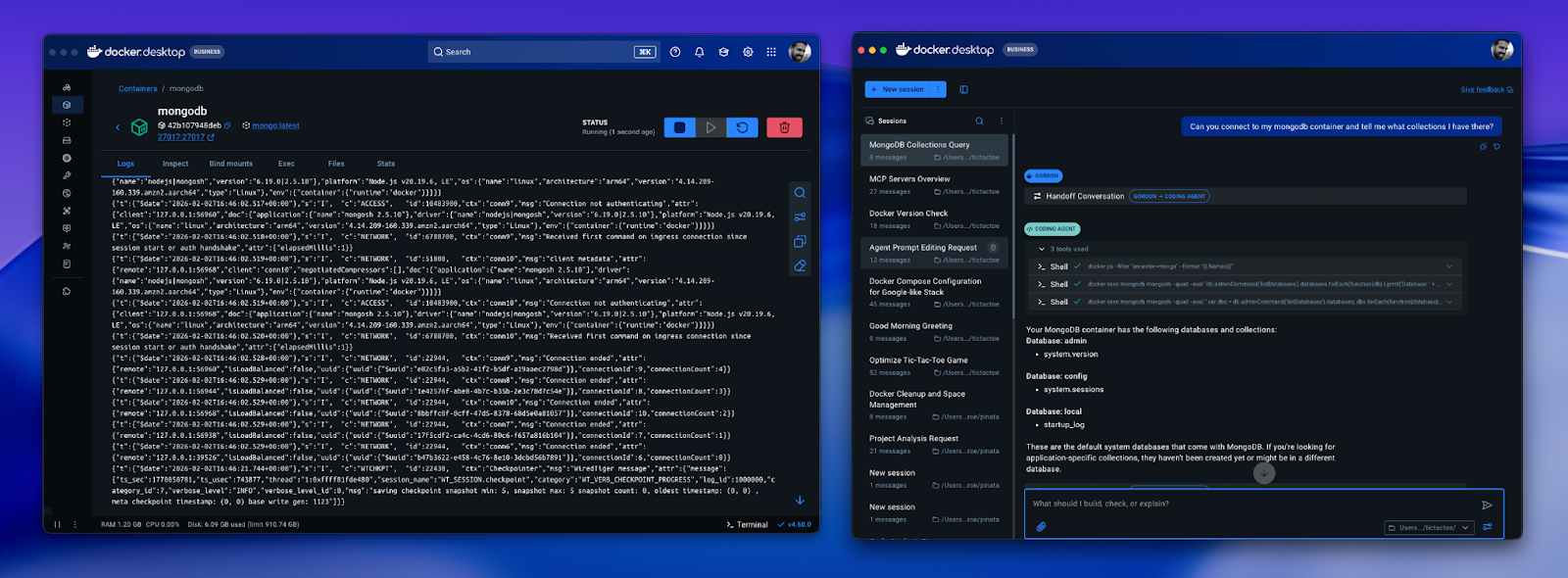
[Split screen showing Gordon debugging a mongodb container]
How Gordon Works
Gordon is built on cagent, Docker’s agent framework included with Docker Desktop, and runs locally within Docker Desktop. It has access to:
- Your shell – Can execute commands after approval
- Your filesystem – Reads project structure, configs, logs
- Docker CLI – Full access to Docker operations
- Docker knowledge base – Documentation, best practices, common patterns
You can configure Gordon’s working directory to point to a specific codebase. This gives Gordon full context on your project structure, dependencies, and existing Docker setup.
The permission model is straightforward: Gordon shows you what it wants to do, you approve or reject, then it executes. Every command. Every file update. Every Docker operation. You’re not watching passively – you’re directing an agent that knows Docker inside and out.
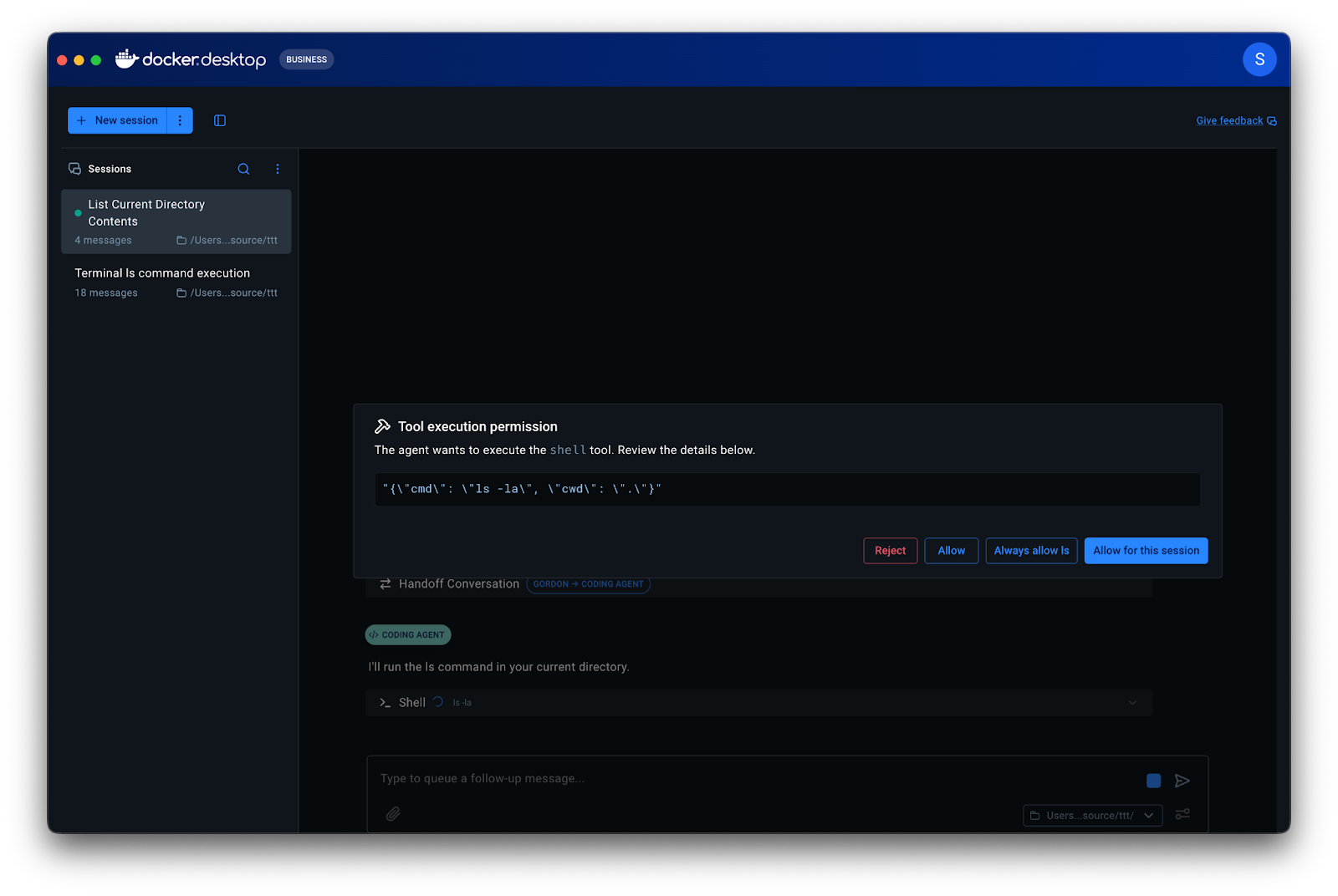
[Permissions request]
Where to Find Gordon
Docker Desktop: Look for the Gordon icon in the left sidebar
CLI: Run docker ai from your terminal
Gordon is included with all Docker subscriptions:
- Personal: Included
- Pro: 3x usage capacity
- Team: 3x usage capacity
- Business: 6x usage capacity
Note for Business users: If you don’t see Gordon, your admin needs to request enablement for your organization. Reach out to your Docker account team or contact support.
Get started today
- Download Docker Desktop 4.61+
- Log in with your Docker account
- Click the Gordon icon, select a project directory, and ask “Optimize my Dockerfile”
Gordon is available now in Docker Desktop 4.61 and later
