


In this article, learn how to set time, timezone, and synchronize your Linux system clock with NTP using timedatectl, systemd-timesyncd, and chrony.
The ‘timedatectl‘ command is a utility for RHEL-based and Debian-based distributions, and it is a part of the ‘systemd‘ system and service manager, serving as a replacement for the old traditional date command used in ‘sysvinit‘ daemon-based Linux distributions.
The timedatectl command allows you to query and change the configuration of the system clock and its settings, you can use this command to set or change the current date, time, and timezone, or enable automatic system clock synchronization with a remote NTP server.
In this tutorial, am going to take you through the ways you can manage time on your Linux system by setting the date, time, timezone, and synchronize time with NTP from the terminal using timedatectl, systemd-timesyncd, and chrony.
It is always a good practice to maintain the correct time on your Linux server or system, and it can have the following advantages:
- Maintain the timely operation of system tasks since most tasks in Linux are controlled by time.
- Accurate time for logging events and other information on the system.
- Proper synchronization for distributed systems and applications.
- Essential for security protocols like Kerberos and SSL/TLS certificate validation.
How to Find and Set Local Timezone in Linux
1. To display the current time and date on your system, use the timedatectl command from the command line as follows:
timedatectl status
In the output above, RTC time is the hardware clock time.
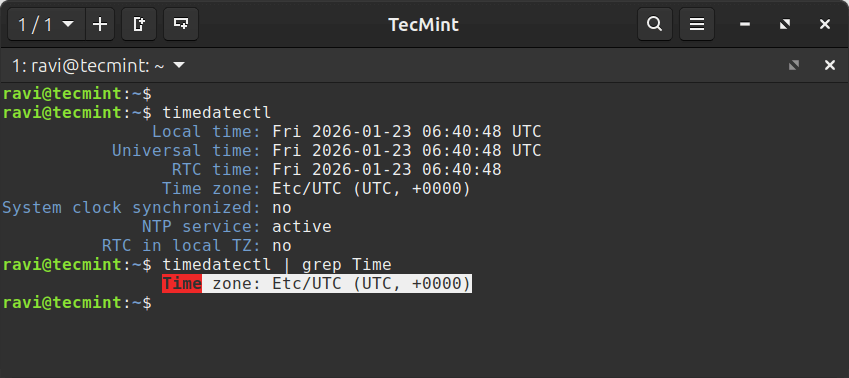
2. The time on your Linux system is always managed through the timezone set on the system, to view your current timezone, do it as follows:
timedatectl
OR
timedatectl | grep Time
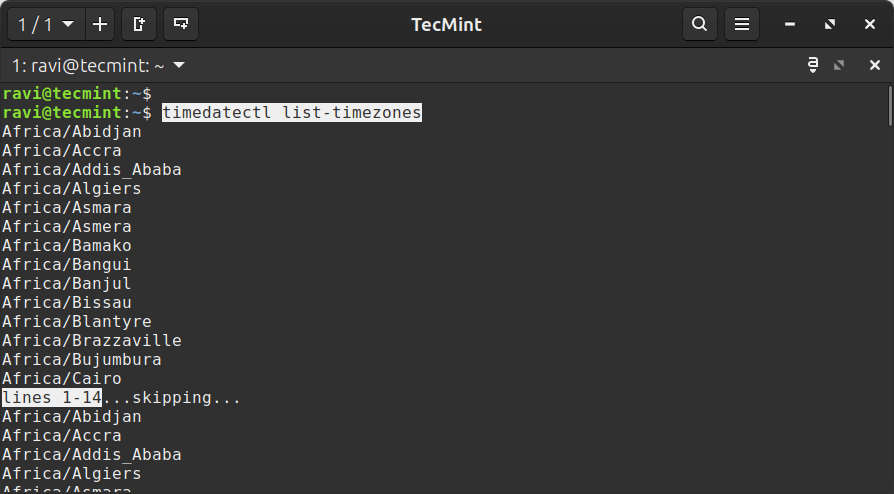
3. To view all available timezones, run the command below:
timedatectl list-timezones
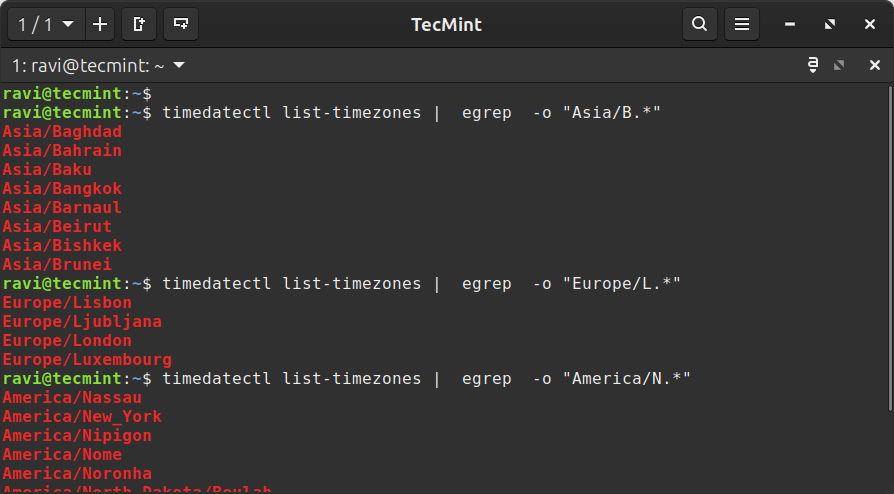
4. To find the local timezone according to your location, run the following command.
timedatectl list-timezones |  egrep  -o "Asia/B.*"
timedatectl list-timezones |  egrep  -o "Europe/L.*"
timedatectl list-timezones |  egrep  -o "America/N.*"
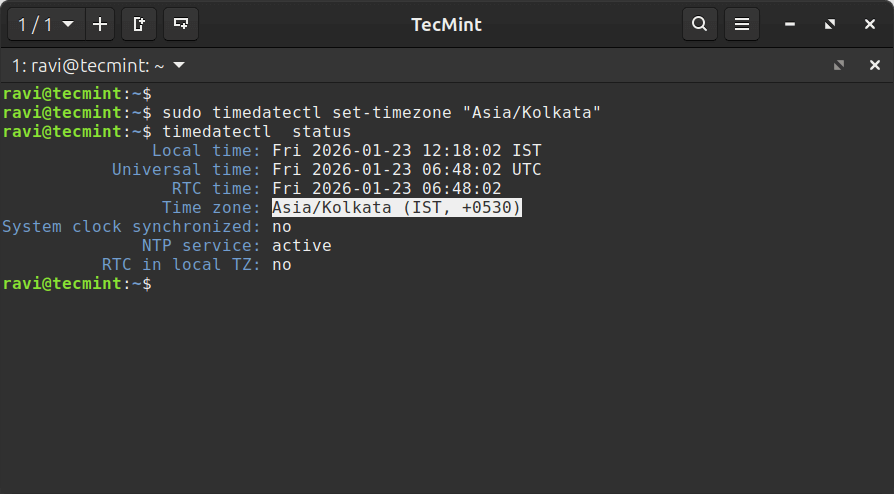
5. To set your local timezone in Linux, we will use the set-timezone switch as shown below.
sudo timedatectl set-timezone "Asia/Kolkata"
timedatectl status
It is always recommended to use and set the coordinated universal time, UTC.
sudo timedatectl set-timezone UTC
timedatectl status
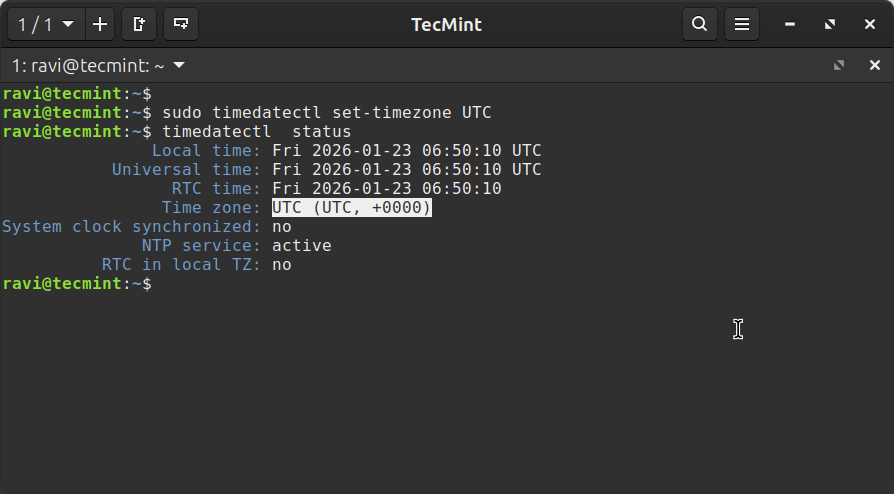
You need to type the correct name timezone otherwise you may get errors when changing the timezone, in the following example, the timezone “Asia/Kolkata” is not correct therefore causing the error.
failed to set time zone: invalid timezone
How to Set Time and Date in Linux
You can set the date and time on your system using the timedatectl command as follows:
Set Time in Linux
6. To set time only, we can use a set-time switch along with the format of time in HH:MM:SS (Hour, Minute, and Seconds).
sudo timedatectl set-time 12:25:30
timedatectl status
You may get the following error when setting the date as shown above:
Failed to set time: Automatic time synchronization is enabled
The error occurs because automatic time synchronization (NTP) is enabled, which prevents manual time changes.
To fix it, first disable NTP, then set the time.
sudo timedatectl set-ntp false
sudo timedatectl set-time 12:25:30
timedatectl status
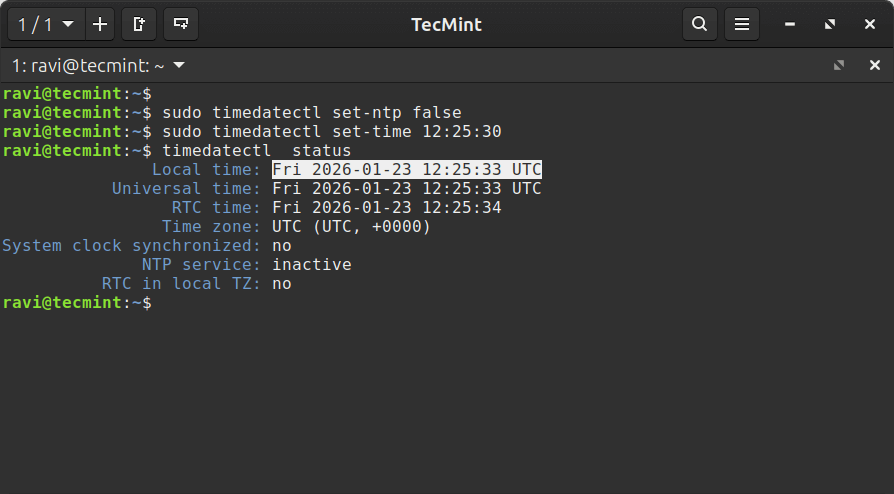
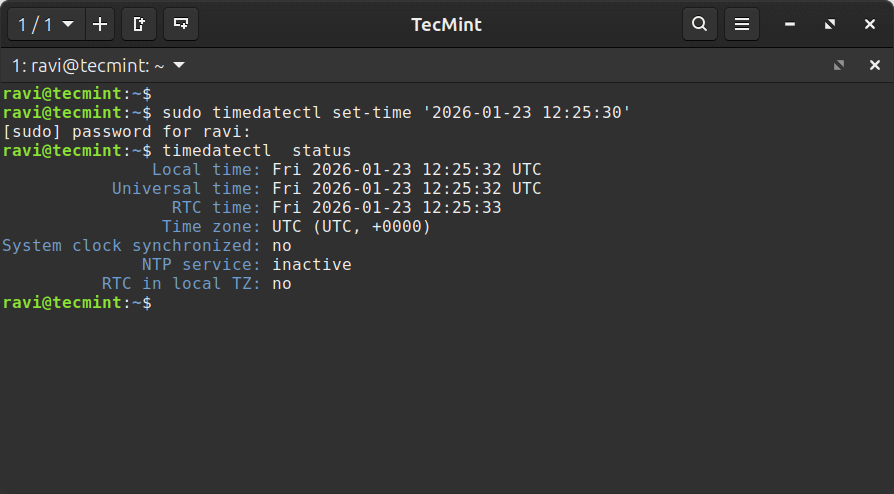
7. To set both date and time, use the set-time switch along with the format of date in YYYY-MM-DD (Year, Month, Day) and time in HH:MM:SS (Hour, Minute, and Seconds):
sudo timedatectl set-time '2026-01-23 12:25:30'
How to Find and Set Hardware Clock in Linux
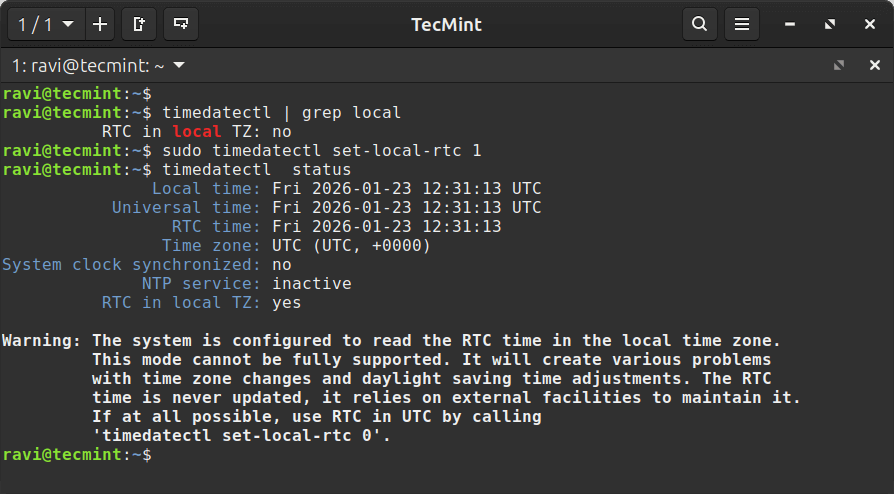
8. To set your hardware clock to coordinated universal time, UTC, use the set-local-rtc boolean-value option as follows:
First Find out if your hardware clock is set to the local timezone:
timedatectl | grep local
Set your hardware clock to the local timezone:
sudo timedatectl set-local-rtc 1
Set your hardware clock to coordinated universal time (UTC):
sudo timedatectl set-local-rtc 0
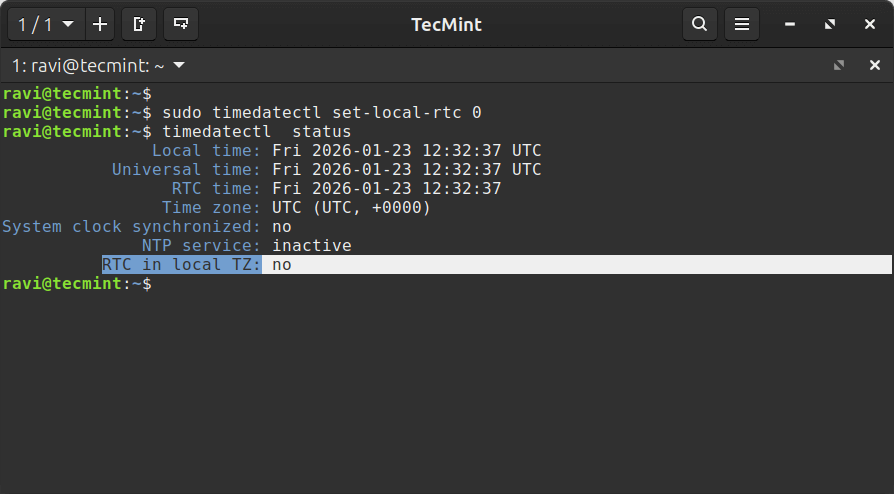
Note: Setting the RTC to local time is not recommended and may cause issues with daylight saving time adjustments, so it is best to keep the RTC in UTC.
Synchronizing Linux System Clock with a Remote NTP Server
NTP stands for Network Time Protocol is an internet protocol, which is used to synchronize the system clock between computers.
The timedatectl utility enables you to automatically sync your Linux system clock with a remote group of servers using NTP.
Most modern Linux distributions use different implementations for NTP synchronization:
- systemd-timesyncd: A lightweight SNTP (Simple NTP) client built into systemd, which is suitable for most desktop and single-server setups.
- chrony: A full-featured NTP implementation that can act as both client and server. It handles intermittent network connections better and is more accurate.
Using systemd-timesyncd
To start automatic time synchronization with a remote NTP server, type the following command at the terminal, which will enable and start the systemd-timesyncd service.
sudo timedatectl set-ntp true
To disable NTP time synchronization, type the following command at the terminal.
sudo timedatectl set-ntp false
To check the synchronization status:
timedatectl status
You should see “System clock synchronized: yes” and “NTP service: active“.
Using chrony (Recommended for Servers)
If you’re running a server or need more reliable time synchronization, chrony is the better choice, and it is particularly good for:
- Systems that don’t run continuously (laptops, desktops).
- Servers require high accuracy.
- Systems with intermittent network connectivity.
- Clustered environments where time consistency is critical.
First, install chrony (if not already installed):
sudo apt install chrony   [On Debian-based systems]
sudo dnf install chrony   [On RHEL-based systems]
Note: Installing chrony will automatically disable systemd-timesyncd to prevent conflicts.
After installation, enable, start, and check synchronization status:
sudo systemctl enable --now chronyd
timedatectl status
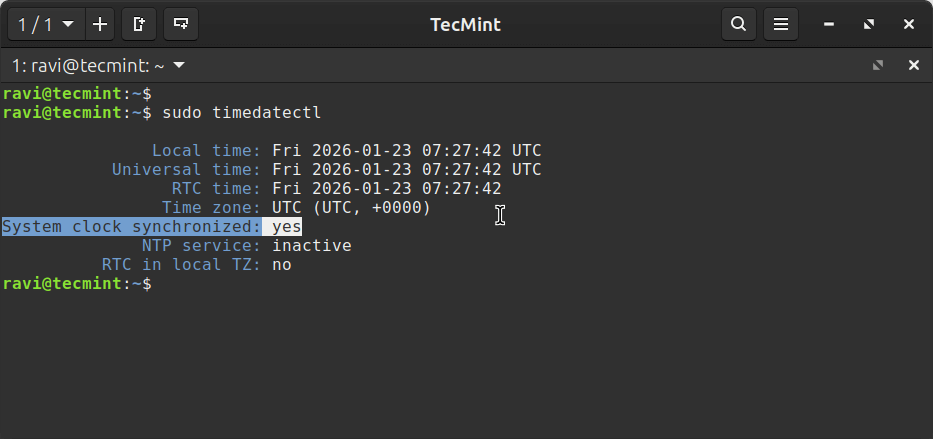
To use your own NTP servers instead of the default ones, you need to edit the Chrony configuration file.
sudo nano /etc/chrony/chrony.conf
OR
sudo nano /etc/chrony/sources.d/custom.sources
Add your preferred NTP servers (you can get a list NTP servers from NTP Pool Project).
pool 0.pool.ntp.org iburst
pool 1.pool.ntp.org iburst
pool 2.pool.ntp.org iburst
Restart chrony after changes:
sudo systemctl restart chronyd
Important Notes About NTP Synchronization
- You cannot run multiple NTP implementations simultaneously, so choose either systemd-timesyncd or chrony.
- systemd-timesyncd is a client-only implementation and cannot serve time to other systems.
- chrony can act as both a time client and a time server for your local network.
- For production servers and critical infrastructure, chrony is generally recommended over systemd-timesyncd.
- NTP requires UDP port 123 to be open for outbound connections.
Summary
These are very easy examples described in this tutorial and I hope you will find them helpful for setting various Linux system clocks and timezones.
To learn more about this tool, head over to the timedatectl man page.
man timedatectl
If you have anything to say about this article, feel free to leave a comment for any more information to add.
