

A customer was asking about tracking logins and logouts in Redgate Monitor. We don’t do this natively, as this really needs an XEvent session. I decided to see if an AI could help me get a solution setup that might let me build a custom metric to track this.
I could do this myself, but it’s some looking syntax and capabilities, futzing with different code items, and trying to think about options. The goal here is can an AI help and save time. Not do the work for me, but assist.
So maybe not Vibe coding per se, but felt like I did little.
Video Walkthrough at the bottom.
This is part of a series of experiments with AI systems.
Note: This isn’t something I necessarily worry about. The rate might tell me if I’m under attack, but I’d hope applications would detect this first (and be able to block things)
The Problem
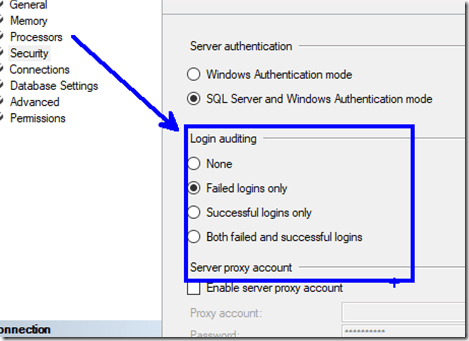
The customer just asked if they could track logins and logouts. I mentioned the Server Properties (shown below), to see what they’d done. They hadn’t used this, but also, it’s not very flexible or reportable as it puts info in the error log.
Tracking this info really requires an XE (Extended Events) session. That’s a lightweight way to capture this information. If I want to capture some info about the client logging in, or failing to log in, that’s the way.
A separate request was could we also get logouts. The only way to do this is with an XE session and the sqlserver.logout event.
With that in mind, let’s see how my assistant can help.
Using Claude
I opened Claude and asked this: “in sql server can I track login counts and logout counts from t-sql?” and actually spelled everything correctly. No savings here.
The base answer I got started like this, giving me a few options.

The ending asked me if I’d like to get the Extended Event option. It had provided only the login trigger option. I need an assistant, so I said yes.

That first answer was maybe 20-30 sec, but I started reading things, so this felt like a discussion with another DBA. Once this started, I let it go and it started to write out and work on code on the right, and then fill in the results on the left. This was a few minutes, so I flipped over to answer a few emails while I saw this on another monitor.
The results started with a table to store data and then an XE session. The whole page looks like this, which is a lot.

Here’s the full left side. Notice that it asks me for a next step. I’ve met a lot of junior DBAs, or even Senior-DBAs-with-1-year-of-experience-10-times that didn’t do this.

The actual code doesn’t matter yet, since I realized this isn’t getting failed logins. I asked another question and got a response. A polite Claude complements me and then rewrites code. This took another few minutes, and it was neat to see it rewriting its code on the right, adding in a new field in the table and adjusting the session.
I watched a bit, but got distracted with a Slack message. One nice thing is I can move on to another task while my assistant keeps working.

At the bottom, I liked the summary of how it works.

My Slack message was from an AE, asking a question about the server property stuff (from the customer). I could have typed a bunch, but when I looked back, Claude was finished, so I asked it.

I copy/pasted this to the AE, as it’s a good summary for the customer. This assistant is making my job easier.
Testing the Solution
I didn’t just send this. Instead I decided to test this on a few local systems. I keep a DBA database on each instance, so I ran the code in there to create the table and session. As a precaution, since this isn’t my code, I ran each item separately.

The table worked here. I had another window for the session, which I looked over, but didn’t extensively check. I’m not an XE expert, and I’d likely fumble this code worse than an AI at first, so I checked the events and actions. I decided to just run this since it looked good.
When it came to the procedure, I got an error. I copied and pasted this into Claude. It recognized an issue and fixed it. This took a few minutes, but this is faster than I could have corrected my own amateurly written query against XE.

Now I had a procedure. One thing I edited in both the session and proc is that I removed the hard coded c:SQLData path. I wanted this captured with my other instance stuff in the logs folder, so I left just the name of the XE session.
Adding Archival
One of the things that Redgate Monitor does really well is manage older data. I’ve seen so many people, including myself, set up something like this and then a year later realize they’ve captured GB of data.
I asked Claude to just fix this for me.

I grabbed the second command for my Agent Job and changed 180 to 90.
SQL Agent Job
Claude again asked me above about jobs, but jobs are simple and easy, and I wanted to think about it for a minute. I right clicked and created a new job. I thought about the name and description I wanted. Then I made two steps, pasting in two exec proc commands for the procs my assistant had written.
The last thing was some testing. I ran my job to be sure it was working. It completed, which was good.
I made a few logins and logouts, including a few failed logins. Then I queried my table. I didn’t remember the name, but my assistant tends to pick plain/boring names. So I used SQL Prompt to find it with a ssf

When I got a query and checked, I see logs of my logins and logouts.

Redgate Monitor Custom Metric
My AE and customer wanted to see this in Redgate Monitor, so I decided to ask Claude. It was happy to help.

I could repeat that for the other items (failed logins and logouts). I didn’t, but this gets me ready to add this to Redgate Monitor.
Summary
This shows how an AI assistant can help me set up some auditing for security purposes. There is nothing complex here, and I’ve set up a bunch of this myself in the past. I even have a blog on this.
However, the code is cumbersome and slow to write for me. Or most humans unless you end up working with XE every day. Even if you use SSMS and the GUI to generate the script, it can be slow. I know I’d certainly have to look things up. In less than 15 minutes, I had a fairly well working solution, with archiving (deleting) old data and I didn’t need to focus tightly the entire time or type a lot. I did some other work, and I could focus on just testing.
Claude was a great AI assistant to this problem, which is similar to a lot of DBA-type work I’ve done in the past.
These were the tools I used:
And, of course, Management Studio 22.
Addendum
I tried Google Gemini and ChatGPT. A quick summary of those, which didn’t work as well. At least not to me.
Note that I use the free versions for all of these tools right now.
Gemini
The first prompt got me just a table and trigger, with a followup if I wanted more. I asked about XE and got a basic session, not as easy to read as Claude and embedded inside the response. It also had fewer actions.

I got to the same place, but it was more prompts and I had to keep guiding it along, like micro, or at least mini, managing another DBA. On the plus side, this was faster.
ChatGPT
ChatGPT suggested a trigger, but noted this wasn’t great. It did suggest extended events, and a complete solution. I could have just entered “yes”, but I didn’t. I’m still working on muscle memory at times.

I got each part of the solution separate, but this has me scrolling through explanation and code. Again, I prefer the Claude side-by-side approach, but this works. And it’s fast.

This also kept leading me along the process, which I liked. It certainly likes the checkboxes and Xs in its results.
Both tools helped me with custom metrics.
Video Walkthrough
Here is a a retry, and then showing the first solution. I think Claude learned a bit the second time.
