


Disclaimer: this post is not sponsored by Redgate
For those who’ve missed it, the new version of SSMS is now generally available. It’s a big new version and it now uses Visual Studio 22 behind the scenes, so it’s now installed through the Visual Studio Installer.
Anyway, I’m a big fan of Redgate SQL Prompt as it enables my to quickly format code and it also has better autocomplete features. Officially, the latest version of SQL Prompt supports the preview version of SSMS 21. But what about the new GA version?
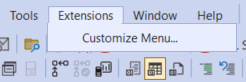
I installed SSMS 21, imported existing settings from my old version of SSMS and also installed the latest version of SQL Prompt (10.16.12 at the time of writing). However, when I fired up SSMS 21, there were no Redgate tools to be seen. Bummer. The extensions menu was empty:
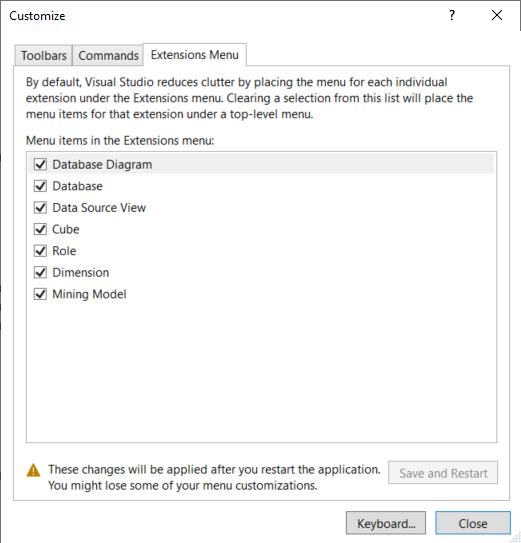
In the customize screen there was also no trace of any Redgate extension:
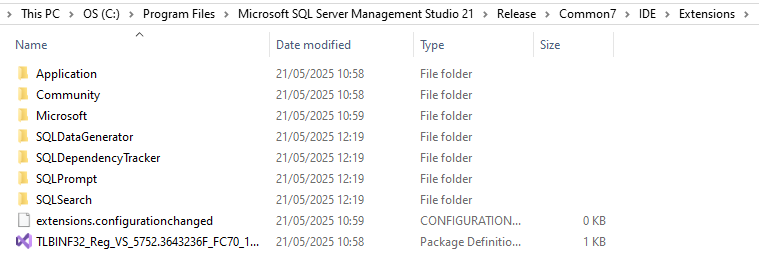
After some digging around, someone mentioned that the extension is installed in the wrong folder. It’s installed in the Preview folder of SSMS, instead of the Release folder.

By copying these folders to the correct location, we can get the extensions to work in SSMS 21.
This is probably a temporary issue though, and I hope they fix it soon at Redgate. However, when reopening SSMS 21, the SQL Prompt extension was still not visible. You can fix this by going back to the customize menu, and deselecting SQL Prompt from the list.
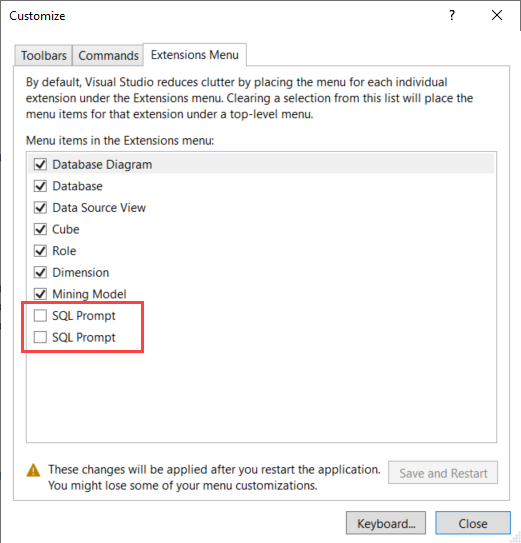
(SQL Prompt appearing twice is another bug btw)
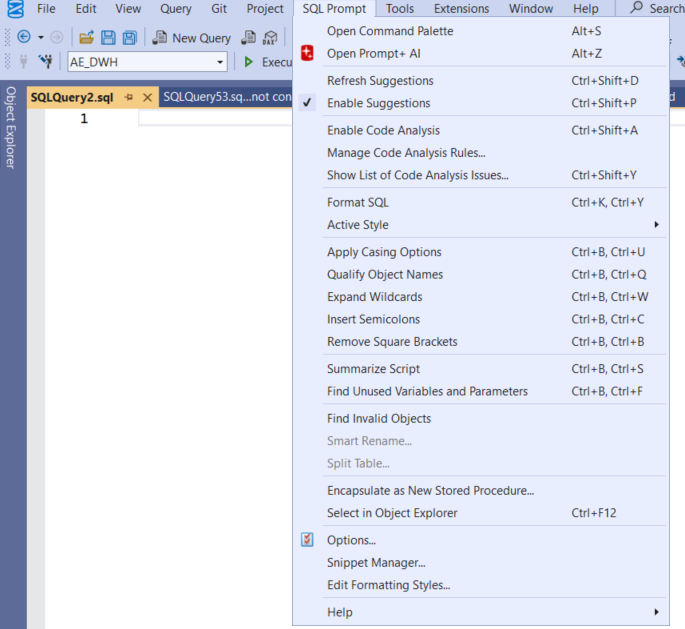
Now it should pop right up in SSMS, and you can continue writing awesome T-SQL!
The post Redgate SQL Prompt in SSMS 21 first appeared on Under the kover of business intelligence.
