

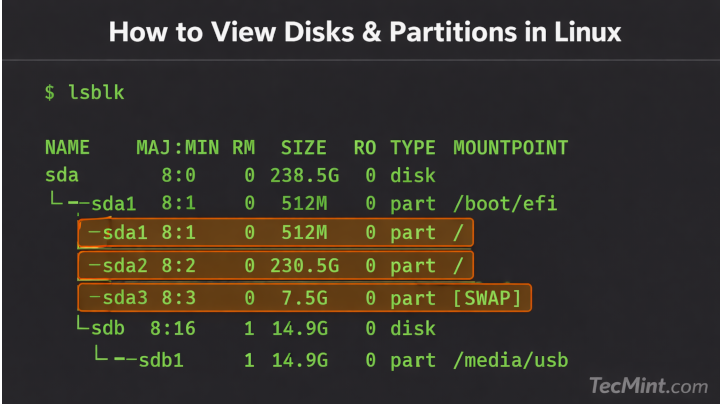
Whether you’re troubleshooting boot issues, preparing to format a drive, or setting up a new disk, knowing how to view disk and partition information is essential.
In this guide, we will show how to list storage disks and partitions in Linux systems using both command-line tools and GUI utilities.
By the end of this guide, you will learn how to view or report information about disks and partitions on your Linux server, desktop computer, or workstation.
[ You might also like: 3 Useful GUI and Terminal-Based Linux Disk Scanning Tools ]
1. List Linux Disks Using fdisk Command
fdisk is a widely-used command-line tool for manipulating disk partition tables. You can use it to view disks and partitions on your Linux server as follows.
The -l flag means list partitions, if no device is specified, fdisk will display partitions from all disks. It requires root privileges for you to invoke it, so use the sudo command where necessary:
sudo fdisk -l
Explore few more fdisk command examples:
# View specific disk only
sudo fdisk -l /dev/sda

# Check partition table type (GPT or MBR)
sudo fdisk -l | grep "Disklabel type"
When to use fdisk:
- Check boot flags on partitions.
- View detailed sector information for recovery.
- Determine partition table type (GPT vs MBR).
- Before using tools like dd for disk imaging.
2. View Linux Disk Partitions Using lsblk Command
lsblk is a utility for listing block devices in a tree structure. You can use it to view disks and partitions on your Linux computer as follows. It doesn’t require root privileges:
lsblk
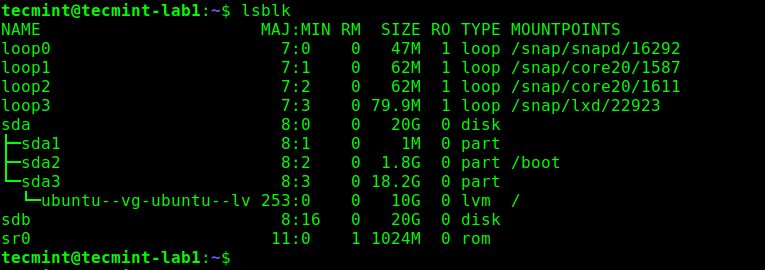
To view extra information about disks, use the following command line options as shown:
# Show filesystem type and UUIDs
lsblk -f

# Show full device paths
lsblk -p

# Show device ownership and permissions
lsblk -m

# Show all devices including empty ones
lsblk -a
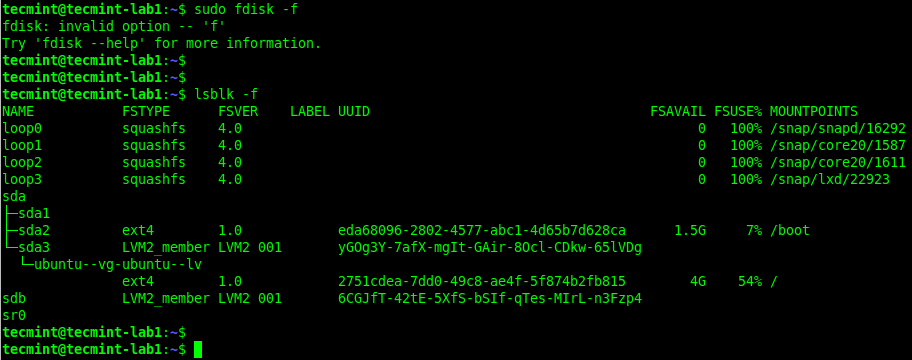
When to use lsblk:
- Quick visual overview of disk hierarchy.
- Identify USB drives (look for RM=1).
- Check which partitions are mounted.
- Find partition sizes without root access.
3. Find UUIDs and Filesystem Types Using blkid Command
blkid is a command-line utility to locate and print block device attributes such as UUID, filesystem type, and partition labels. It’s particularly useful when configuring /etc/fstab for automatic mounting.
To view all block devices and their attributes, run:
sudo blkid
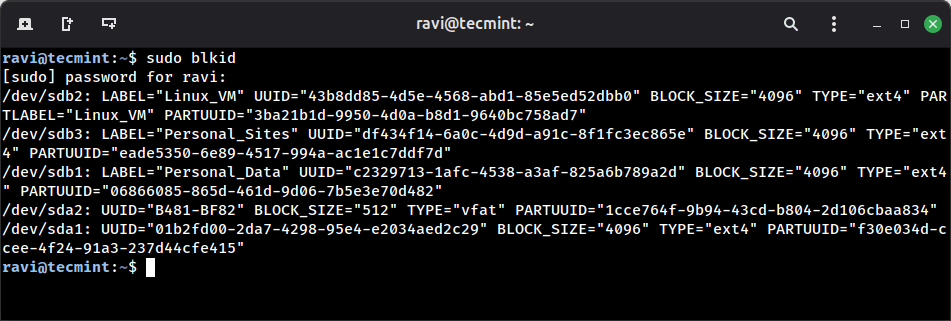
To display information in a more readable format, use the -o option:
sudo blkid -o list
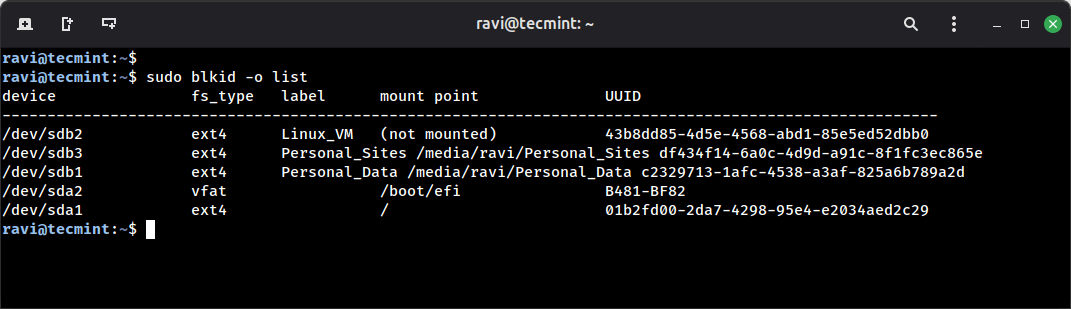
Practical Examples:
# Get UUID for a specific partition (for /etc/fstab)
sudo blkid /dev/sda1

# Find all ext4 partitions
sudo blkid -t TYPE=ext4

# Show only UUIDs
sudo blkid -s UUID
When to use blkid:
- Finding UUIDs for
/etc/fstabentries. - Identifying filesystem types before mounting.
- Checking partition labels.
- Verifying partition attributes after formatting.
Why UUIDs Matter: When configuring /etc/fstab, using UUIDs instead of device names (/dev/sda1) is recommended because device names can change if you add or remove drives, but UUIDs remain constant.
4. View Partition Information Using parted Command
parted is a powerful partition editor that can also be used to view disk partition information. It supports both MBR and GPT partition tables, making it ideal for modern systems with large disks (>2TB).
To list all disks and their partitions, run:
sudo parted -l
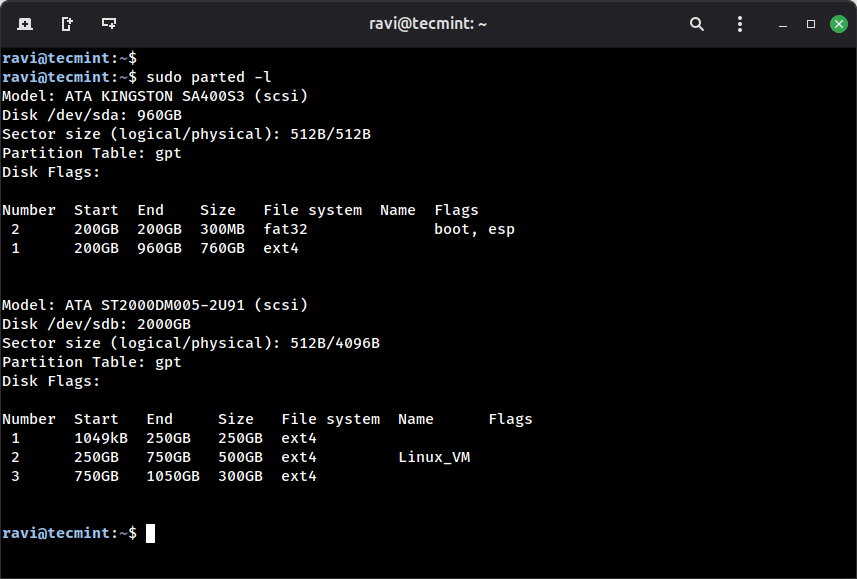
Explore few more parted command examples:
# View specific disk only
sudo parted /dev/sda print

# Check if disk uses GPT or MBR
sudo parted /dev/sda print | grep "Partition Table"

# View disk in interactive mode
sudo parted /dev/sda
When to use parted:
- Working with GPT partition tables.
- Managing disks larger than 2TB.
- Creating or resizing partitions.
- Checking partition alignment for SSDs.
- When fdisk shows “GPT detected” warnings.
parted vs fdisk:
- fdisk: Better for MBR/DOS partition tables, traditional systems.
- parted: Better for GPT partition tables, modern UEFI systems, large disks.
5. Check Disk Usage with df Command
df (disk free) is one of the most comoonly used commands for displaying the amount of disk space used and available on mounted filesystems.
df -h
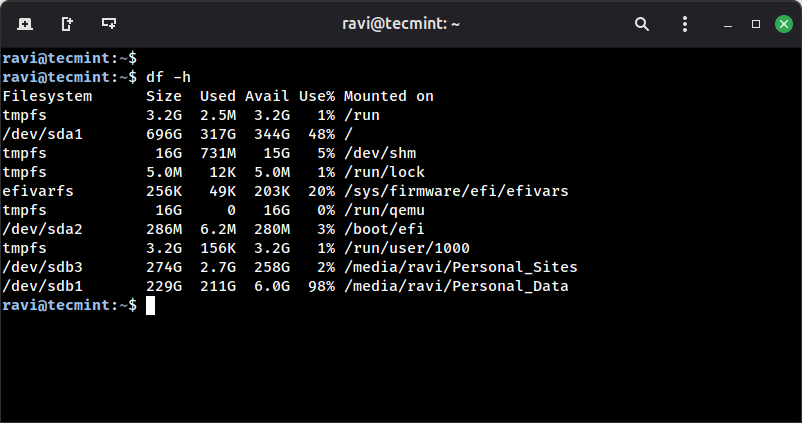
Explore some useful df command examples:
# Show inode usage instead of disk space
df -i

# Show filesystem type
df -T

# Show only specific filesystem type
df -t ext4

# Exclude specific filesystem types (e.g., tmpfs)
df -x tmpfs -x devtmpfs -h
When to use df:
- Check available disk space before installing software.
- Monitor disk usage to prevent running out of space.
- Identify which partition is filling up.
- Verify mounted filesystems.
6. View Linux Disks Using hwinfo Command
hwinfo is another useful utility for viewing information about your hardware, particularly storage disks. If you can not find the hwinfo command on your system, run the following command to install it:
sudo apt install hwinfo         [On Debian, Ubuntu and Mint]
sudo yum install hwinfo         [On RHEL/CentOS/Fedora and Rocky Linux/AlmaLinux]
sudo emerge -a sys-apps/hwinfo  [On Gentoo Linux]
sudo pacman -S hwinfo           [On Arch Linux]
sudo zypper install hwinfo      [On OpenSUSE]
Once you have the hwinfo package installed, run the command with the --disk command line option as shown:
sudo hwinfo --disk
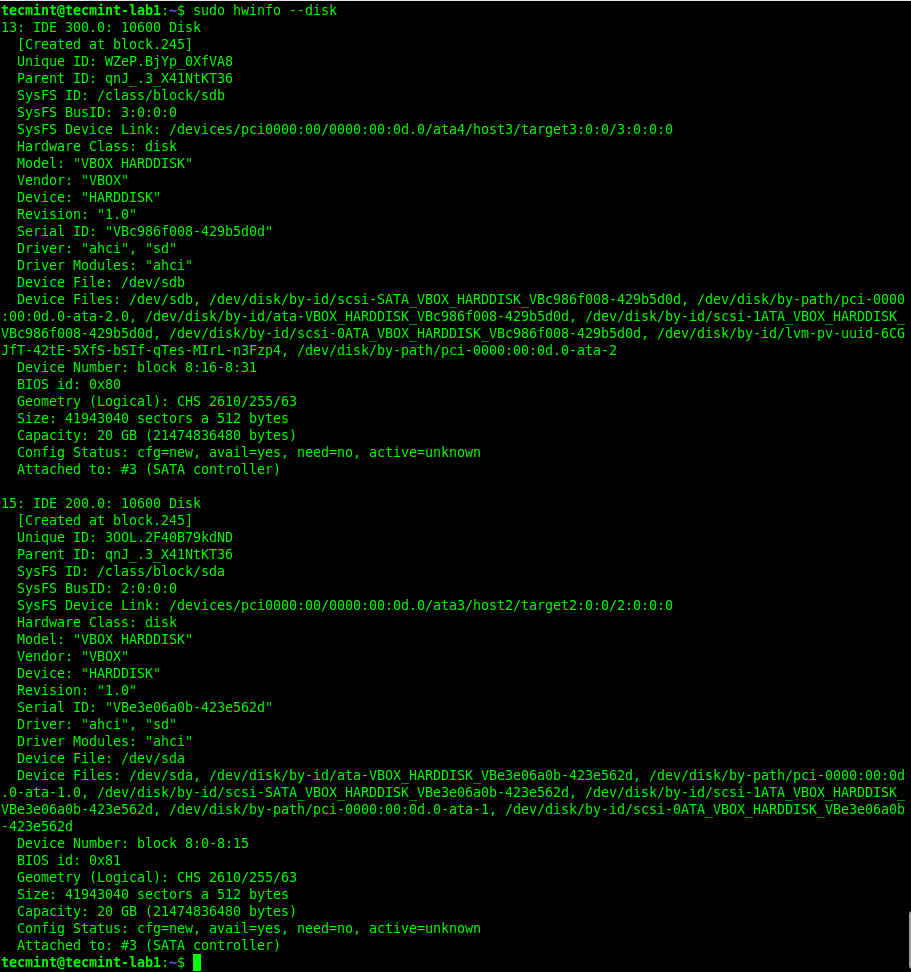
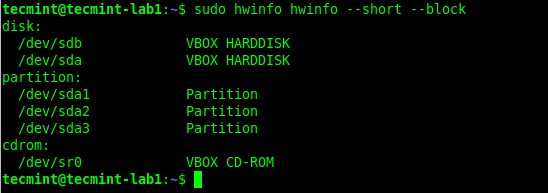
From the output of the previous command, there is a lot of information about a disk or its partitions that hwinfo displays. If you wish to view an overview of block devices, run this command:
sudo hwinfo --short --block
To show a summary of all disks, run the command:
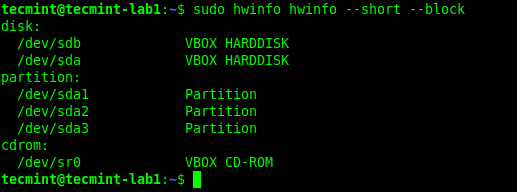
sudo hwinfo --disk --short
When to use hwinfo command:
- Identify disk manufacturer and model.
- Check which kernel driver is being used.
- Troubleshoot hardware detection issues.
- Get BIOS disk ID information.
- Verify disk vendor information.
7. Find Linux Partitions Information Using GNOME Disks Tool
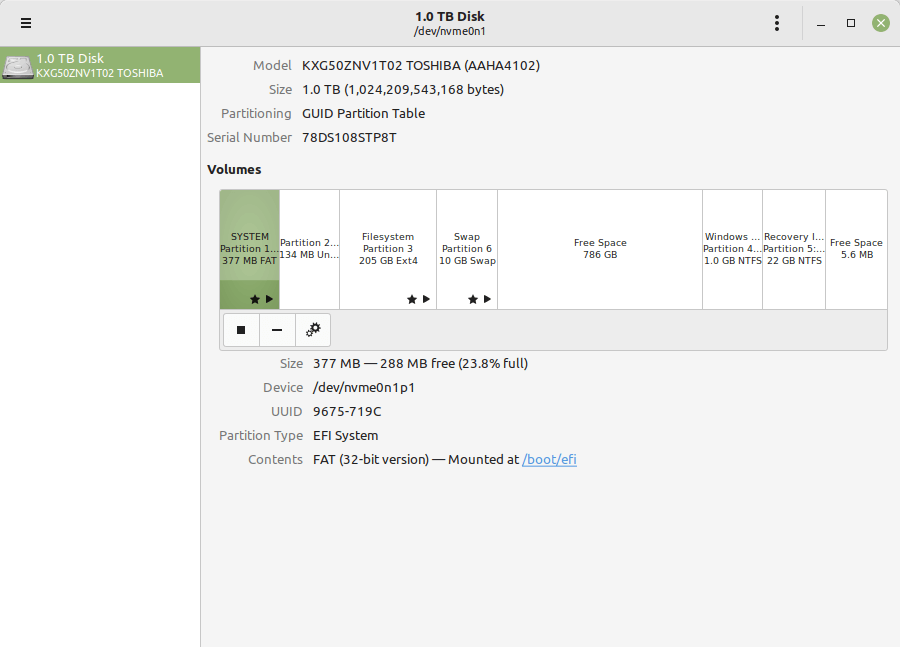
On a Linux desktop computer, you can also use a graphical user interface (GUI) application to view a list of disks attached to your computer. First, search for disks application in the system menu. Then open it to view your disks and their partitions.
GNOME Disks Features:
- View disk and partition information in a visual interface.
- Check SMART data for disk health monitoring.
- Benchmark disk read/write performance.
- Format and partition drives without command line.
- Create disk images and restore from backups.
- Mount and unmount filesystems.
- View detailed partition properties.
For KDE Users: If you’re using KDE Plasma desktop, you can use KDE Partition Manager which provides similar functionality with a KDE-native interface.
# Install KDE Partition Manager
sudo apt install partitionmanager  [On Ubuntu/Debian]
When to use GUI tools:
- Visual representation of disk layout.
- Quick access to SMART health data.
- Benchmark disk performance.
- Format drives without memorizing commands.
- For users who prefer graphical interfaces.
Comparison: Command-Line Tools at a Glance
| Feature | fdisk | lsblk | blkid | parted | df | hwinfo |
|---|---|---|---|---|---|---|
| Requires sudo | Yes | No | Yes | Yes | No | Yes |
| Shows UUIDs | No | With -f | Yes | No | No | No |
| Shows mount points | No | Yes | With -o | No | Yes | No |
| Shows disk usage | No | No | No | No | Yes | No |
| GPT support | Limited | N/A | N/A | Full | N/A | N/A |
| Tree view | No | Yes | No | No | No | No |
| Hardware details | No | No | No | Model only | No | Yes |
| Best for | Partition tables | Quick overview | UUIDs | GPT disks | Disk usage | Hardware info |
Summary
In this guide, we’ve covered seven different ways to view disks and partitions in Linux:
- lsblk – Use for quick visual overview of all block devices and their mount points.
- fdisk -l – Use for detailed partition table information and sector data.
- blkid – Use when you need UUIDs for /etc/fstab configuration.
- parted -l – Use for GPT partition tables and modern UEFI systems.
- df -h – Use to check disk usage on mounted filesystems.
- hwinfo –disk – Use to get detailed hardware specifications and vendor information.
- GNOME Disks – Use for visual disk management and SMART health monitoring.
Quick recommendation:
- Everyday use:
lsblkanddf -h. - System configuration:
blkidfor UUIDs. - Partitioning work:
partedfor modern systems,fdiskfor legacy. - Hardware troubleshooting:
hwinfo. - Desktop users: GNOME Disks or KDE Partition Manager.
For more information about the commands used in this guide, check out their man pages (man command-name). You can also share your thoughts with us via the comment form below.
