

We all love listening to music and watching videos, whether it’s at the gym, at work, or relaxing at home, multimedia content is part of our daily life. Everyone has their own collection of favorite videos and music, and there’s always something new to add.
While there are streaming services like Spotify and YouTube itself, many people still prefer downloading their own content for offline access, better quality control, and organizing their personal media libraries.
Today, we’re going to show you how to easily download both videos and audio tracks from YouTube using yt-dlp – a feature-rich command-line audio/video downloader for Linux.
yt-dlp is an actively maintained fork of youtube-dl, a popular command-line tool for downloading videos from various websites and it offers enhanced features, frequent updates, bug fixes, and support for thousands of sites beyond just YouTube.
While youtube-dl development has significantly slowed down over the years, yt-dlp continues to receive regular updates and remains the recommended choice for downloading videos and audio from YouTube and other supported platforms.
In this tutorial, you will learn how to download videos in various formats, extract MP3 tracks from YouTube videos, download entire playlists, and more. First, you’ll need to install yt-dlp on your system.
Install yt-dlp – A YouTube Video Downloader for Linux
The package yt-dlp is available for RHEL-based and Debian-based distributions, and it can be easily installed by using your favorite package manager.
Important: yt-dlp requires Python 3.10 or higher to function properly.
sudo apt install yt-dlp         [On Debian, Ubuntu and Mint]
sudo yum install yt-dlp         [On RHEL/CentOS/Fedora and Rocky/AlmaLinux]
sudo emerge -a sys-apps/yt-dlp  [On Gentoo Linux]
sudo apk add yt-dlp             [On Alpine Linux]
sudo pacman -S yt-dlp           [On Arch Linux]
sudo zypper install yt-dlp      [On OpenSUSE]
Alternatively, to install the most latest version of yt-dlp, use the following curl or wget to download the official binary file for your operating system.
sudo curl -L https://github.com/yt-dlp/yt-dlp/releases/latest/download/yt-dlp -o /usr/local/bin/yt-dlp
sudo chmod a+rx /usr/local/bin/yt-dlp
Or using wget:
sudo wget https://github.com/yt-dlp/yt-dlp/releases/latest/download/yt-dlp -O /usr/local/bin/yt-dlp
sudo chmod a+rx /usr/local/bin/yt-dlp
Install FFmpeg (Highly Recommended)
For the best experience with yt-dlp, especially when merging video and audio streams or converting formats, you should also install ffmpeg:
sudo apt install ffmpeg         [On Debian, Ubuntu and Mint]
sudo yum install ffmpeg         [On RHEL/CentOS/Fedora and Rocky/AlmaLinux]
sudo pacman -S ffmpeg           [On Arch Linux]
Getting Started with yt-dlp
The yt-dlp command has an extensive help page and to view it, simply type:
yt-dlp --help
If you’re looking for a specific option, use the grep command to search for a specific keyword:
yt-dlp --help | grep format
Download Videos in Best Available Quality
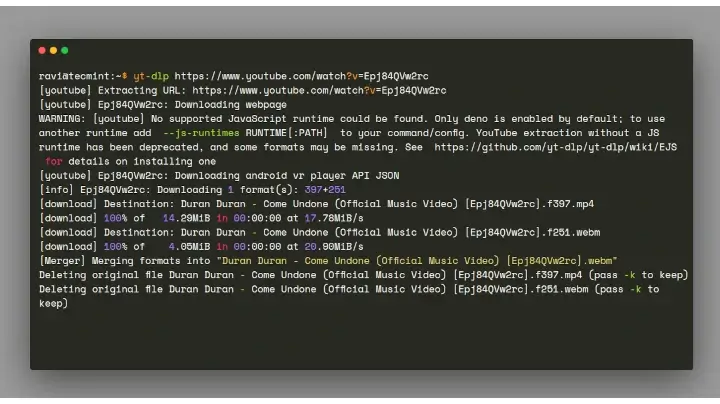
To download a video in the best available quality (video + audio), simply run:
yt-dlp https://www.youtube.com/watch?v=VIDEO_ID
By default, yt-dlp will download the video in the best quality available and merge the video and audio streams automatically.
Download Videos in a Specific Format
To download a video in a specific format like MP4, use:
yt-dlp -f "bestvideo[ext=mp4]+bestaudio[ext=m4a]/best[ext=mp4]/best" https://www.youtube.com/watch?v=VIDEO_ID
Or use the simpler --remux-video option to ensure the output is in MP4 format:
yt-dlp --remux-video mp4 https://www.youtube.com/watch?v=VIDEO_ID
Before downloading, you can list all available formats for a video:
yt-dlp -F https://www.youtube.com/watch?v=VIDEO_ID
This will show you all available video and audio formats with their quality, codec, and file size information. You can then select a specific format using its format code:
yt-dlp -f 137+140 https://www.youtube.com/watch?v=VIDEO_ID
Download MP3 Songs from YouTube Videos
Now, let’s focus on extracting audio from YouTube videos.
To download a video as an MP3 track, you’ll need the following two options:
--extract-audio(short option-x) – Converts video files to audio-only files.--audio-format– Specifies the audio format for the downloaded file.
The supported audio formats are best, aac, alac, flac, m4a, mp3, opus, vorbis, and wav; best is set by default.
Download YouTube Video as an MP3 Song
To download a video as an MP3 file, use the following command:
yt-dlp -x --audio-format mp3 https://www.youtube.com/watch?v=VIDEO_ID
Add Cover Art to MP3 Files
If you want to embed the cover art (thumbnail) in the MP3 file, add the --embed-thumbnail option:
yt-dlp -x --embed-thumbnail --audio-format mp3 https://www.youtube.com/watch?v=VIDEO_ID
Download High-Quality Audio
For the best audio quality, you can specify the audio quality using the --audio-quality option (0 being the best, 10 the worst):
yt-dlp -x --audio-format mp3 --audio-quality 0 https://www.youtube.com/watch?v=VIDEO_ID
Alternatively, download in a lossless format like FLAC for the highest quality:
yt-dlp -x --audio-format flac https://www.youtube.com/watch?v=VIDEO_ID
Download All Videos from a YouTube Playlist
YouTube playlists are extremely popular, and you can download entire playlists with a single command:
yt-dlp https://www.youtube.com/playlist?list=PLAYLIST_ID
Download Playlist as MP3 Songs
To download all songs from a playlist as MP3 files:
yt-dlp -x --audio-format mp3 https://www.youtube.com/playlist?list=PLAYLIST_ID
Download Specific Range from a Playlist
You might want to download only specific videos from a playlist, and for that purpose, use the following options:
--playlist-start NUMBER– Playlist video to start at (default is 1).--playlist-end NUMBER– Playlist video to end at (default is last).
The command below will download the first 5 items from the playlist:
yt-dlp -x --audio-format mp3 --playlist-start 1 --playlist-end 5 https://www.youtube.com/playlist?list=PLAYLIST_ID
Download from Multiple Playlists
To download from multiple playlists, create a text file (e.g., playlists.txt) and add the URLs of the playlists you want to download, one per line:
https://www.youtube.com/playlist?list=PLAYLIST_ID_1
https://www.youtube.com/playlist?list=PLAYLIST_ID_2
https://www.youtube.com/playlist?list=PLAYLIST_ID_3
Then run:
yt-dlp -x --audio-format mp3 -i --batch-file="path/to/playlists.txt"
The -i flag tells yt-dlp to ignore errors and continue downloading even if some videos are unavailable.
Custom Output Filename Template
By default, yt-dlp uses the video title as the filename, but you can customize this using the -o option:
yt-dlp -o "%(uploader)s - %(title)s.%(ext)s" https://www.youtube.com/watch?v=VIDEO_ID
This will save files as “Channel Name – Video Title.mp4“.
Download Video with Subtitles
To download a video along with its subtitles:
yt-dlp --write-subs --sub-lang en https://www.youtube.com/watch?v=VIDEO_ID
To embed subtitles directly into the video file:
yt-dlp --embed-subs --sub-lang en https://www.youtube.com/watch?v=VIDEO_ID
Download Only New Videos
If you’re regularly downloading from a channel or playlist, you can use a download archive to avoid re-downloading videos:
yt-dlp --download-archive downloaded.txt https://www.youtube.com/playlist?list=PLAYLIST_ID
This creates a file that tracks which videos you’ve already downloaded, skipping them on subsequent runs.
Limit Download Speed
To limit the download speed (useful if you don’t want to consume all your bandwidth):
yt-dlp --limit-rate 1M https://www.youtube.com/watch?v=VIDEO_ID
Update yt-dlp to the Latest Version
yt-dlp can update itself to the latest version using the built-in update command:
yt-dlp -U
Note: The latest stable release as of March 2026 is version 2026.03.13 GitHub. The project receives frequent updates with new features, bug fixes, and support for site changes.
For the most recent fixes and features, you can also use the nightly builds:
yt-dlp --update-to nightly
Conclusion
yt-dlp is a powerful, feature-rich command-line tool that makes downloading videos and audio from YouTube incredibly straightforward. Whether you want to build your offline music library, save educational videos, archive your favorite content, or download entire playlists, yt-dlp has you covered.
The tool continues to receive active development and regular updates, ensuring it remains compatible with YouTube’s frequent changes and adds support for new features and websites.
You’re now equipped with the knowledge to download videos in various formats, extract high-quality audio, manage playlists, and customize downloads to suit your needs.
If you have any questions or comments, please feel free to share them in the comment section below.
