

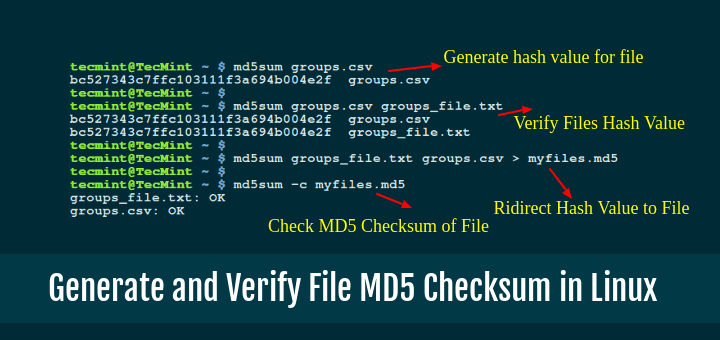
In this guide, we’ll explain what MD5 is, how to generate MD5 checksums for files, and how to verify file integrity using these checksums in Linux.
When working with files on Linux, it’s important to ensure their integrity, especially when downloading files from the internet, transferring data between systems, or verifying backups.
One reliable way to do this is by using checksums, which are unique strings generated from the contents of a file, and the MD5 checksum is one of the most commonly used methods for this purpose.
What is MD5?
MD5 stands for Message Digest Algorithm 5, which is a hashing algorithm that takes input (like a file or text) and produces a 128-bit hash value. This hash value is typically displayed as a 32-character hexadecimal number that’s unique to the file’s content.
Even the smallest change in a file such as adding a single character or modifying a byte will result in a completely different MD5 hash. This property makes MD5 useful for detecting file corruption or unauthorized modifications.
When to Use MD5 Checksums
- Confirming that downloaded files haven’t been corrupted during transfer.
- Checking whether files have been damaged on disk or during backup.
- Determining if two files are identical without opening them.
- Tracking whether configuration or system files have been modified.
Is MD5 Still Secure?
While MD5 is widely used for checking file integrity, it’s no longer considered secure for cryptographic purposes, as it is vulnerable to hash collisions (where different files can produce the same hash). For security-critical applications, use SHA-256 or SHA-512 instead.
However, for basic file verification and integrity checking, MD5 remains effective and is still widely used due to its speed and simplicity.
How to Generate an MD5 Checksum in Linux
To generate an MD5 checksum for a file in Linux, use the md5sum command, which is pre-installed on most Linux distributions.
Generate MD5 for a Single File
md5sum ravi.pdf
After running the command, you’ll see the output like this:
a58b0193fcd0b85b1c85ca07899e063d ravi.pdf
In this output, a58b0193fcd0b85b1c85ca07899e063d is the MD5 checksum of the file ravi.pdf. This 32-character string is unique to the file’s contents.
Save MD5 Checksum to a File
If you want to save the checksum in a file for future use, you can redirect the output to a file like this:
md5sum ravi.pdf > ravi.pdf.md5
This creates a file named ravi.pdf.md5 containing the MD5 checksum and filename. You can later use this file to verify if the original file has been modified.
How to Verify Files with MD5 Checksum
Once you have an MD5 checksum, you can use it to verify if the file has been altered, which is especially useful when downloading files from the internet, as you can compare the checksum of the downloaded file with the one provided by the source.
You’ll need the MD5 checksum of the original file, which may be provided on the website from where you downloaded the file, or you may have saved it yourself earlier.
Verify a Single File
To verify a file against its saved checksum, use the -c (check) option:
md5sum -c filename.md5
Here, filename.md5 is the file containing the checksum you want to verify. For example, if you saved the checksum in ravi.pdf.md5, the command would look like this:
md5sum -c ravi.pdf.md5
If the file hasn’t been modified, you’ll see something like this:
ravi.pdf: OK
If the file has changed, the output will be:
ravi.pdf: FAILED
md5sum: WARNING: 1 of 1 computed checksums did NOT match
This means that the file’s contents are not the same as when the checksum was generated, indicating that the file may have been corrupted or altered.
Verify Multiple Files at Once
You can also verify multiple files at once by using a checksum file that contains the checksums of several files. For example, if you have a file files.md5 that contains the checksums of multiple files, you can verify them all at once:
md5sum -c files.md5
The output will list the verification results for all the files in the files.md5 file.
file1.txt: OK
file2.pdf: OK
file3.zip: FAILED
md5sum: WARNING: 1 of 3 computed checksums did NOT match
This shows which files passed verification and which failed, making it easy to identify corrupted or modified files.
Manual MD5 Checksum Verification
Sometimes you’ll download a file, and the website provides only the MD5 hash (not a .md5 file), so here’s how to manually verify it:
1. Generate the MD5 checksum of your downloaded file:
md5sum ubuntu-24.04-desktop-amd64.iso
Output:
6c95efb72efbc0da21a01a64c6e0a443 ubuntu-24.04-desktop-amd64.iso
2. Compare this hash with the one provided on the website. If they match exactly, the file is intact. If they differ even by a single character, the file may be corrupted.
Practical Examples and Use Cases
The following examples demonstrate how MD5 checksums can be used in real-world situations to verify file integrity, detect corruption, and ensure files remain unchanged.
Example 1: Verify Downloaded ISO File
When downloading a Linux distribution ISO, you’ll often find an MD5 checksum on the download page:
# Download the ISO (example)
wget https://releases.ubuntu.com/24.04/ubuntu-24.04-desktop-amd64.iso

# Generate MD5 checksum
md5sum ubuntu-24.04-desktop-amd64.iso

# Compare with the official MD5 from the website
Example 2: Create Checksums for Backup Verification
Before backing up important files, generate checksums to verify backup integrity later:
# Generate checksums for all files in a directory
md5sum /path/to/important/files/* > backup-checksums.md5

# After restoring from backup, verify all files
md5sum -c backup-checksums.md5
Example 3: Monitor Configuration File Changes
Track whether system configuration files have been modified:
# Generate checksums for config files
md5sum /etc/ssh/sshd_config /etc/fstab > system-configs.md5

# Later, check if configs were modified
md5sum -c system-configs.md5
Better Alternatives to MD5 Checksum
While MD5 is convenient for basic file verification, stronger hashing algorithms are recommended for security-sensitive applications:
SHA-256: More Secure Alternative
SHA-256 is significantly more secure than MD5 and is widely used for cryptographic applications, software distribution, and security verification.
Generate SHA-256 checksum:
sha256sum ravi.pdf
Output:
a19aea692e680dab5046618a7a9a0dac376bc1e8a8bf90430c2967067d633cf1 ravi.pdf
Verify SHA-256 checksum:
sha256sum -c ravi.pdf.sha256
SHA-512: Maximum Security
SHA-512 provides even stronger protection than SHA-256, though it generates longer hash values.
Generate SHA-512 checksum:
sha512sum ravi.pdf
Algorithm Comparison
| Algorithm | Hash Length | Security Level | Best Use Case |
|---|---|---|---|
| MD5 | 32 characters (128-bit) | Weak (vulnerable to collisions) | Basic file integrity checks |
| SHA-1 | 40 characters (160-bit) | Deprecated | Legacy systems only |
| SHA-256 | 64 characters (256-bit) | Strong | General-purpose security |
| SHA-512 | 128 characters (512-bit) | Very Strong | Maximum security requirements |
Recommendation: For new projects, use SHA-256 as the minimum standard. Use MD5 only for basic file integrity checks where security isn’t a concern.
Conclusion
MD5 checksums are a simple and effective way to verify file integrity in Linux. By generating a checksum with md5sum and verifying it later, you can ensure that your files haven’t been corrupted or altered during transfer, storage, or backup.
Although MD5 is no longer considered secure for cryptographic purposes due to vulnerability to collision attacks, it remains a fast and reliable tool for basic file verification tasks.
For security-sensitive applications such as verifying software downloads, digital signatures, or detecting malicious modifications, use stronger alternatives like SHA-256 or SHA-512.
