

In this guide, you’ll learn five practical commands for discovering quick information about any binary command: its purpose, location, and type.
Linux systems come with thousands of commands and programs installed by default, but when you encounter an unfamiliar command in a tutorial, script, or colleague’s workflow, knowing how to quickly identify what it does and where it lives on your system becomes essential.
Understanding these basics helps you master Linux commands faster and makes you more confident when deciding which tools to use for specific tasks, whether working from the command line or writing scripts.
Quick Reference: When to Use Each Command
Before diving into examples, here’s what each command does best:
| Command | Best For | Output |
|---|---|---|
whatis |
Quick command identification | One-line description from the man page; short summary of command’s purpose |
apropos |
Finding commands by keyword | List of related commands whose descriptions match the keyword |
type |
Checking if a command is built-in, alias, function, or external | Command type and, if applicable, its location |
which |
Finding the executable path used in the current shell | Full path to the binary that will run |
whereis |
Locating binary, source files, and man pages | Paths to related files (binary, source, documentation) |
Now let’s explore each command with practical examples.
Finding Installed Commands on Your System
All executable commands on Linux are stored in directories listed in your PATH environment variable.
To see these directories:
echo $PATH
Sample Output:
/usr/local/sbin:/usr/local/bin:/usr/sbin:/usr/bin:/sbin:/bin
These directories contain all installed commands available to run from anywhere on your system. You can explore any of these directories to discover new commands:
ls /usr/bin
For this guide, we’ll use tar (the tape archive utility) as our example command. While you’ve probably heard of tar, you might not know all its capabilities or exactly where it lives on your system, which we are going to explore in this example, and the techniques shown here work the same way for any Linux command.
1. whatis Command – Get a One-Line Description
The whatis command displays a single-line description pulled directly from the command’s manual page, which gives you the quickest overview of what a command does.
whatis tar
Sample Output:
tar (1) - an archiving utility
The number in parentheses indicates the manual section (1 = user commands).
If the description gets truncated, use the -l (long) flag to see the complete text:
whatis -l tar
Sample Output:
tar (1) - an archiving utility for creating and extracting archive files
When to use it: You’ve encountered a command name and want the absolute quickest explanation of its purpose.
2. apropos Command – Search Commands by Keyword
The apropos command searches through all manual page names and descriptions for your keyword, which proves invaluable when you know what you want to accomplish but don’t know which command to use.
apropos tar
Sample Output:
tar (1) - an archiving utility
Like whatis, you can use -l to show complete descriptions:
apropos -l tar
By default, apropos performs a partial match and shows all results containing your keyword.
For example, searching for “archive” shows multiple related tools:
apropos archive
Sample Output:
ar (1)               - create, modify, and extract from archives
tar (1)              - an archiving utility
zip (1)              - package and compress (archive) files
unzip (1)            - list, test and extract compressed files in a ZIP archive
...
To match only the exact command name, use the -e (exact) flag:
apropos -e tar
When to use it: You’re looking for commands related to a specific task (e.g., “apropos compress” to find compression tools).
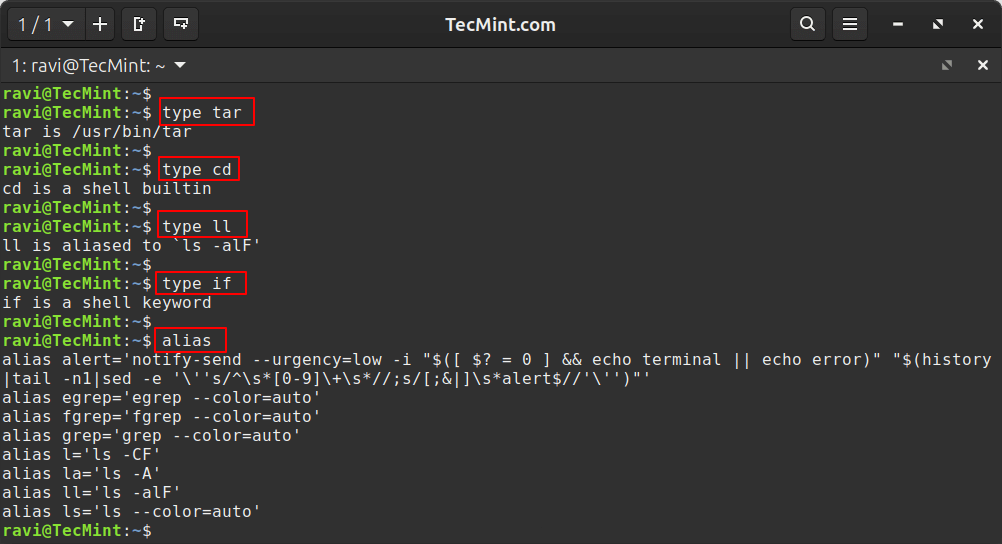
3. type Command – Identify Command Type and Location
The type command tells you what kind of command you’re dealing with and where it’s located. Unlike which, it identifies shell built-ins, keywords, aliases, and functions, not just external binaries.
Check an external binary:
type tar
Check a shell built-in:
type cd
Check an alias:
type ll
Check a shell keyword:
type if
To see all aliases defined on your system:
alias
4. which Command – Locate the Executable Path
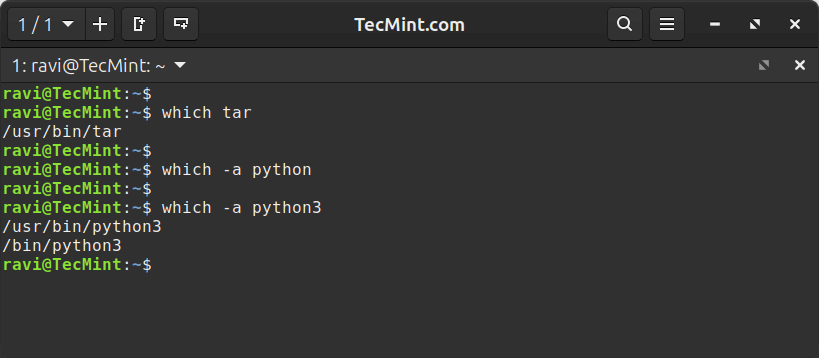
The which command shows the absolute path to an executable binary. It searches through your PATH directories and returns the first match.
Basic usage:
which tar
If multiple versions of a command exist in different PATH directories, use the -a (all) flag to show every match:
which -a python
Important limitation: The which command only finds external executables. It won’t detect shell built-ins, aliases, or functions. For those, use type instead.
When to use it: You need the exact file path to a binary (for example, when configuring a script or checking which version of a program runs by default).
5. whereis Command – Find Binary, Source, and Manual Files
The whereis command locates not just the executable, but also its source code and manual page files, which gives you a complete picture of all files related to a command.
Basic usage:
whereis tar
More examples:
whereis grep
whereis rm
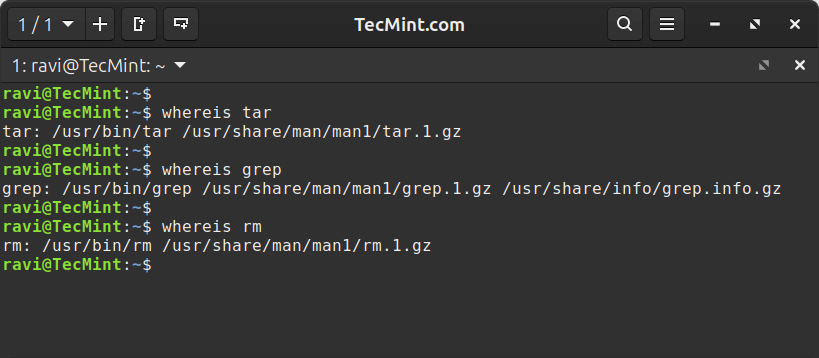
The output shows:
- First path: the binary executable.
- Second path: the manual page file.
When to use it: You want to find all files associated with a command, particularly useful when you’re looking for man pages or need to verify a complete installation.
Reading the Full Documentation
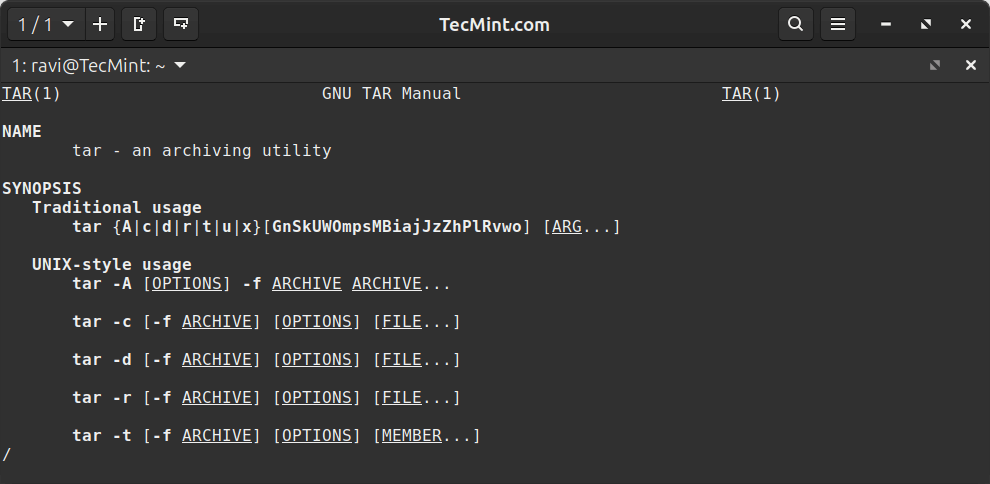
While these commands provide quick lookups, reading the complete manual page always gives you comprehensive documentation, including usage examples, all available options, and related commands.
To open a command’s full manual:
man tar
Navigate with the arrow keys, search with /keyword, and exit with q.
Summary
You now have five tools for quickly learning about any Linux command:
whatis– fastest one-line description.apropos– discover commands by searching keywords.type– identify whether built-in, alias, or external program.which– find the executable’s absolute path.whereis– locate all related files (binary, source, man pages).
Master these lookup commands, and you’ll navigate Linux’s vast command ecosystem with confidence.
The next time you encounter an unfamiliar command, you’ll know exactly how to investigate it before running it or reading its full documentation.
Have questions or other command lookup techniques to share? Drop a comment below.
