


In this article, we show you how to encrypt files with GPG in Linux, generate key pairs, share encrypted files securely, and decrypt them.
In computing, encryption is a popular and most often the recommended technique of hiding information in a secretive format. GnuPG is one of the useful tools for encrypting information (files) on Linux systems.
GnuPG (also known as GNU Privacy Guard or simply GPG) is GNU’s tool used to encrypt data and create digital signatures that contribute to overall information security. It is a complete and free implementation of the OpenPGP Internet standard that provides an advanced key management solution.
There are two versions of GPG available:
- gpg – a standalone version that is more suited for servers and embedded platforms.
- gpg2 – a version intended for desktops and requires several other modules to be installed.
In some popular Linux distributions such as Debian and Ubuntu, the gnupg2 package is a dummy transitional package that provides symlinks from gpg2 to gpg, which means when you install gnupg2, you’re actually getting the modern unified version of GPG.
Understanding the Scenario
It demonstrates information sharing between two parties:
The file shared between the two parties is called secret.txt, which contains a highly sensitive password that the Test Admin wants to share with user Kili Aaron.
You can view the contents of the secret.txt file that contains the password and other remote access details using the following cat command, as shown. It exists on the Test Admin’s server:
cat secret.txt
Install GnuPG (GNU Privacy Guard) on Linux
To install the GnuPG package, run the appropriate command for your Linux distribution as shown; note that the gnupg package must be installed on both systems that are sharing data.
However, most modern Linux distributions come with GPG preinstalled, so you can verify whether it is already available by running gpg --version before attempting to install it.
sudo apt install gnupg          [On Debian, Ubuntu and Mint]
sudo yum install gnupg          [On RHEL/CentOS/Fedora and Rocky/AlmaLinux]
sudo emerge -a app-crypt/gnupg  [On Gentoo Linux]
sudo apk add gnupg              [On Alpine Linux]
sudo pacman -S gnupg            [On Arch Linux]
sudo zypper install gnupg       [On OpenSUSE]
Generating New GPG Key Pairs in Linux
To generate new key pairs (public and private), run the gpg command with the --full-generate-key flag on both systems and follow the prompts to define the kind of key, the key size, how long the key should be valid, a user ID to identify your key, and a secure passphrase for the key as shown in the screenshot that follows.
gpg --full-generate-key
During the key generation process, you’ll be asked to:
- Select the type of key (RSA and RSA is recommended).
- Choose the key size (4096 bits is recommended for maximum security).
- Set an expiration date (you can set it to never expire or choose a specific duration).
- Enter your name and email address.
- Provide a secure passphrase (make sure it’s strong and memorable).
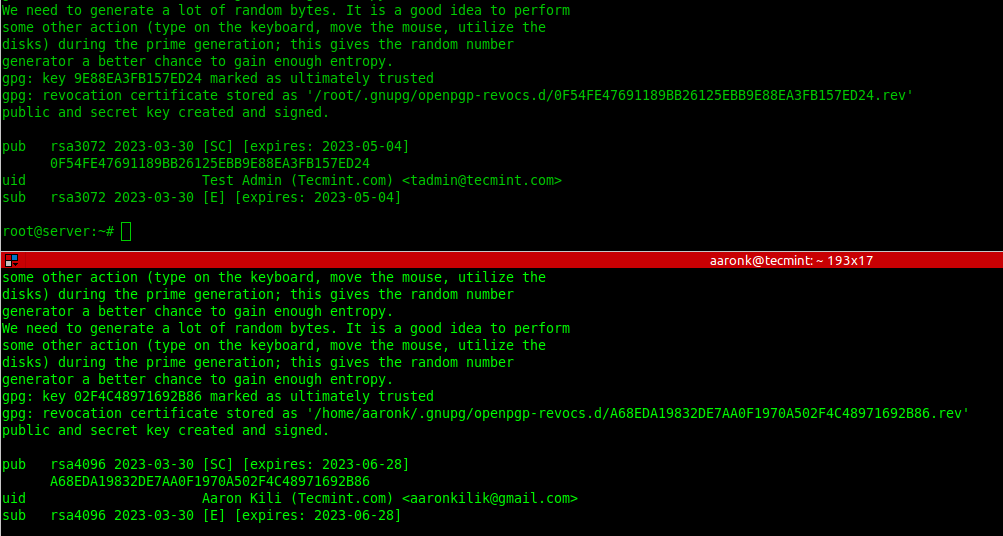
List GPG Key Pairs in Linux
To list the public GPG key you have just created together with other existing keys, run the gpg command with the --list-public-keys flag. To perform a long listing, add the --keyid-format=long flag.
gpg --list-public-keys
OR
gpg --list-public-keys --keyid-format=long
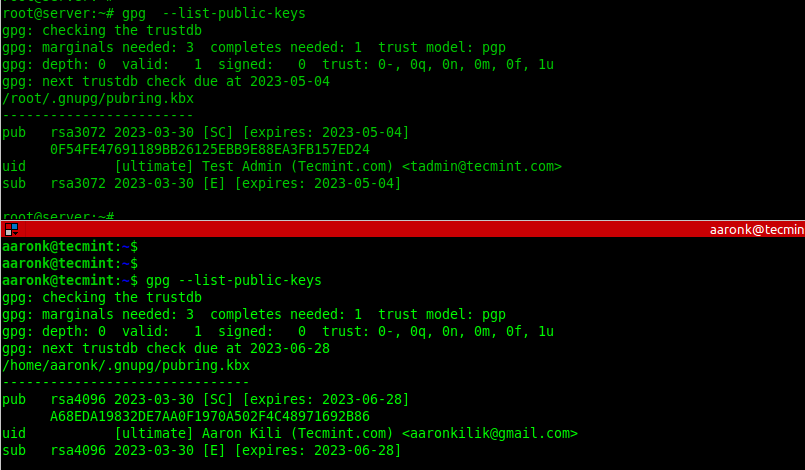
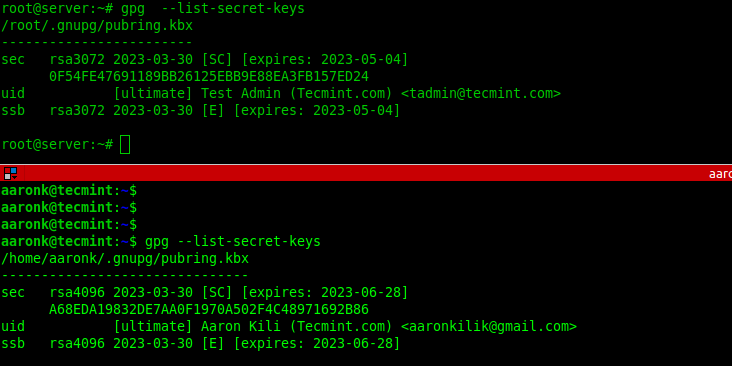
To list the secret GPG key you have just created together with other existing keys, run the gpg command with the --list-secret-keys flag. To perform a long listing, add the --keyid-format=long flag.
gpg --list-secret-keys
OR
gpg --list-secret-keys --keyid-format=long
Export Keys with GPG in Linux
Once the GPG key pairs have been generated on both sides, the two parties can export their public keys into a file and share them via email or other means.
--------- On Kili Aaron Server ---------
gpg --list-public-keys
gpg --export -o aaronsec.key 15B4814FB0F21208FB5076E7A937C15009BAC996

--------- On Test Admin Server ---------
gpg --list-public-keys
gpg --export -o tadminsec.key BC39679E5FF48D4A6AEF6F3437211F0B4D6D8A61
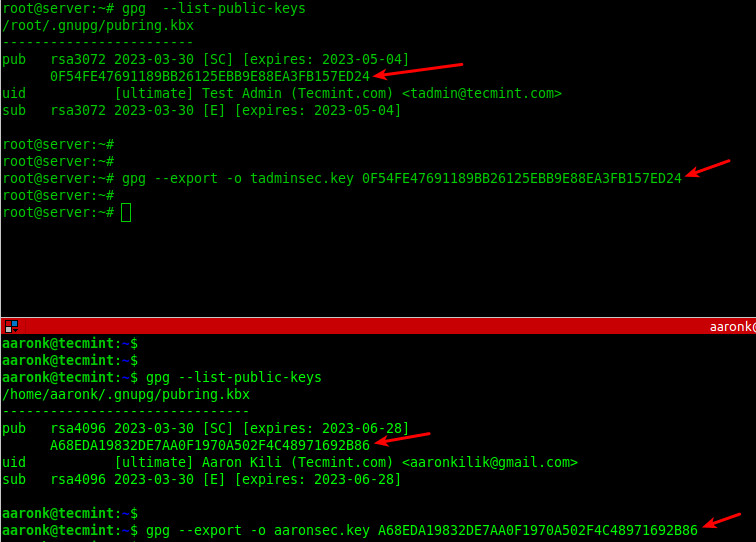
The key ID (the long alphanumeric string) can be found in the output of the --list-public-keys command. You can use either the full fingerprint or the last 8-16 characters of the key ID.
Import Keys with GPG in Linux
Next, exchange the public keys either via email or secure other means, such as using the scp command as shown:
scp aaronsec.key [email protected]:/root/
scp [email protected]:/root/tadminsec.key ./

Next, import the public key from the opposite end into the local system public keyring by adding the --import flag as shown.
gpg --import aaronsec.key
gpg --import tadminsec.key
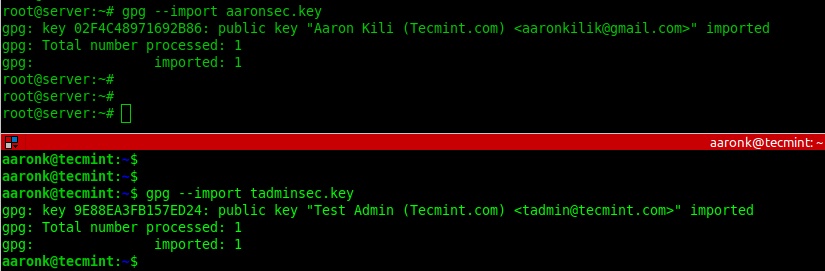
To check if the imported public key exists in the local system keyring, list the available public keys as shown.
gpg --list-public-keys
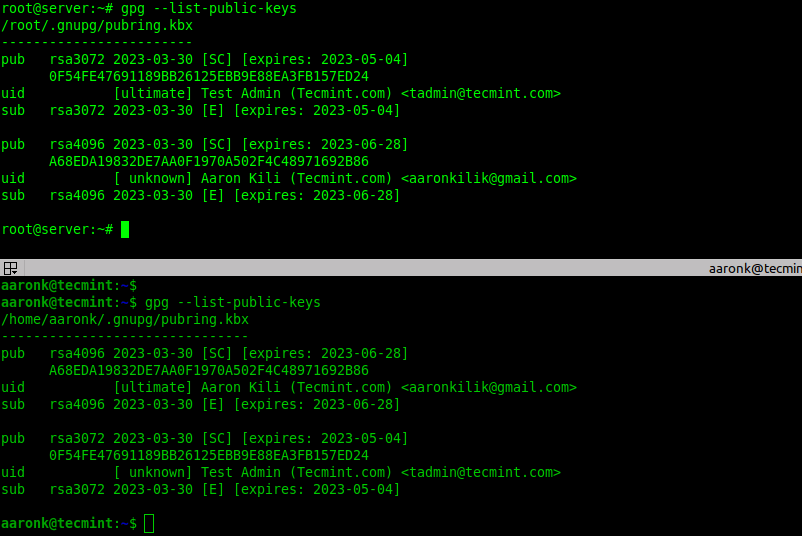
Encrypting Files Using GPG in Linux
Now, let’s look at how to encrypt the secret file using gpg keys. For this section, we will run the commands on the Test Admin’s server.
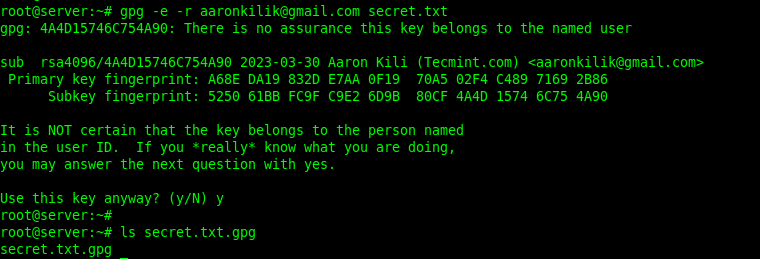
To encrypt a plain-text file using the just-created GPG key pair, run the following command. The -e or --encrypt flag enables encryption, and the -r or --recipient flag is used to specify the recipient ID, and secret.txt is the plain-text file to be encrypted.
The following command encrypts the file secret.txt using the recipient [email protected]’s public key:
gpg -e -r [email protected] secret.txt
OR
gpg --encrypt --recipient [email protected] secret.txt
If the previous command runs successfully, a new file (the original filename ending with .gpg extension) will be generated in the current directory:
ls secret.txt.gpg
To store the encrypted information in a different file, use the -o or --output option followed by a filename. In this example, the preferred filename is node_configs:
gpg -e -r [email protected] -o node_configs secret.txt
OR
gpg --encrypt --recipient [email protected] --output node_configs secret.txt
Now share the encrypted file with your partner via email or other secure means.
Pro tip: You can encrypt files for multiple recipients by adding multiple -r flags with different email addresses. This way, multiple people can decrypt the same file using their respective private keys.
Decrypting Files Using GPG in Linux
To decrypt a file encrypted using gpg, add the -d or --decrypt flag and specify the encrypted filename. By default, the decrypted information will be displayed in standard output. You can store it in a file using the -o flag as shown.
gpg -d -o secrets.txt secrets.txt.gpg
ls secrets.txt
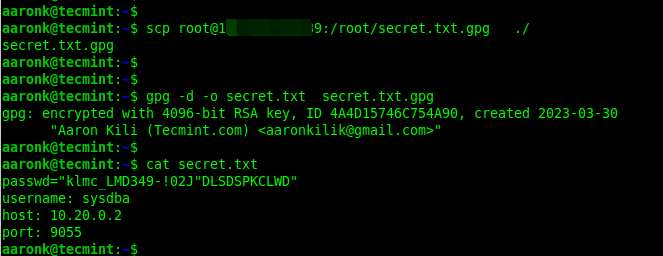
When you run the decryption command, GPG will prompt you to enter the passphrase you set during key generation. Make sure you enter it correctly to decrypt the file successfully.
Additional GPG Security Best Practices
While GPG is incredibly secure, following these best practices will enhance your encryption workflow:
- Use strong passphrases: Your private key is only as secure as your passphrase, so use a combination of uppercase, lowercase, numbers, and special characters.
- Backup your keys: Store a backup of your private key in a secure location. If you lose it, you won’t be able to decrypt your files.
- Set key expiration: Consider setting an expiration date for your keys, which will limit the damage if a key is compromised.
- Verify key fingerprints: Before importing someone’s public key, verify the fingerprint through a secure channel to prevent man-in-the-middle attacks.
- Revoke compromised keys: If you suspect your private key has been compromised, generate a revocation certificate and distribute it immediately.
For more information, see the gpg/gpg2 man page as shown.
man gpg
OR
man gpg2
Conclusion
That’s it for the scope of this guide. GPG is a commonly used tool for encrypting and decrypting information or files in Linux. It provides military-grade encryption that’s trusted by security professionals worldwide.
If you have any comments to share about this guide, use the feedback form below.
